Client
36 cases30 passed 3 failed 2 manual 1 other
1A. Marketing & Public Pages
4 passed 1 failed 1 other
PassedTC-C-01Homepage loads correctly4.0s
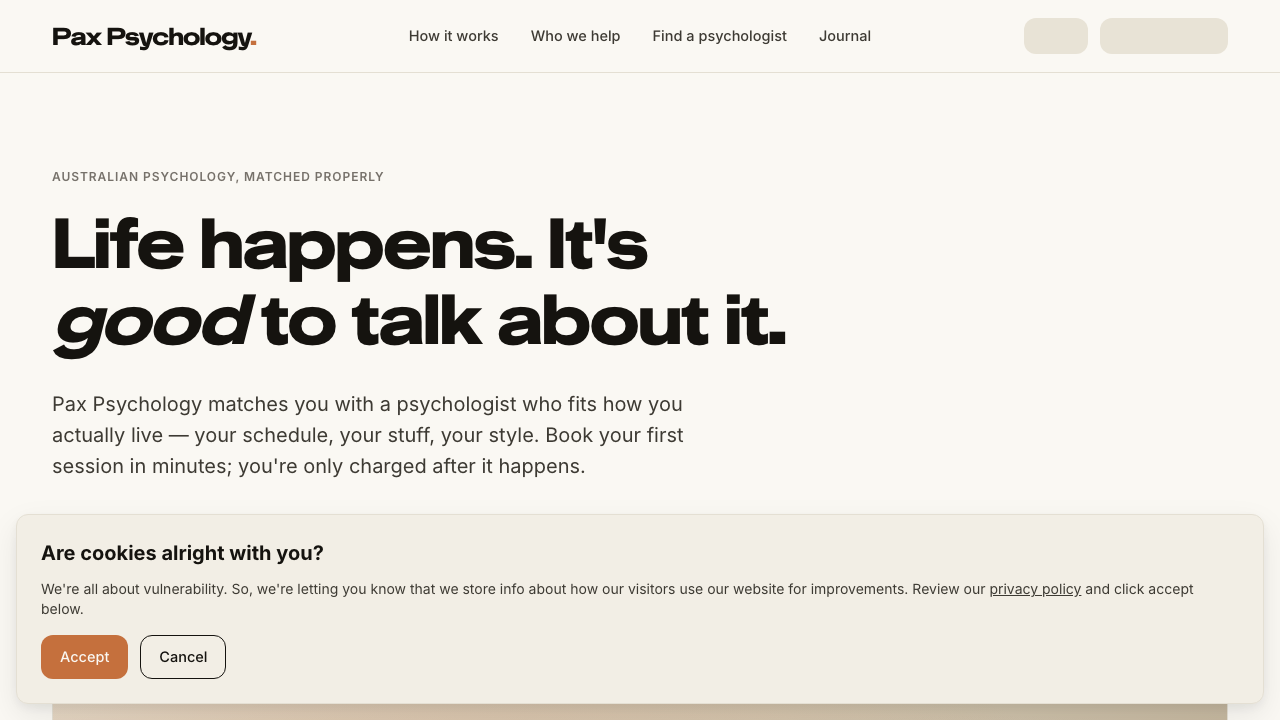
- 1. Navigate to https://paxpsychology.dev/
- 2. Scroll through the full page
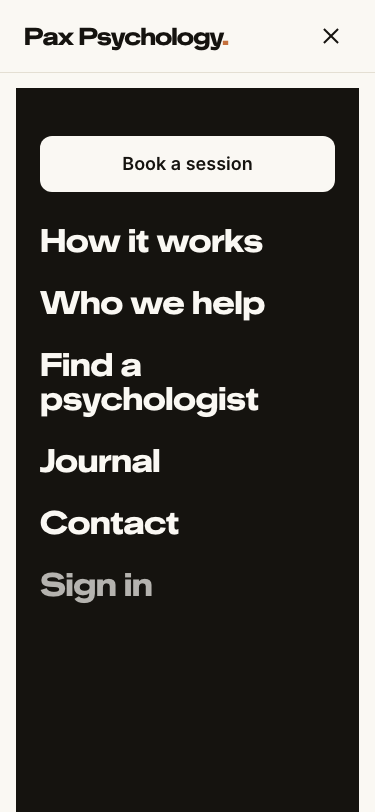
- Notes. At 375px the nav collapses to a hamburger whose panel adds Contact
PassedTC-C-02Navigate to Our Story page3.2s
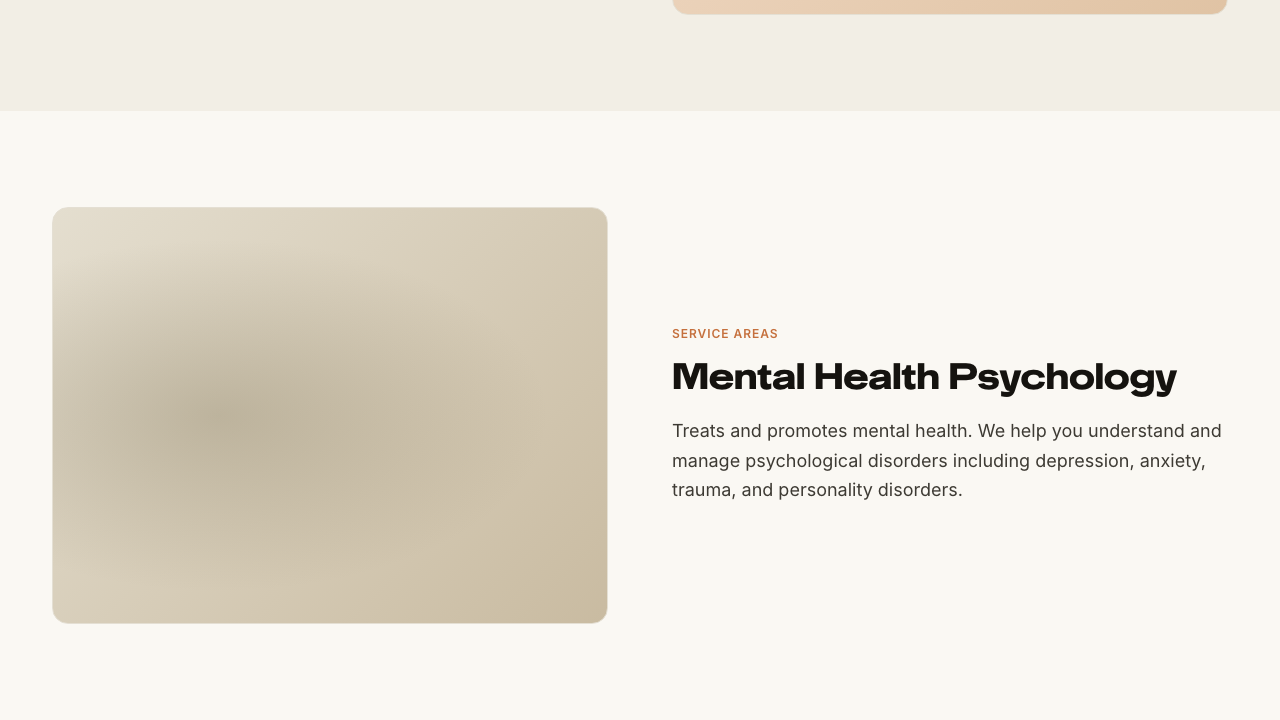
PassedTC-C-03Navigate to For Business page2.2s
- 1. Navigate to https://paxpsychology.dev/for-business
- 2. Click “Enter” with the code field empty
- 3. Type any code and click “Enter”
FailedTC-C-04Navigate to Contact page35.6s
- 1. Navigate to https://paxpsychology.dev/contact
- 2. Click “Submit” with the form empty, and check the validation messages
- 3. Fill in the form: Name, Email address, Phone and Message
- 4. Click “Submit” — failed
Error: expect(locator).toBeVisible() failed

Locator: getByText('Thanks for your message. Someone from the team will be in touch shortly.').first()
Expected: visible
Timeout: 30000ms
Error: element(s) not found

Call log:
  - Expect "soft toBeVisible" with timeout 30000ms
  - waiting for getByText('Thanks for your message. Someone from the team will be in touch shortly.').first()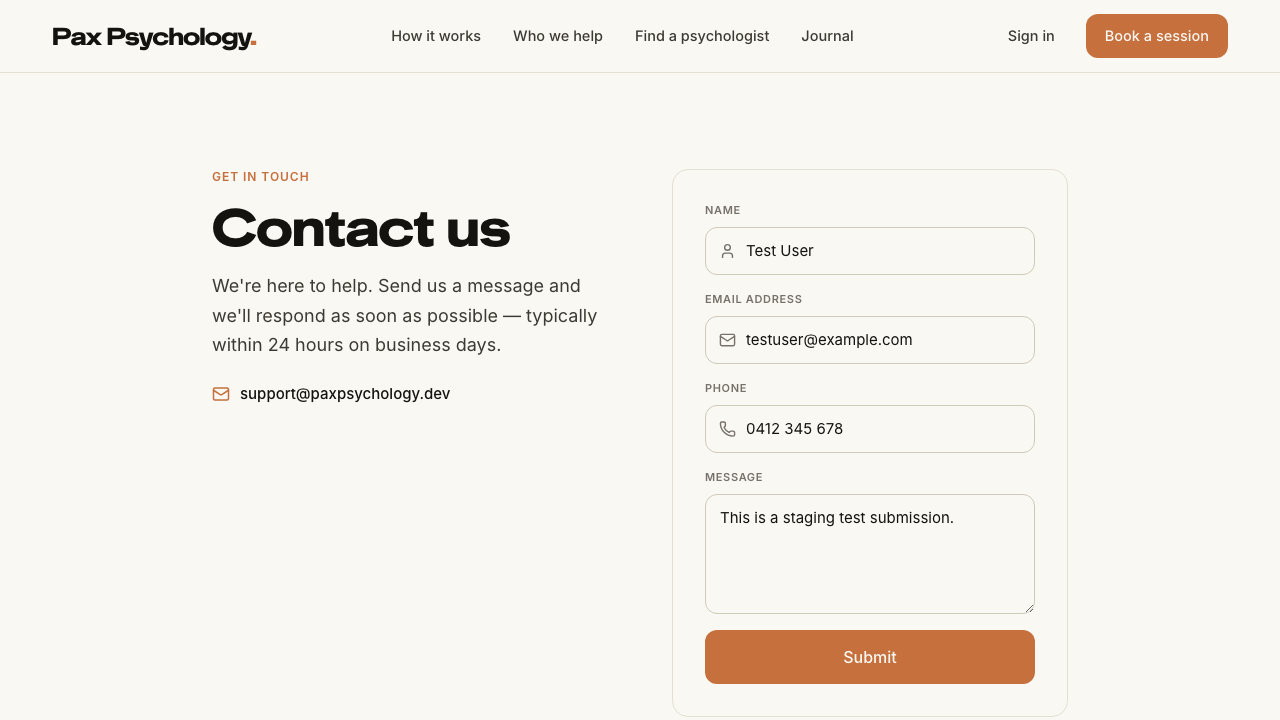
PassedTC-C-05Privacy Policy and Terms of Use pages load2.7s
- 1. Navigate to https://paxpsychology.dev/privacy-policy
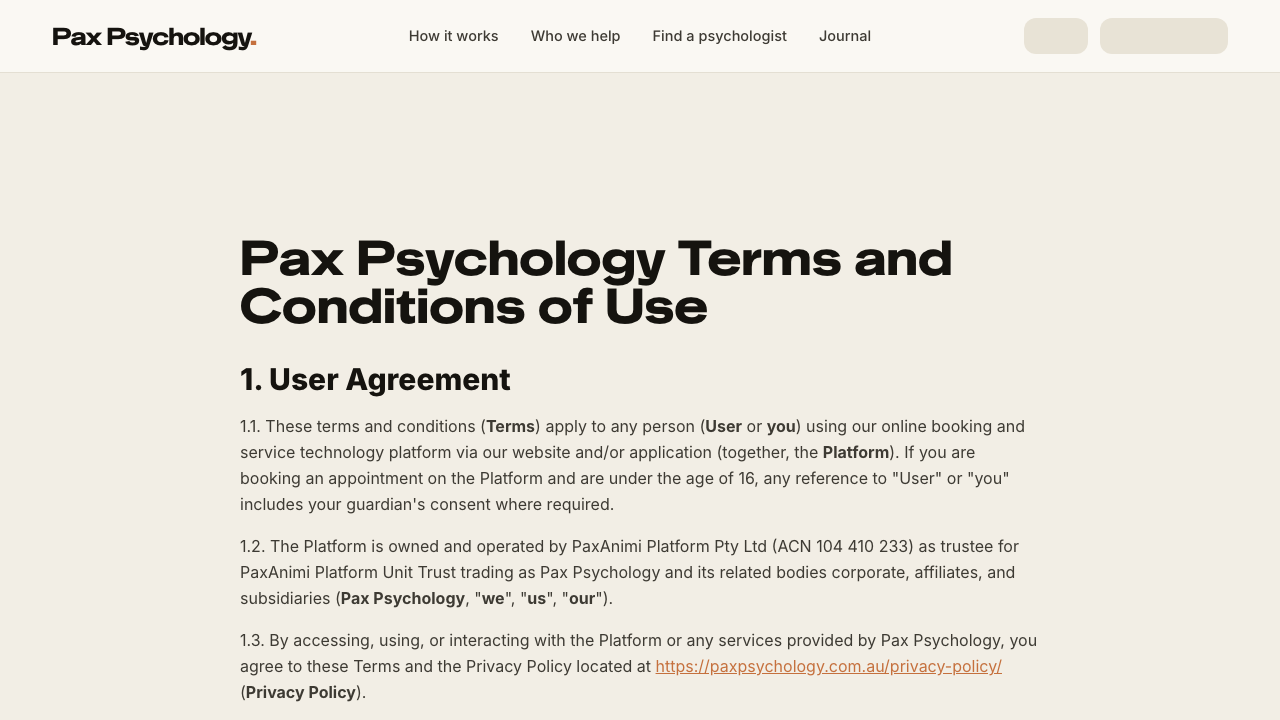
- 2. Navigate to https://paxpsychology.dev/terms-of-use
RetiredTC-C-06Newsletter signup from homepage footer—
Retired by the 2026-09-03 script revision: the homepage and footer no longer contain a newsletter form. The only signup on the site is the strip at the foot of /journal, covered by TC-C-27.
1B. Find Your Match (6-step wizard)
3 passed
PassedTC-C-07Complete the full match wizard13.5s
- 1. Navigate to https://paxpsychology.dev/onboarding
- 2. Confirm the chrome: brand link, “Step 1 of 6” counter, ochre progress bar and “Save & exit”
- 3. Step 1 — focus. Select a chip; “Continue” is disabled until one is chosen
- 4. Step 2 — story. Type a sentence, then click “Continue”
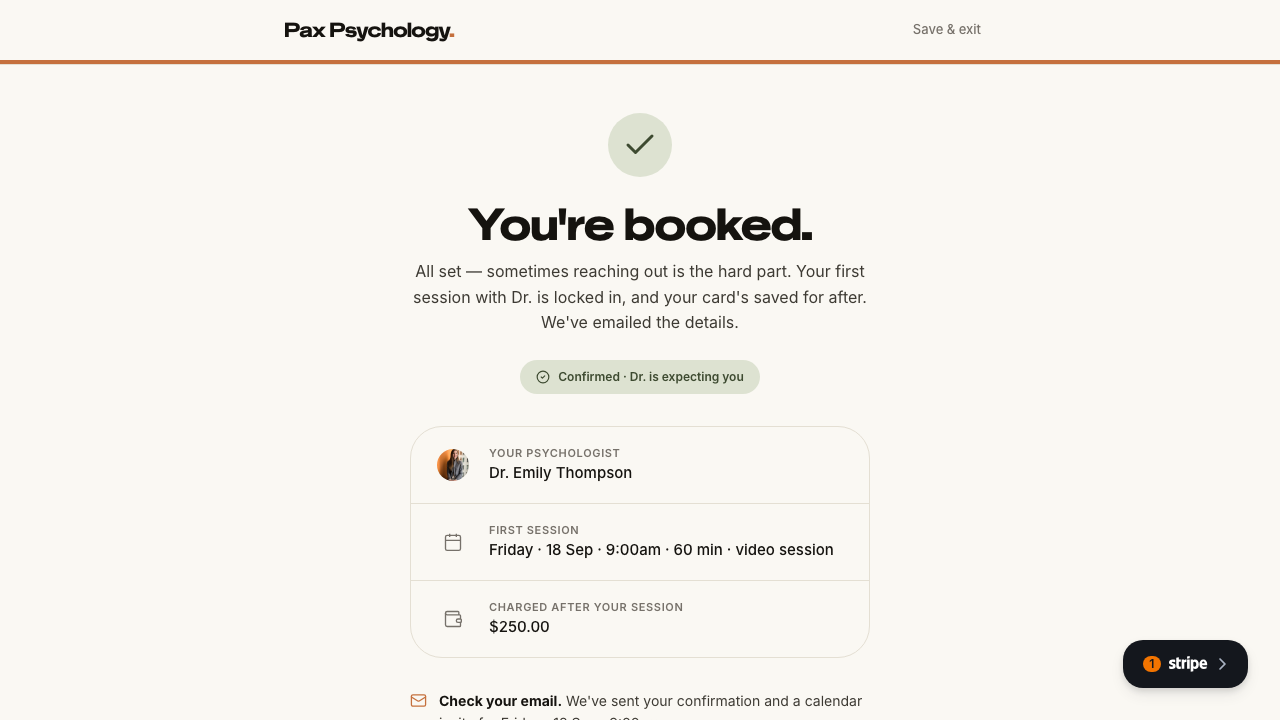
- 5. Step 3 — availability. Pick a chip, then click “See my matches”
- 6. Step 4 — shortlist. Pick a psychologist, then click “Pick a session time”
- 7. Step 5 — time slot. Pick a day and a slot, then “Continue to details”
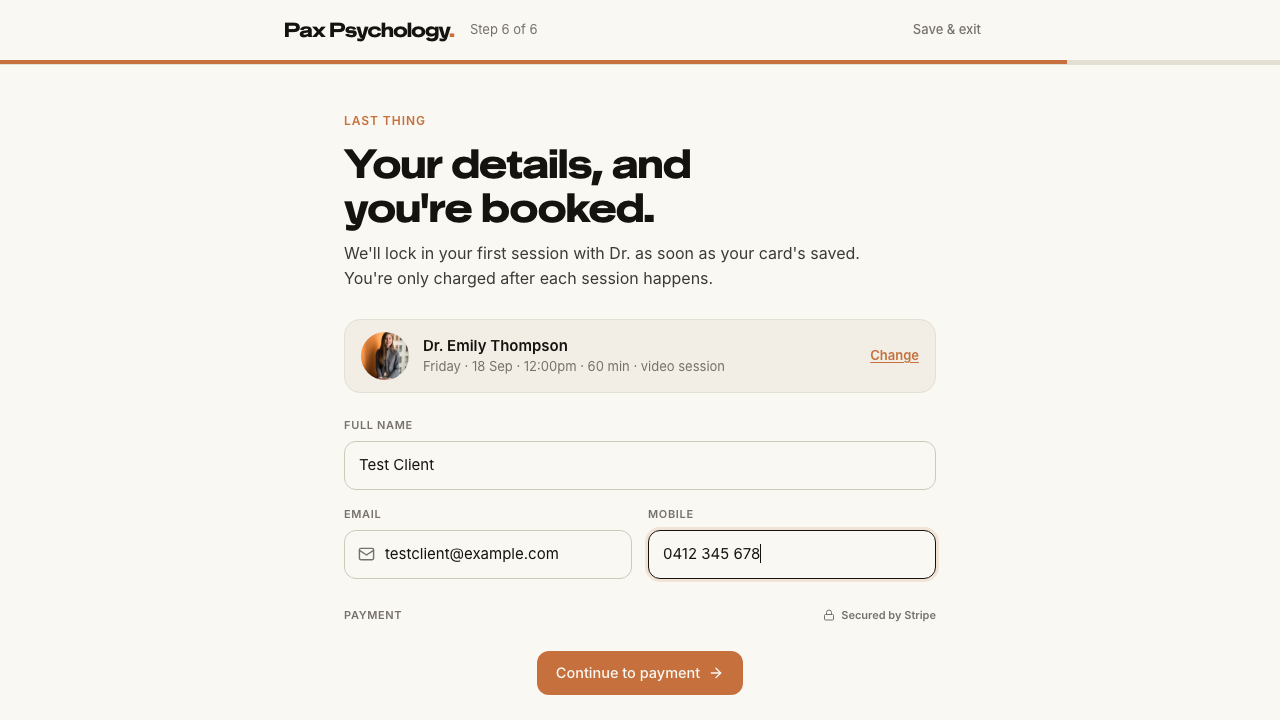
- 8. Step 6 — details + payment. Fill the details and save the card
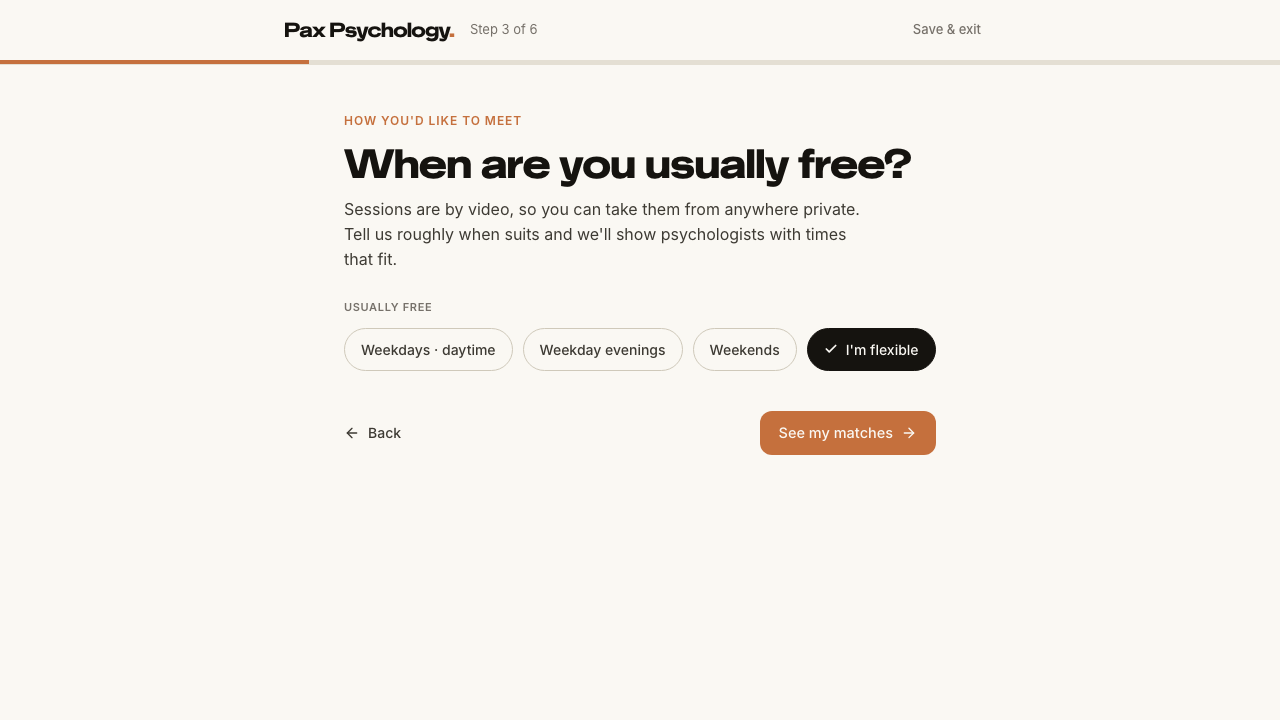
- 9. Confirmation. Verify the success screen
PassedTC-C-08Match wizard progress persistence4.5s
- 1. Navigate to https://paxpsychology.dev/onboarding
- 2. Complete step 1 (focus) and step 2 (story), and land on step 3 (availability)
- 3. Close the tab, then reopen https://paxpsychology.dev/onboarding
- 4. Repeat, but get as far as step 4 (shortlist) before closing — only steps 1–3 persist
PassedTC-C-08aEmail validation on the details step (new)3.0s
- Precondition. Reach step 6 of the wizard
- 1. Type `notanemail` into “Email” then click elsewhere (blur the field)
- 2. Correct it to a valid address — the error updates live on each keystroke
1C. Psychologist Directory
2 passed
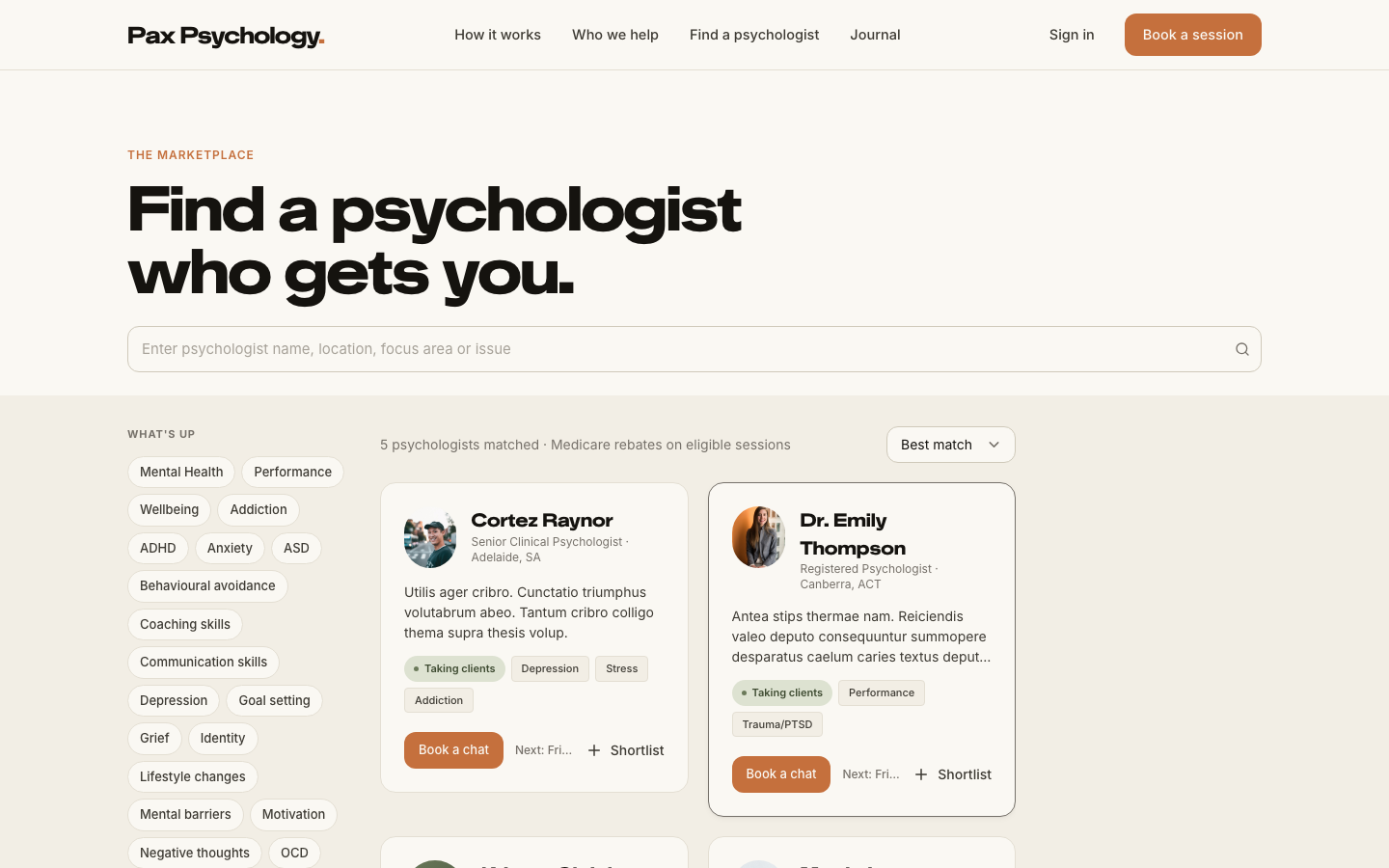
PassedTC-C-09Browse the directory and use the desktop filters14.4s
- 1. Navigate to /psychologists on a desktop-width window
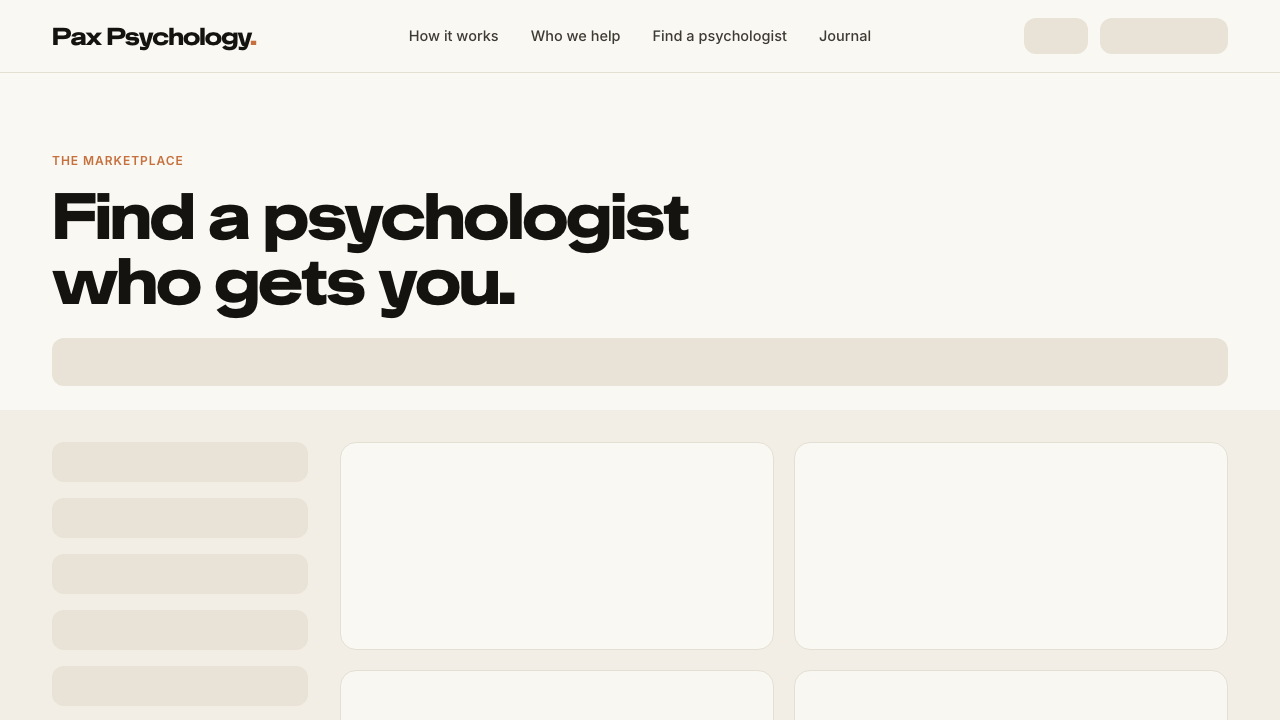
- 2. Confirm the eyebrow “The marketplace” and H1 “Find a psychologist who gets you.”
- 3. Search using the box — try a psychologist’s name, then a location
- 4. In the left sidebar, tick a “Location” checkbox
- 5. Choose a “Psychologist’s gender” radio option
- 6. Select a chip under “What’s up”
- 7. Toggle “Taking clients now”
- 8. Change the sort dropdown from “Best match” to “Lowest rate”
- 9. Click “Clear all” in the pill row above the results
PassedTC-C-10View an individual psychologist profile page3.7s
- 1. From /psychologists, click a psychologist['’]s name and then “Full profile”
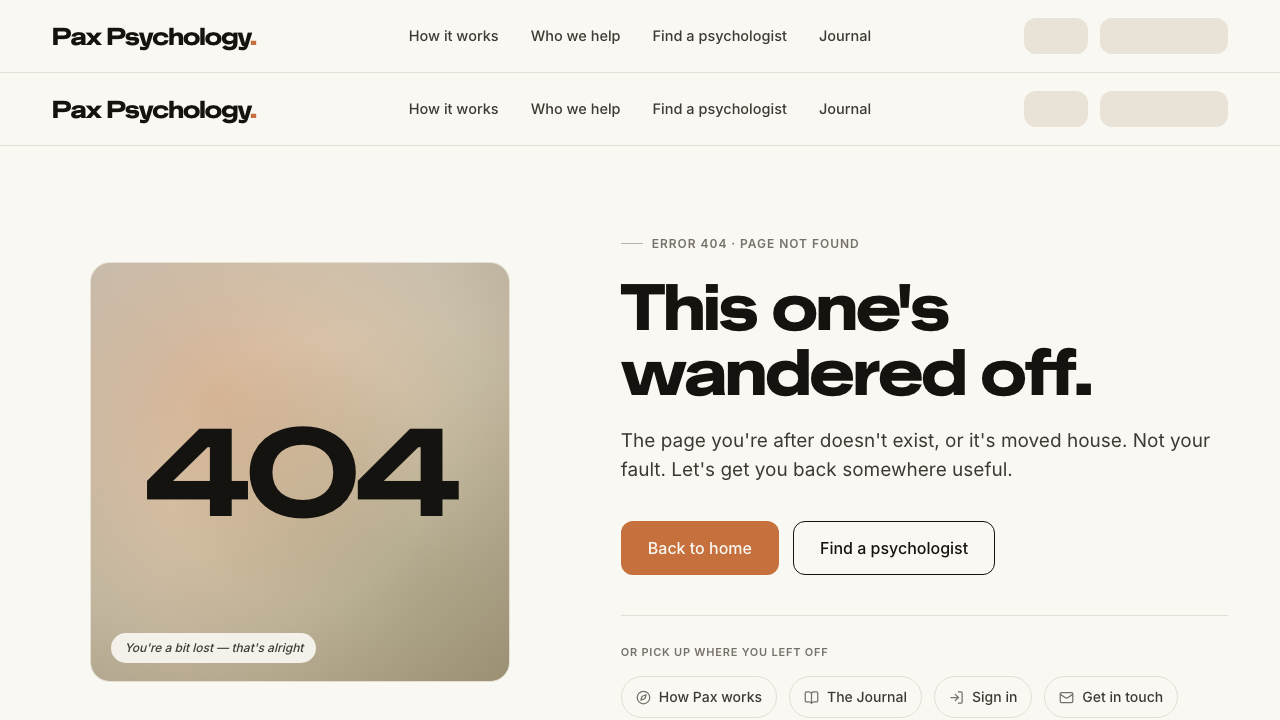
- An unknown username returns a real 404
1D. Authentication
4 passed 2 manual
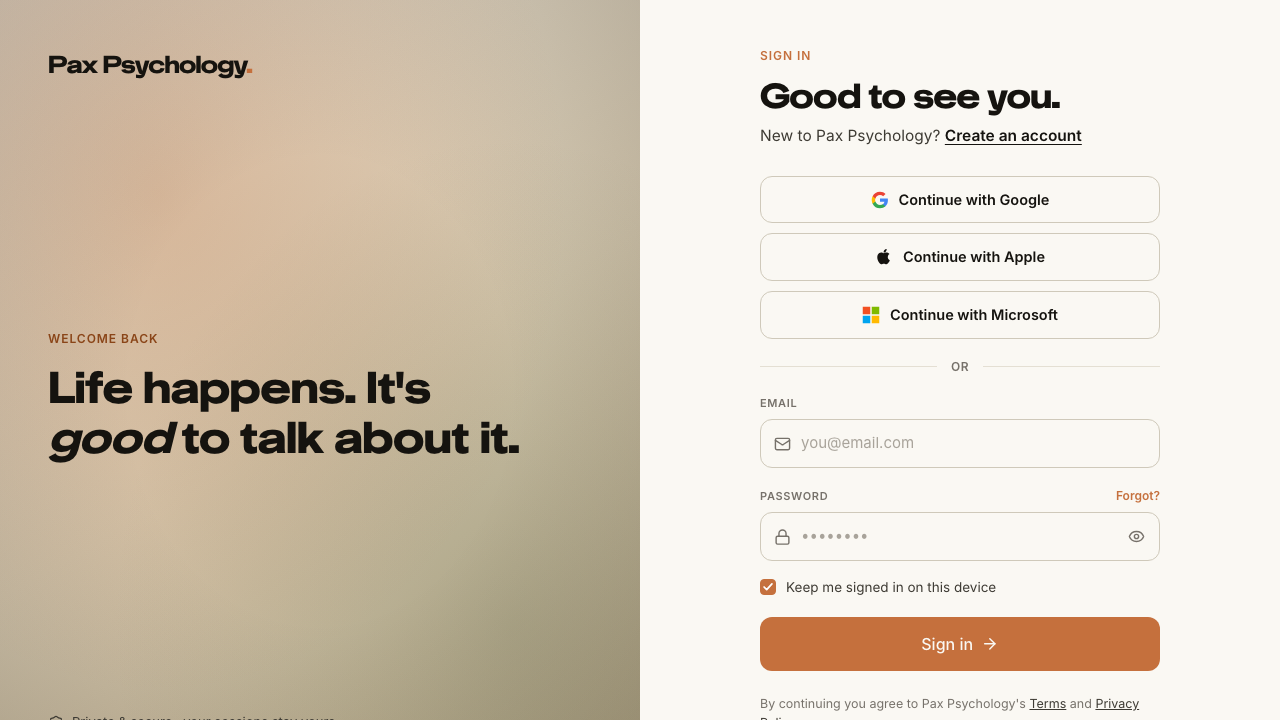
PassedTC-C-11Login with email/password3.0s
- 1. Navigate to https://paxpsychology.dev/auth/login
- 2. Check the page copy
- 3. Enter client@paxpsychology.dev and Test123!
- 4. Click “Sign in”
ManualTC-C-12Login with Google OAuth—
Google's hosted consent screen cannot be driven from Playwright (bot detection plus a real Google account and 2FA). Verify by hand: /auth/login → “Continue with Google” → land on /dashboard.
ManualTC-C-13Login with Microsoft OAuth—
Microsoft Entra's hosted sign-in cannot be driven from Playwright (bot detection plus a real tenant account). Verify by hand: /auth/login → “Continue with Microsoft” → land on /dashboard.
PassedTC-C-14Forgot password flow4.9s
- 1. From /auth/login, click “Forgot?” to reach /auth/forgot-password
- 2. Enter the account email and click “Send reset link”
- 3–5. MANUAL: open the reset email, follow the link, set a new password and sign in with it
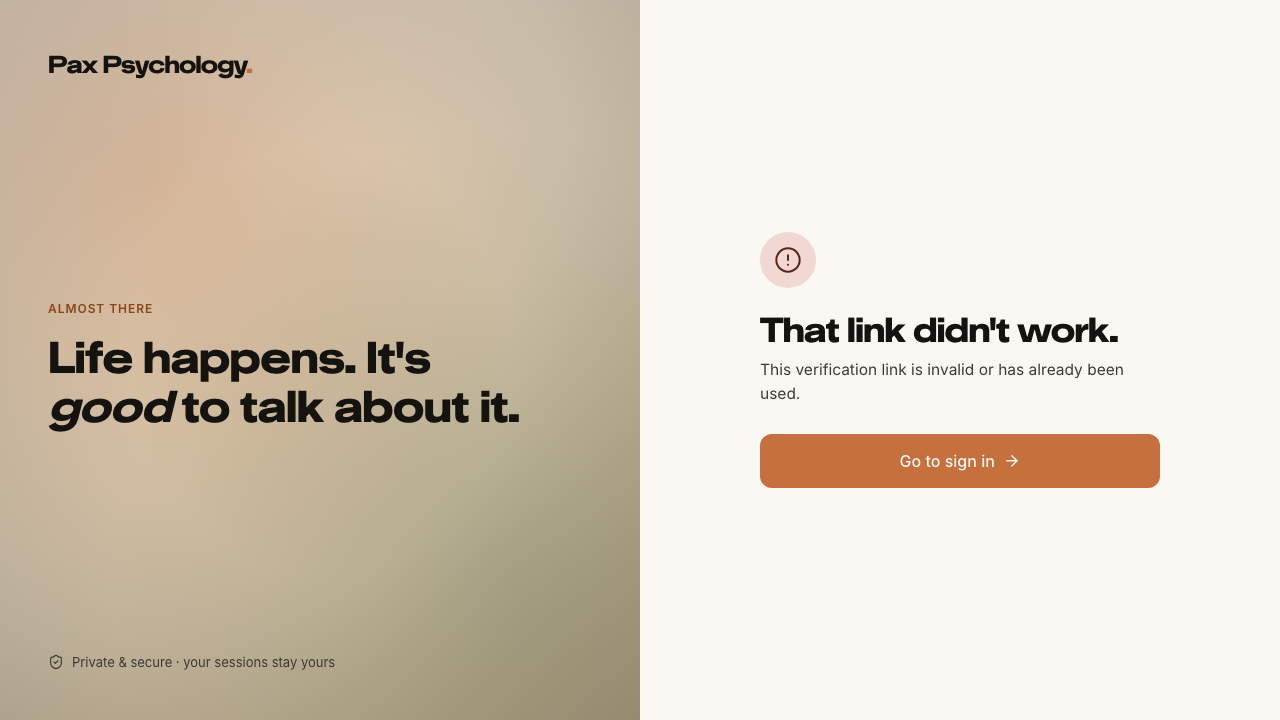
- 6. Separately, open /auth/reset-password with no ?token
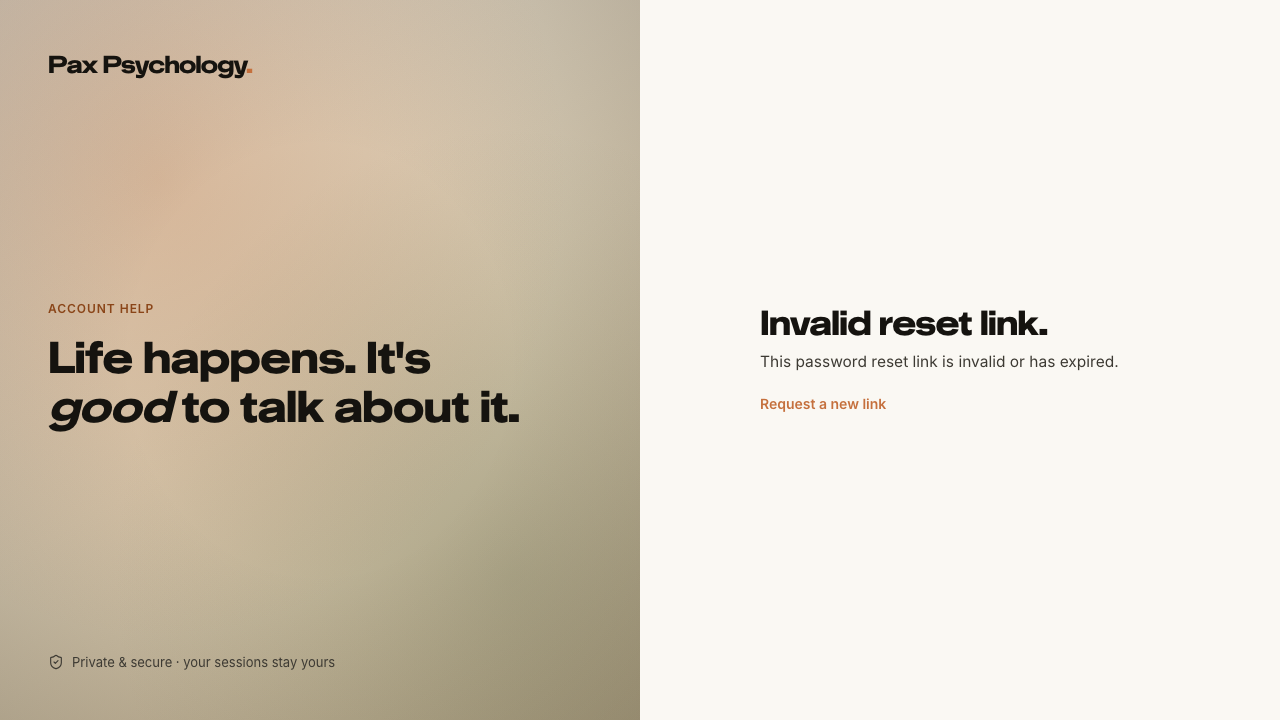
PassedTC-C-15Login with invalid credentials1.9s
- 1. Navigate to https://paxpsychology.dev/auth/login
- 2. Enter invalid@example.com / wrongpassword and click “Sign in”
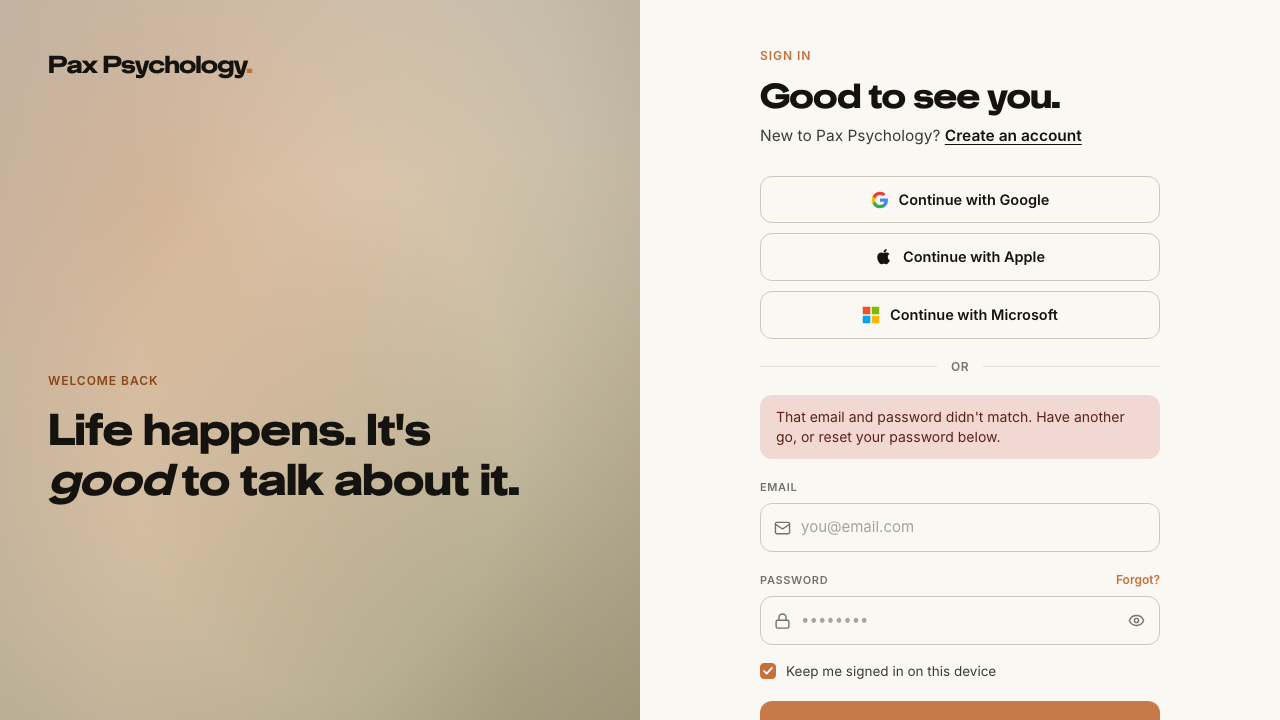
PassedTC-C-16Sign out5.8s
- 1. From any dashboard page, click the user chip at the bottom of the left sidebar
- 2. Confirm the menu contains “Settings” and “Sign out”
- 3. Click “Sign out”
- 4. Log back in, then use the “Sign out” button in the red “Account” panel of Settings › Account
1E. Booking Flow
3 passed
PassedTC-C-17Complete a full booking (card saved, charged later)14.7s
- 1. From a psychologist profile click “Book a session” to reach /book/[username]/[appointmentName]
- 2. Step “Select Time”: pick a date, then a slot under “Available times for …”
- 3. Step “Your Info”: fill the form, tick both consents and click “Continue to Payment”
- 4. Step “Payment”: read the callouts, enter 4242 4242 4242 4242 and click “Confirm Booking - $<amount>”
- 5. Housekeeping: cancel the booking so the psychologist's calendar stays clean
PassedTC-C-18Booking as a signed-in client (Review Info step)13.5s
- 1. Go to a booking page and select a date and time
- 2. Continue
- Saved cards are offered under “Payment Method”, with the default one marked “Default”
- Housekeeping: cancel the booking from the client Sessions list
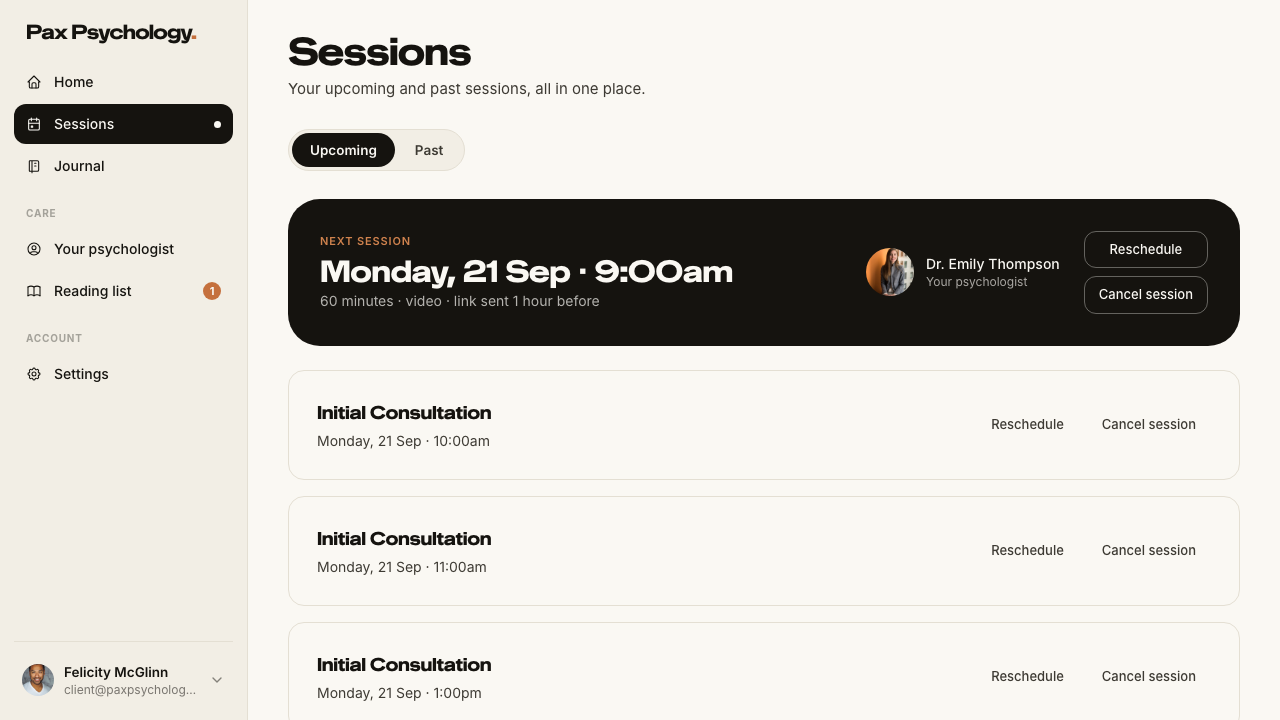
PassedTC-C-19Booking information validation4.3s
- 1. Go to a booking page and select a date and time
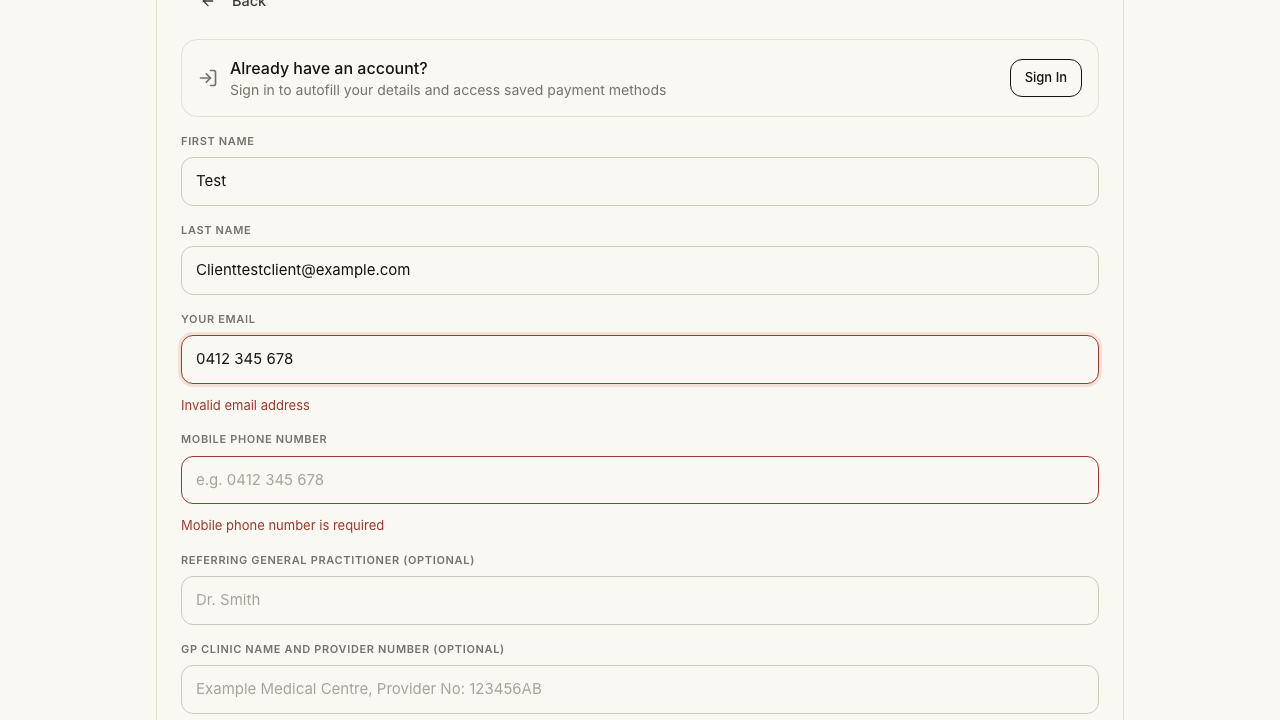
- 2. On “Your Info” leave every field empty and click “Continue to Payment”
- 3. Scroll up and note where the page has moved you
- 4. Enter `notanemail` in “Your Email” and blur the field
- 5. Fill the text fields correctly but leave the checkboxes unticked, and submit again
1F. Client Portal
6 passed 2 failed
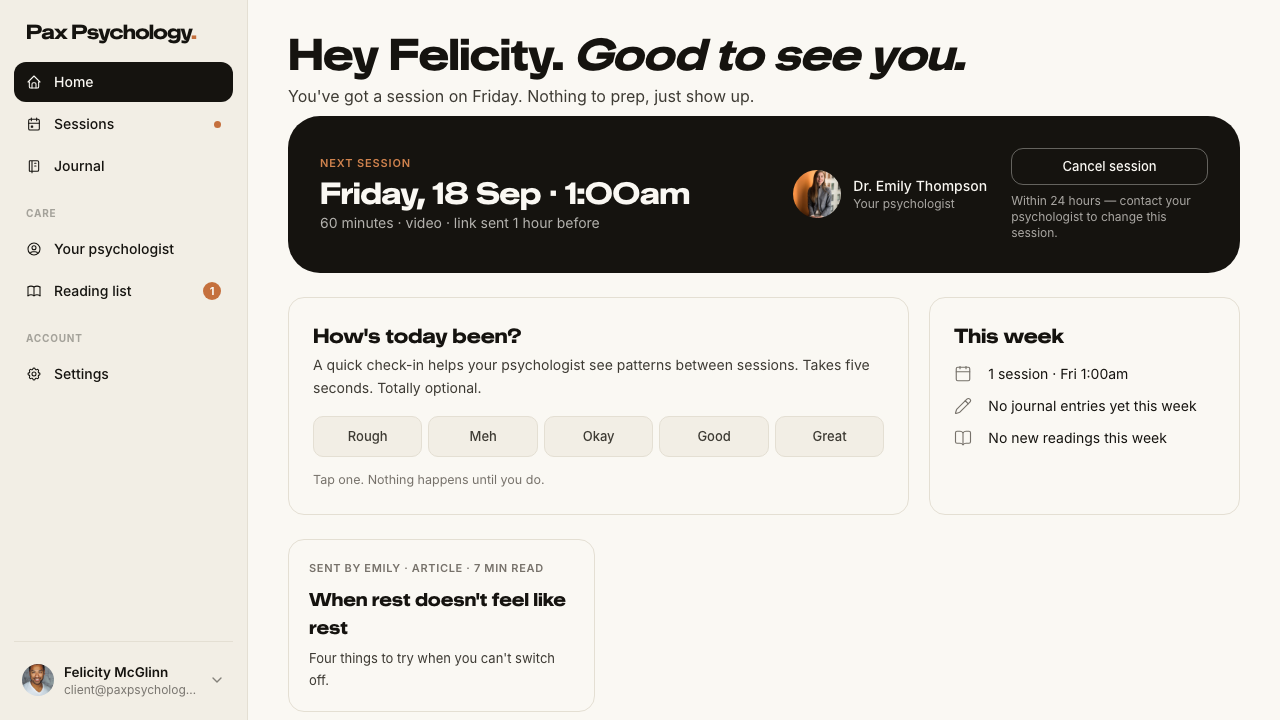
PassedTC-C-20Client Home2.8s
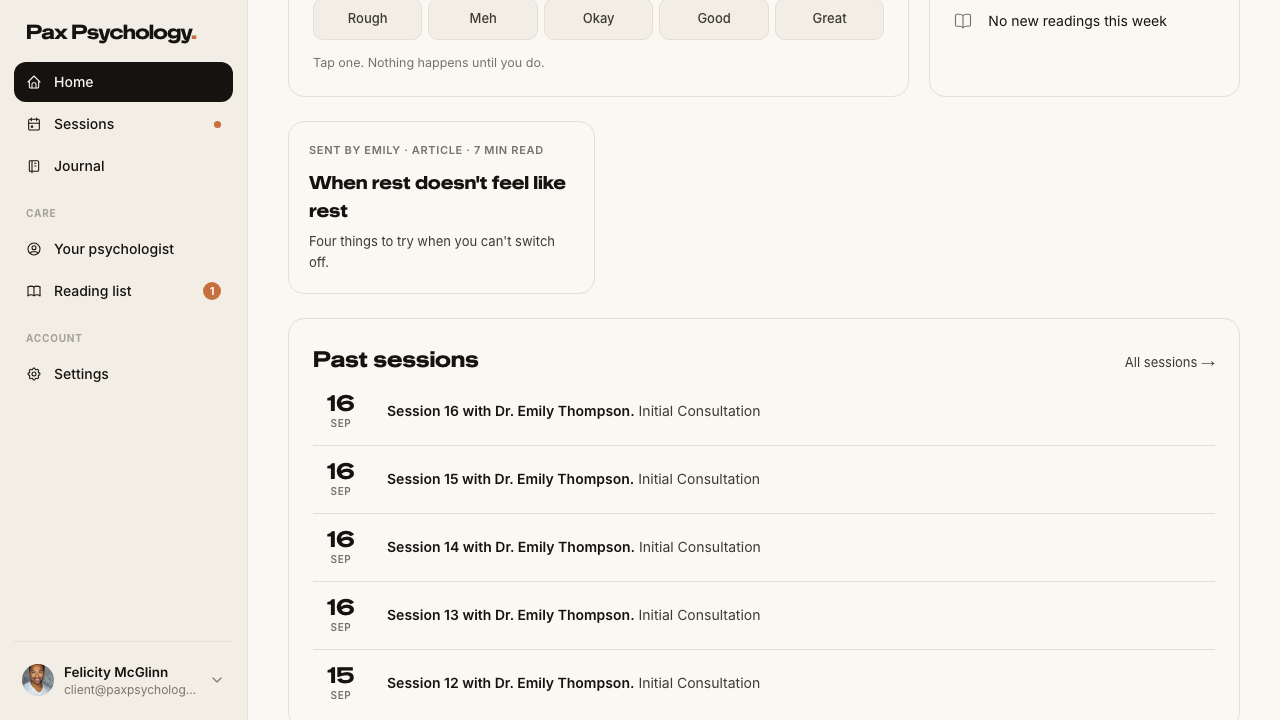
- 1. Navigate to https://paxpsychology.dev/dashboard
- Sidebar nav: Home · Sessions · Journal, then Care and Account groups
- Greeting, “Next session” hero, mood check-in, “This week” and “Past sessions”
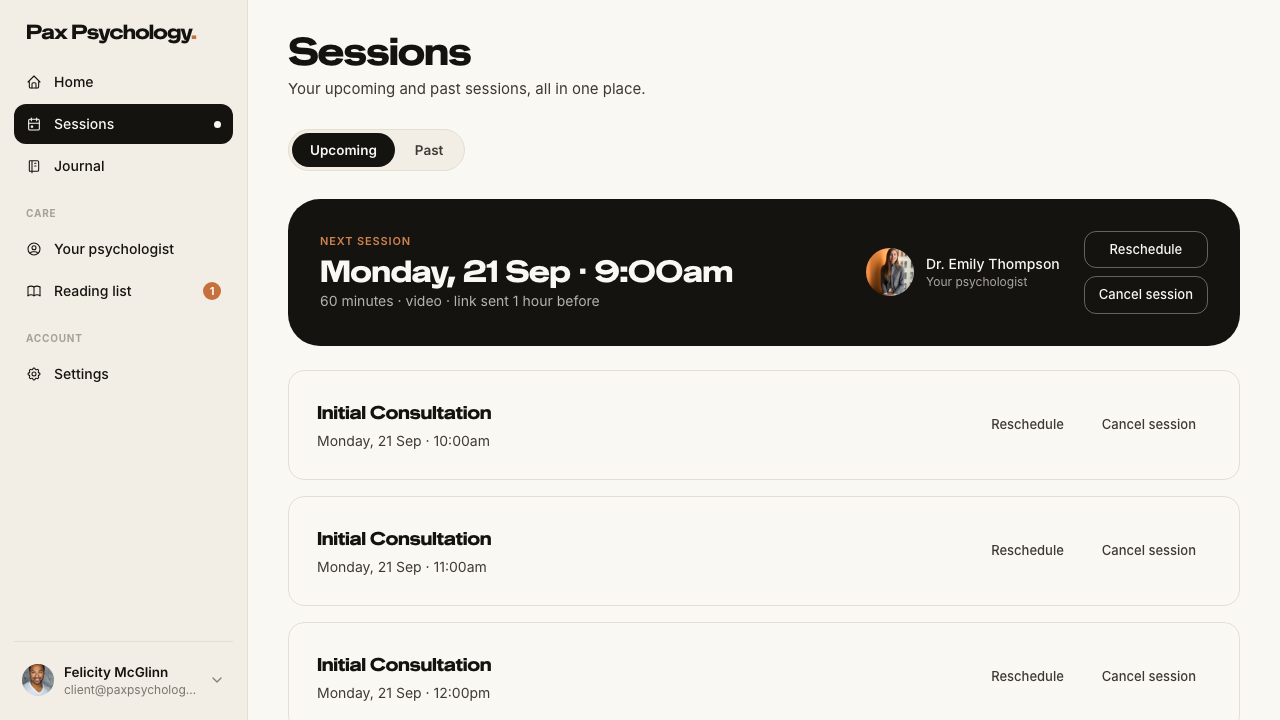
FailedTC-C-21Sessions list (Upcoming / Past)2.3s
- 1. Navigate to https://paxpsychology.dev/dashboard/appointments — failed
Error: expect(locator).toBeVisible() failed

Locator: getByText('Your upcoming and past sessions, all in one place.')
Expected: visible
Error: strict mode violation: getByText('Your upcoming and past sessions, all in one place.') resolved to 2 elements:
    1) <p class="text-ink-2 m-0 text-[15px]">Your upcoming and past sessions, all in one place.</p> aka getByRole('main').getByText('Your upcoming and past')
    2) <p class="text-ink-2 m-0 text-[15px]">Your upcoming and past sessions, all in one place.</p> aka getByText('Your upcoming and past').nth(1)

Call log:
  - Expect "toBeVisible" with timeout 5000ms
  - waiting for getByText('Your upcoming and past sessions, all in one place.')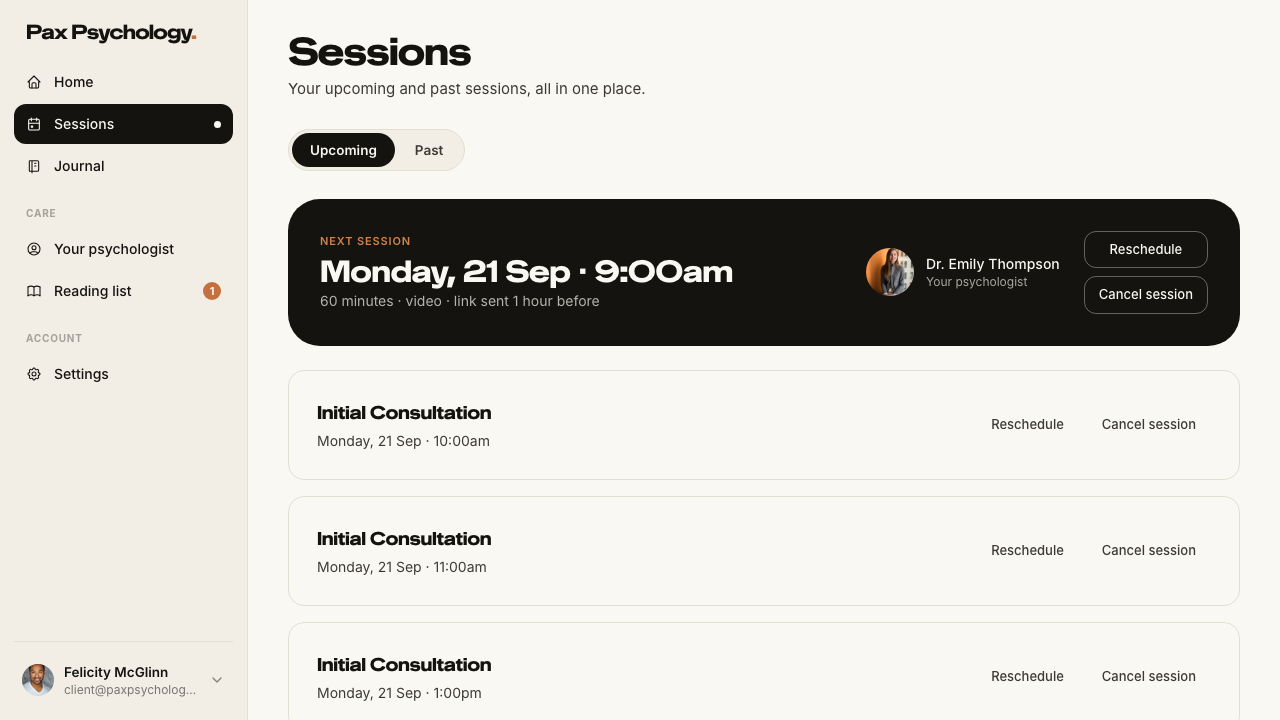
PassedTC-C-35Reschedule and cancel from the Sessions list34.5s
- 1. On /dashboard/appointments, find the session more than 24 hours out
- 2. Confirm both “Reschedule” and “Cancel session” buttons are present
- 3. Click “Reschedule”, pick a new date and time, and confirm
- 4. Now look at the session that is less than 24 hours away
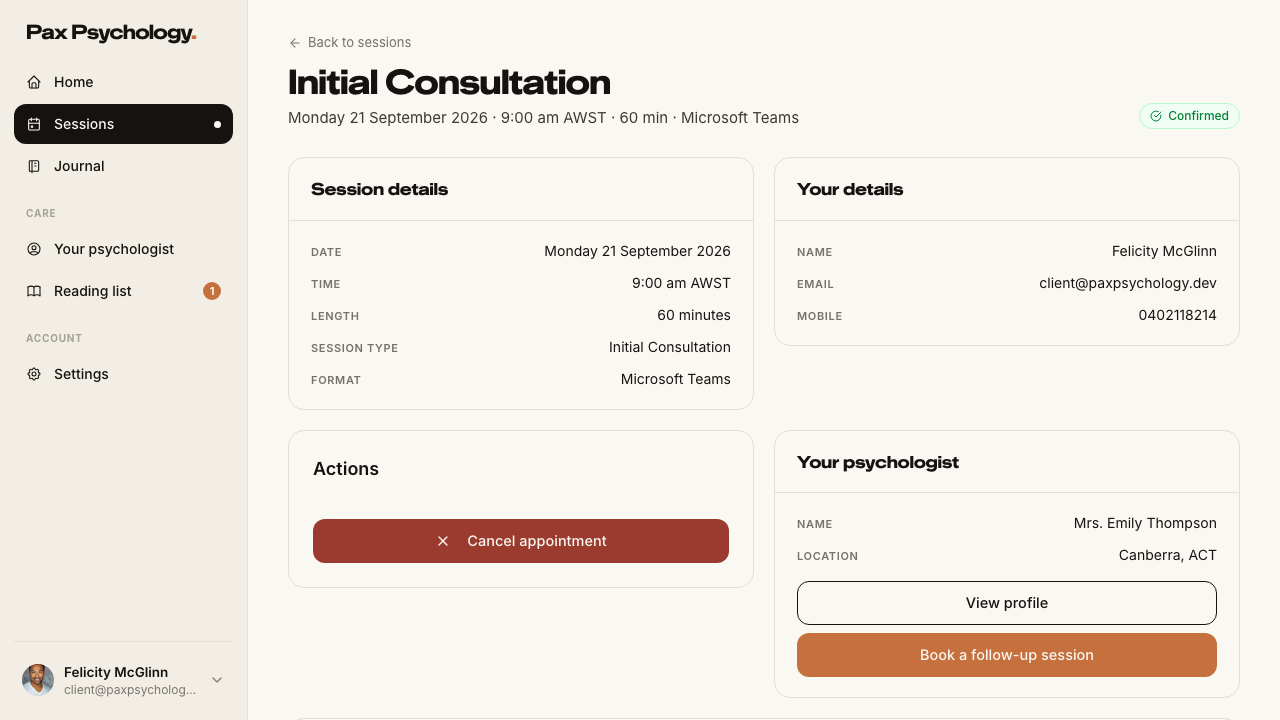
PassedTC-C-22View appointment detail (client)5.6s
- 1. From Sessions, click a session title to open /dashboard/appointments/[appointmentId]
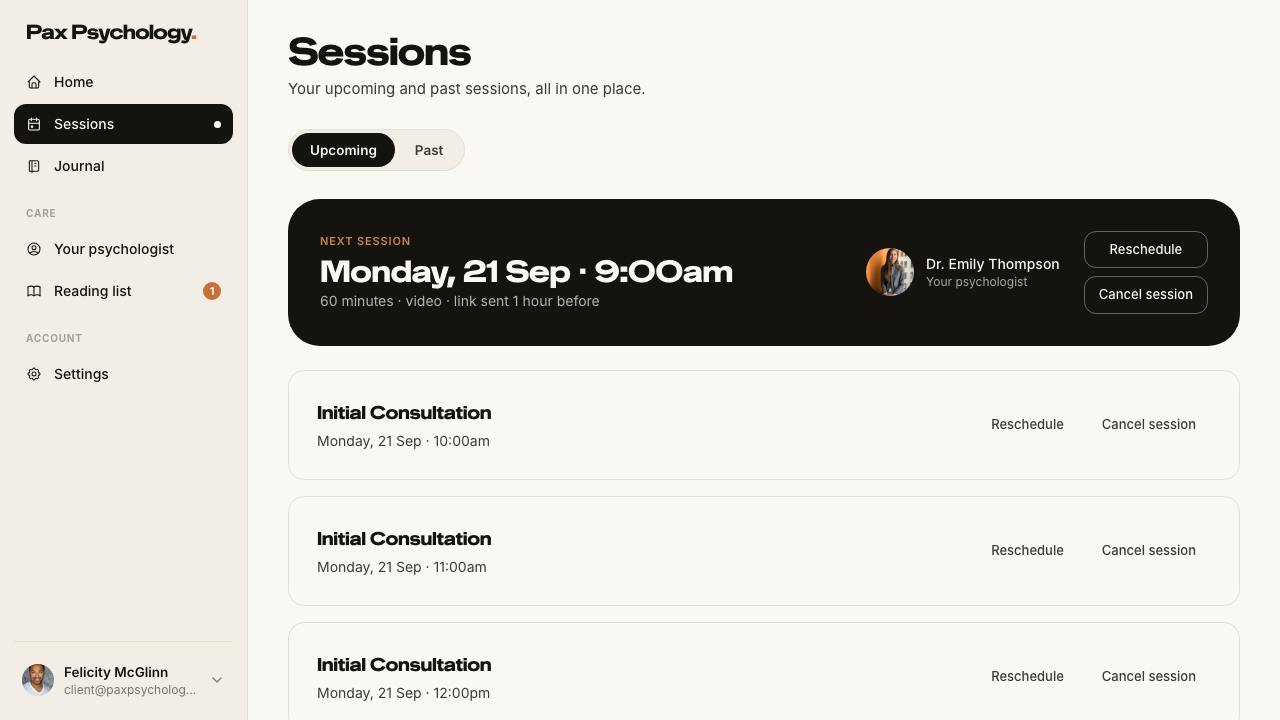
PassedTC-C-23Cancel an upcoming appointment18.2s
- Precondition. Book a session more than 24 hours out to cancel
- 1. Click “Cancel session” on the Sessions list
- 2. In the dialog, check the title and body copy
- 3. Optionally enter a reason
- 4. Click “Cancel Appointment”
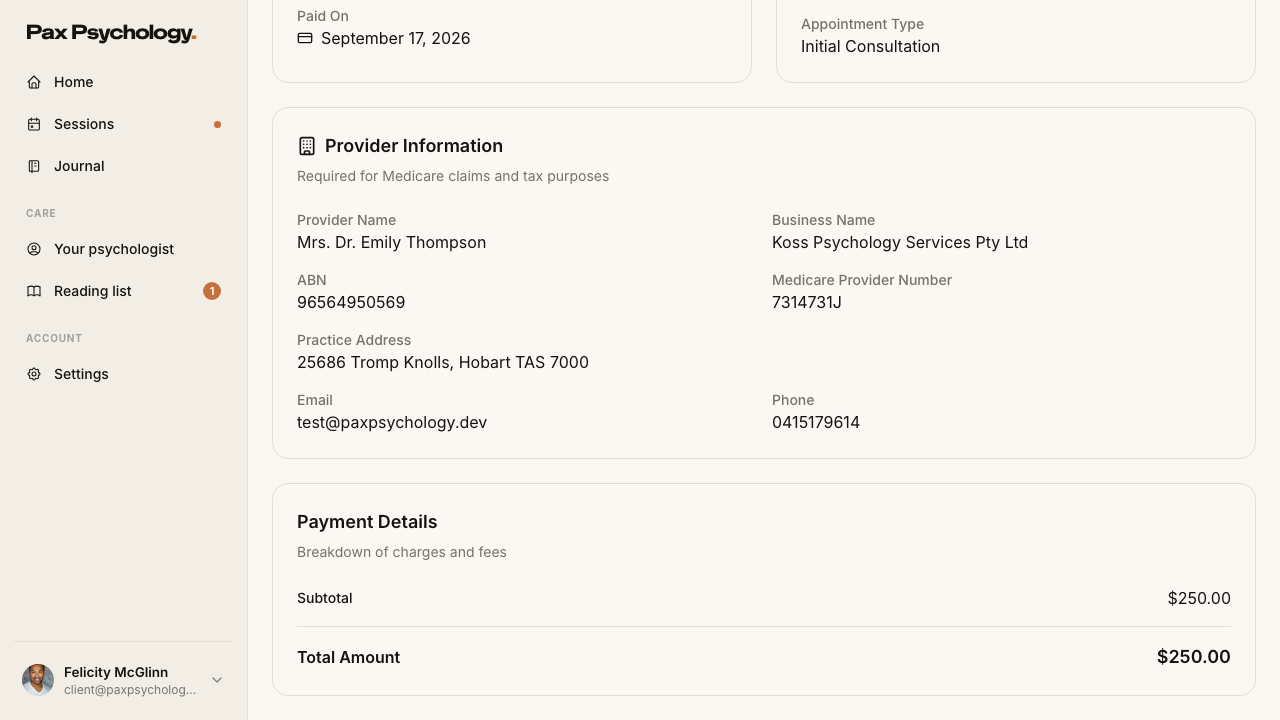
PassedTC-C-24Receipts (client invoices)6.5s
- 1. Navigate directly to https://paxpsychology.dev/dashboard/invoices
- 2. Go to /dashboard/appointments, open the “Past” tab, and click “Receipt”
- 3. On the receipt page, click “Download Receipt”
FailedTC-C-25Client settings — Account1.8s
- 1. Navigate to /dashboard/settings?section=account — failed
Error: expect(locator).toBeVisible() failed

Locator: getByText('Your account, how you pay, and how you sign in.')
Expected: visible
Error: strict mode violation: getByText('Your account, how you pay, and how you sign in.') resolved to 2 elements:
    1) <div class="text-ink-2 mb-7 text-[15px]">Your account, how you pay, and how you sign in.</div> aka getByRole('main').getByText('Your account, how you pay,')
    2) <div class="text-ink-2 mb-7 text-[15px]">Your account, how you pay, and how you sign in.</div> aka getByText('Your account, how you pay,').nth(1)

Call log:
  - Expect "toBeVisible" with timeout 5000ms
  - waiting for getByText('Your account, how you pay, and how you sign in.')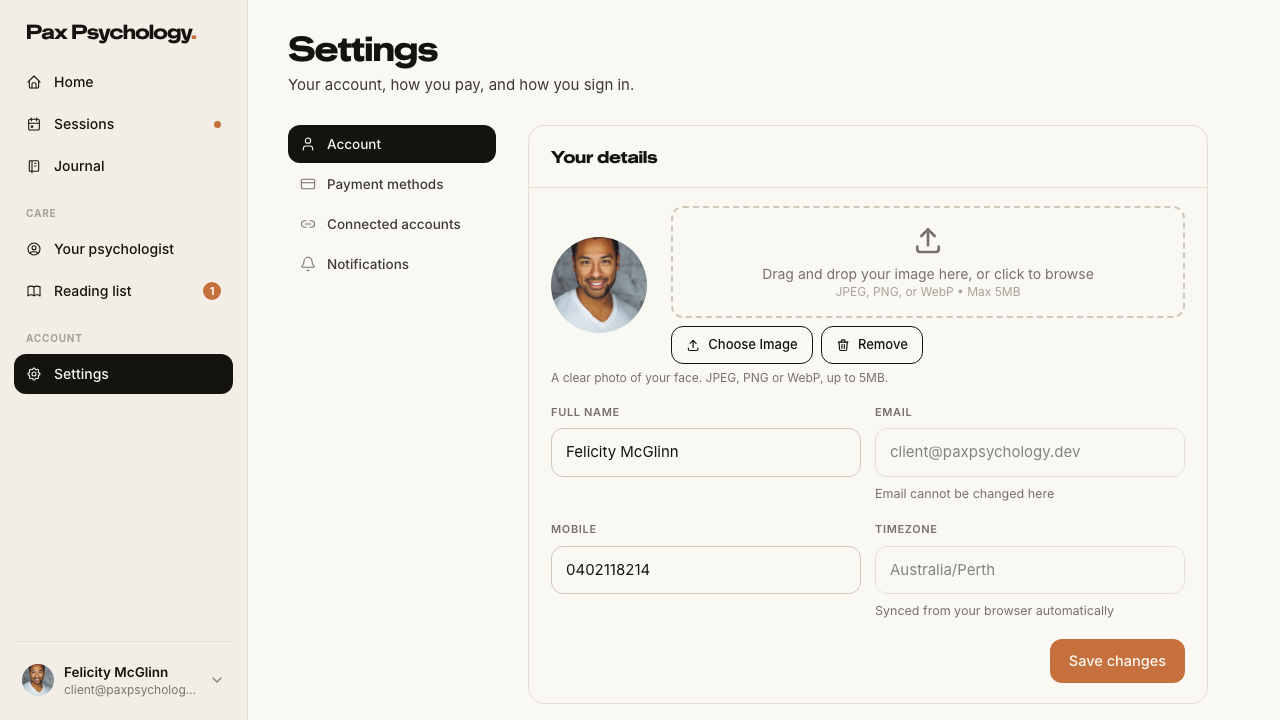
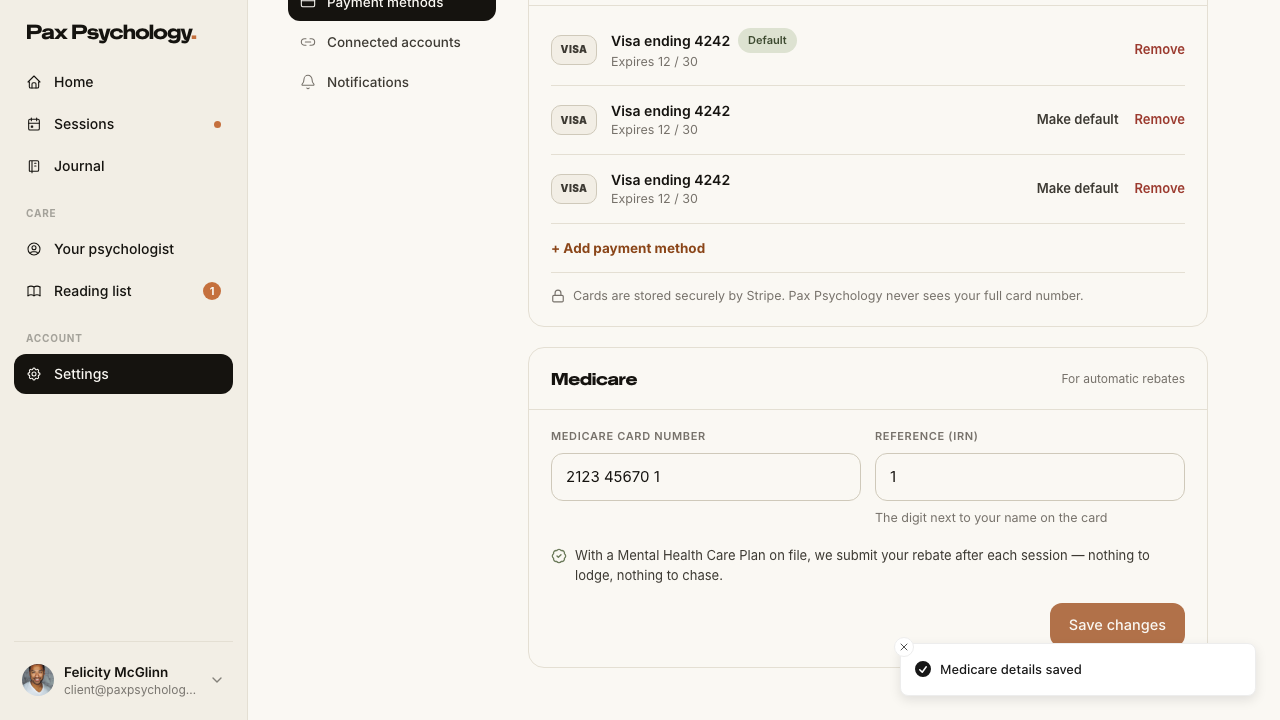
PassedTC-C-26Client settings — Payment methods and Medicare11.8s
- 1. Navigate to /dashboard/settings?section=payment-methods
- 2. Click “+ Add payment method”, enter 4242 4242 4242 4242 / 12/30 / 123 and click “Save card”
- 3. Click “Make default” on the new card
- 4. Click “Remove” on the non-default card and confirm
- 5. Scroll to the “Medicare” panel, enter a Medicare card number and IRN, and save
1G. New public surfaces
6 passed
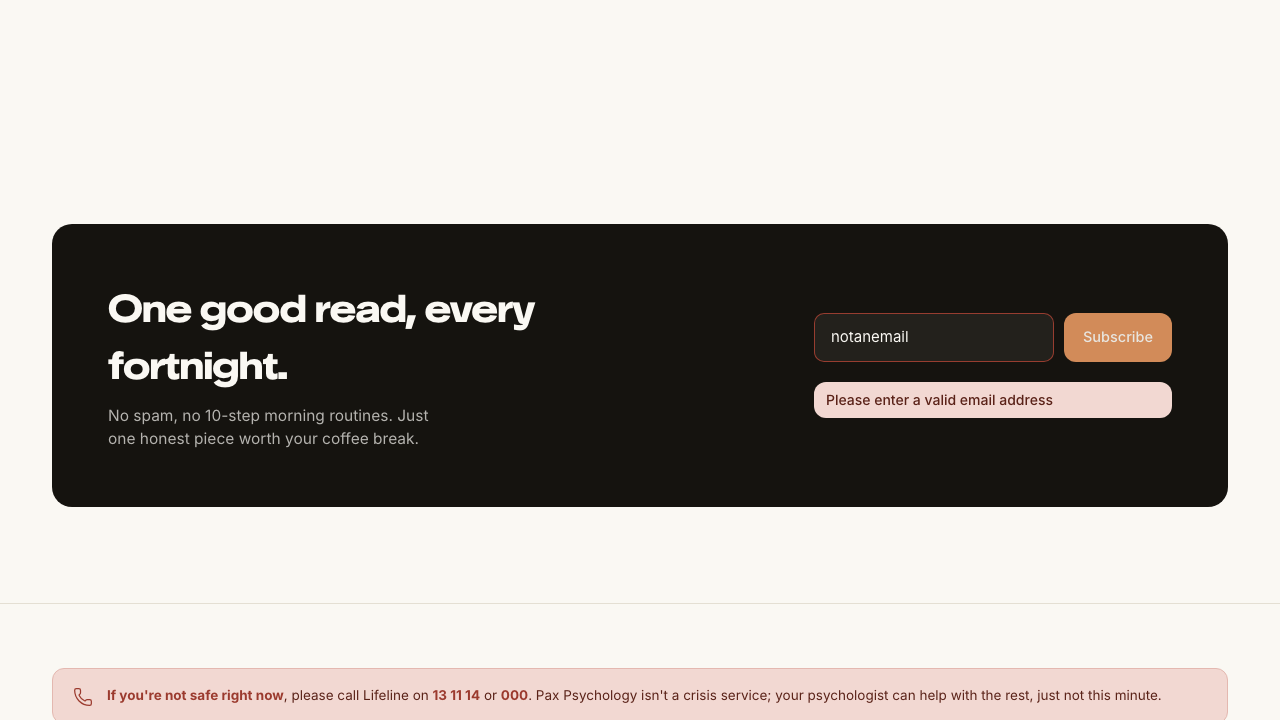
PassedTC-C-27Journal index, article and newsletter signup9.4s
- 1. Navigate to https://paxpsychology.dev/journal
- 2. Click a category chip, then click “All”
- 3. Open an article
- 4. Scroll to the newsletter strip and subscribe
- 5. Try again with `notanemail`
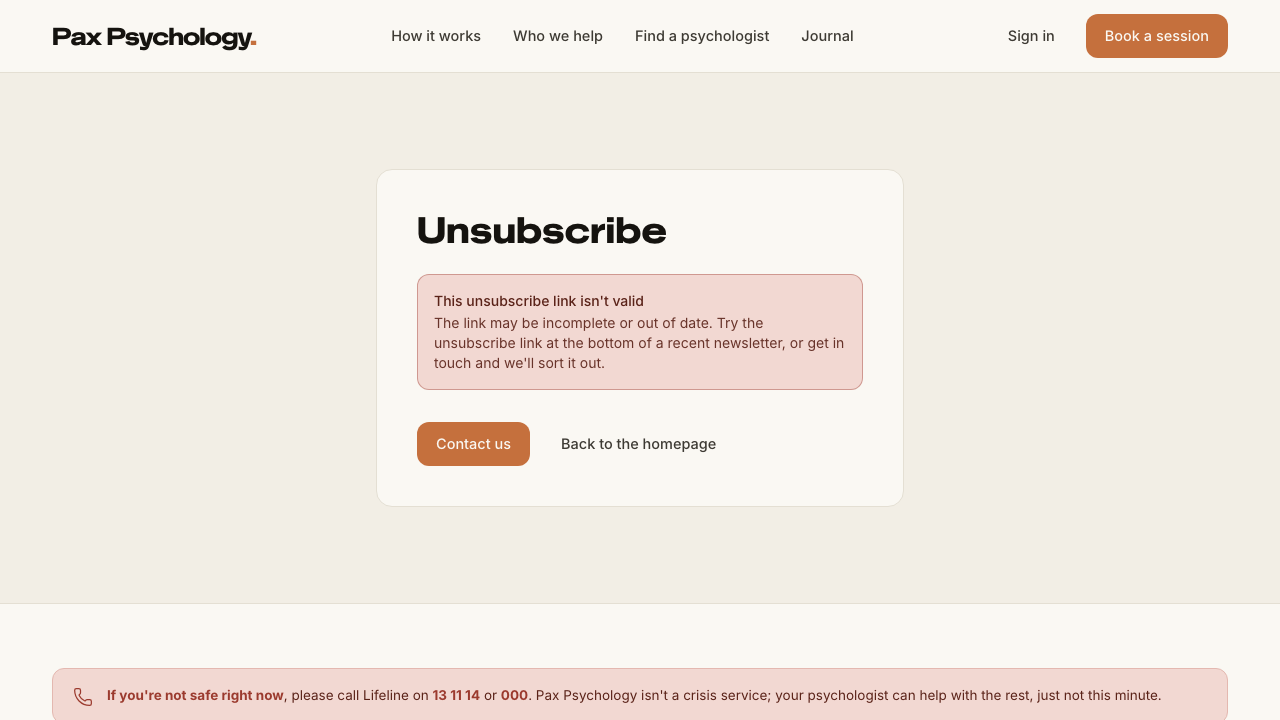
PassedTC-C-28Newsletter unsubscribe2.3s
- 1. Open the unsubscribe link
- 2. Then open /newsletter/unsubscribe with no token
PassedTC-C-29For Psychologists landing page (new)3.9s
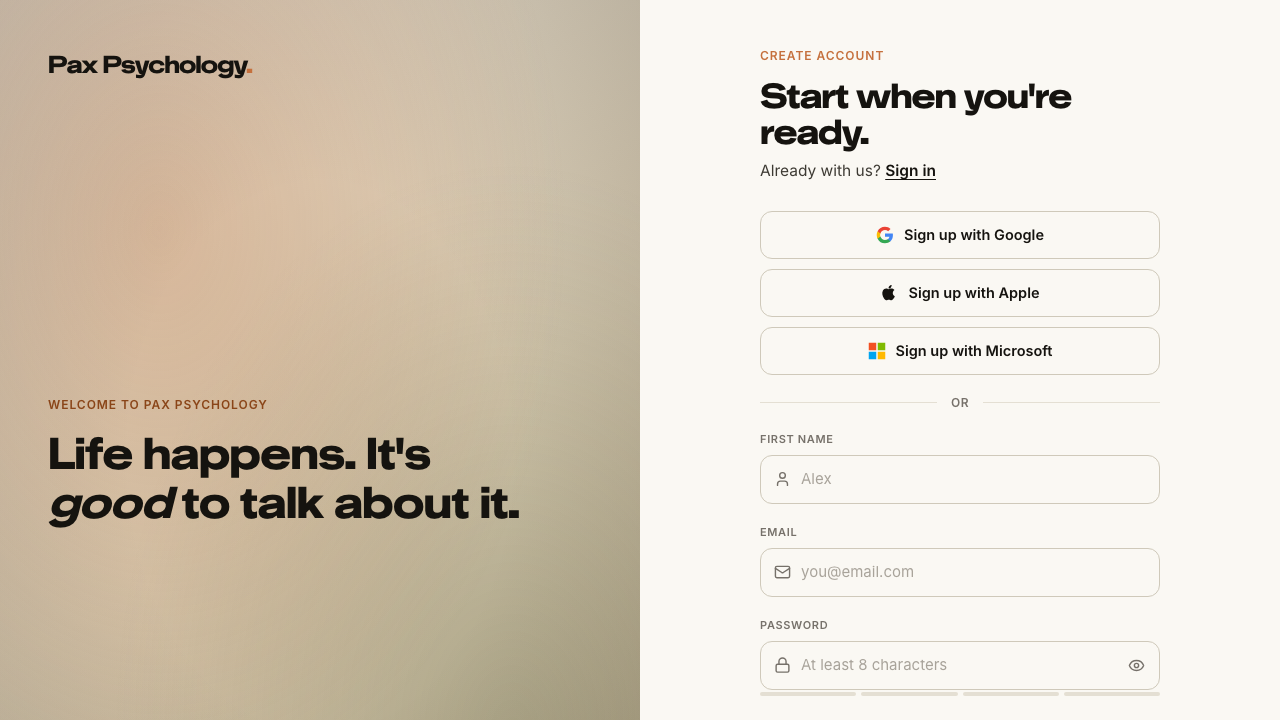
PassedTC-C-30Mobile filters drawer on the directory (new)8.0s
- 1. Navigate to /psychologists at 375px width
- 2. Confirm the desktop sidebar is hidden and a “Filters” button sits next to the sort dropdown
- 3. Tap “Filters”
- 4. Apply a couple of filters inside the drawer
- 5. Tap the button at the foot of the drawer
- 6. Widen the window past 768px — the drawer auto-closes and the sidebar reappears

PassedTC-C-31FAQs page2.9s
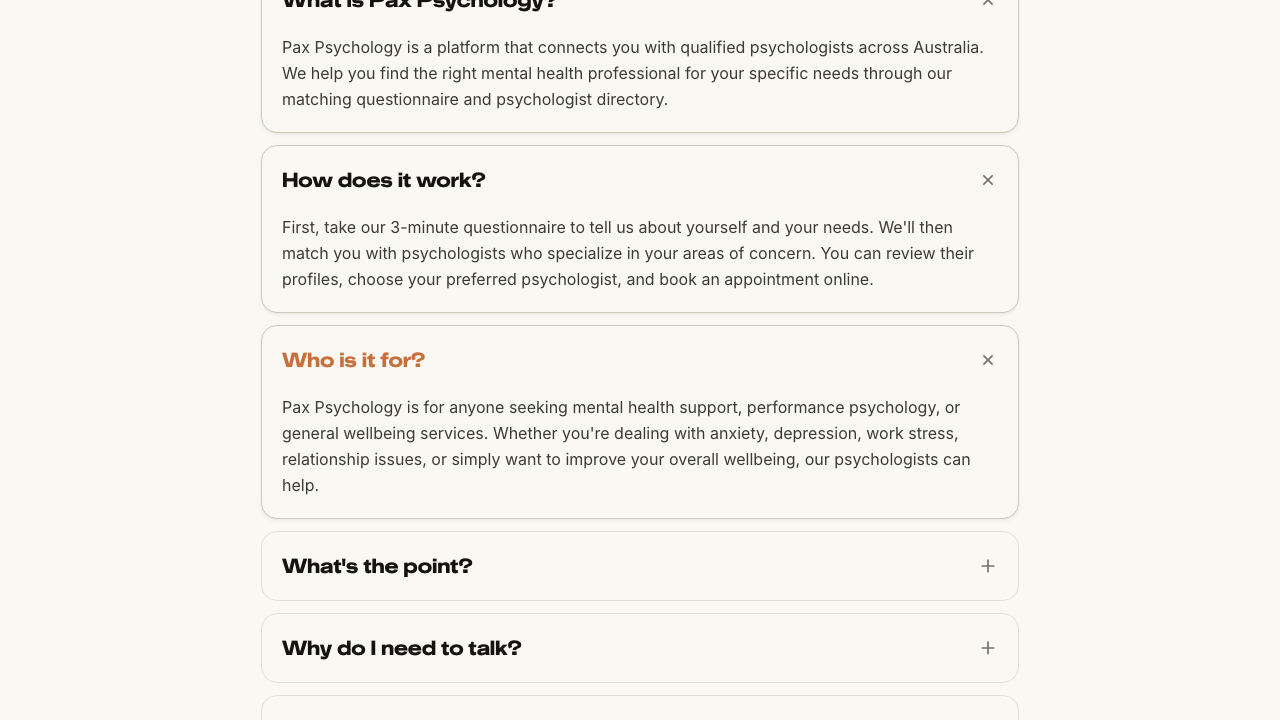
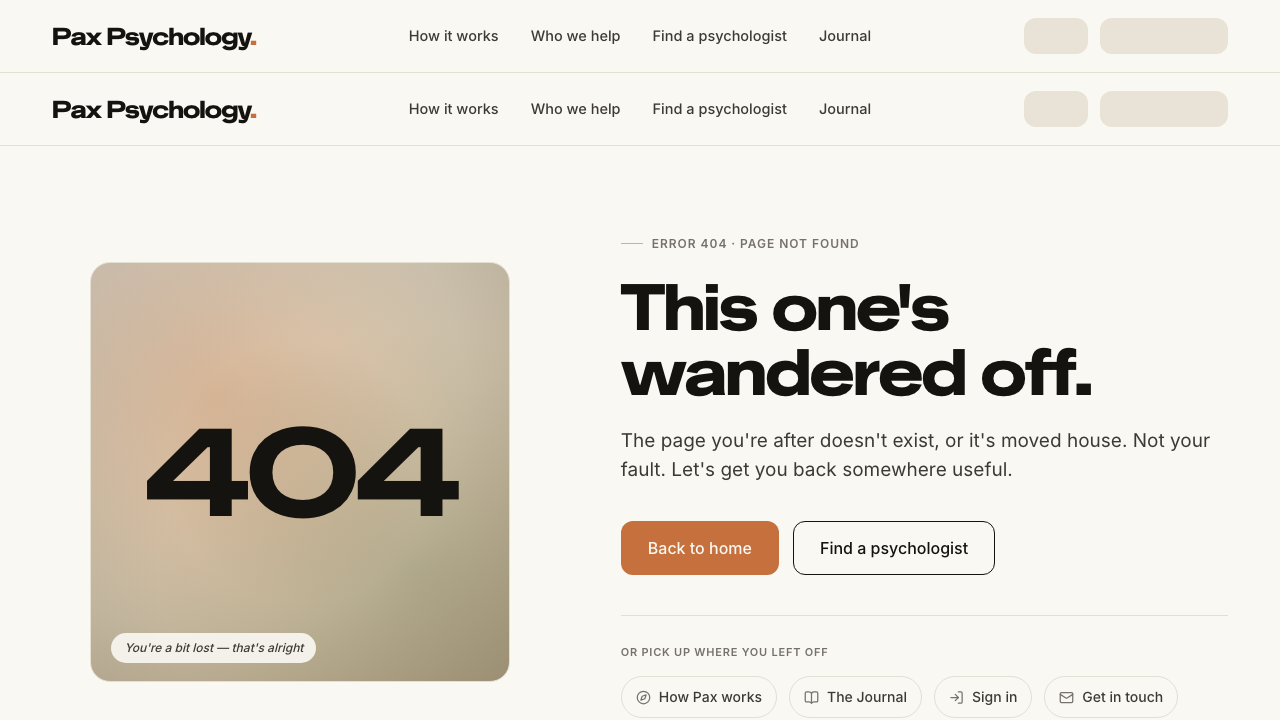
PassedTC-C-32Error pages2.3s
- 1. Navigate to https://paxpsychology.dev/this-page-does-not-exist
- 2. Navigate to /psychologists/definitely-not-a-real-username
1H. Other new surfaces
2 passed
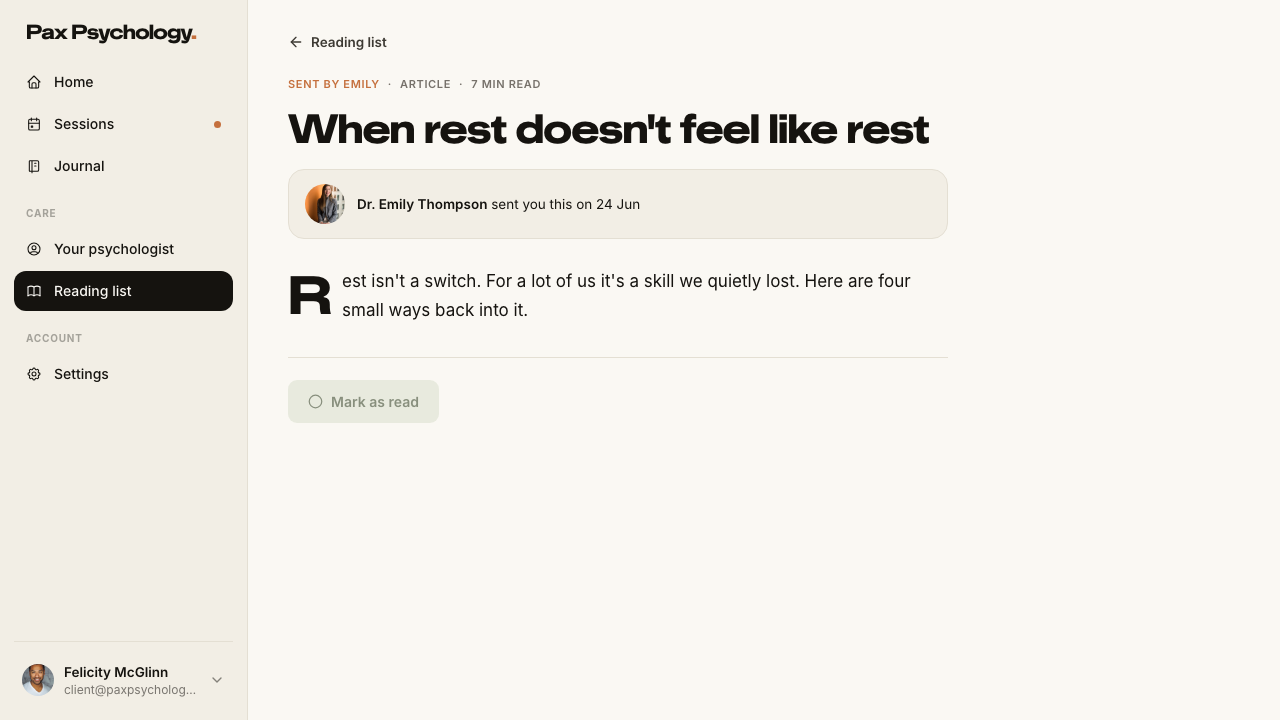
PassedTC-C-33Your psychologist and Reading list (new client Care pages)5.2s
- 1. Click “Your psychologist” in the sidebar
- 2. Click “Reading list”
- 3. Open a reading and mark it read
PassedTC-C-34Self-serve registration6.5s
- 1. Navigate to https://paxpsychology.dev/auth/register
- 2. Fill “First name”, “Email” and “Password”, tick the terms checkbox and click “Create account”
- 3. Follow the flow to /auth/check-email and use the resend control
- 4. MANUAL: open the verification email and follow the link
Psychologist
27 cases18 passed 5 failed 4 manual
2A. Onboarding
3 passed 1 failed 1 manual
ManualTC-P-01Connect the Stripe Connect payout account3.9s
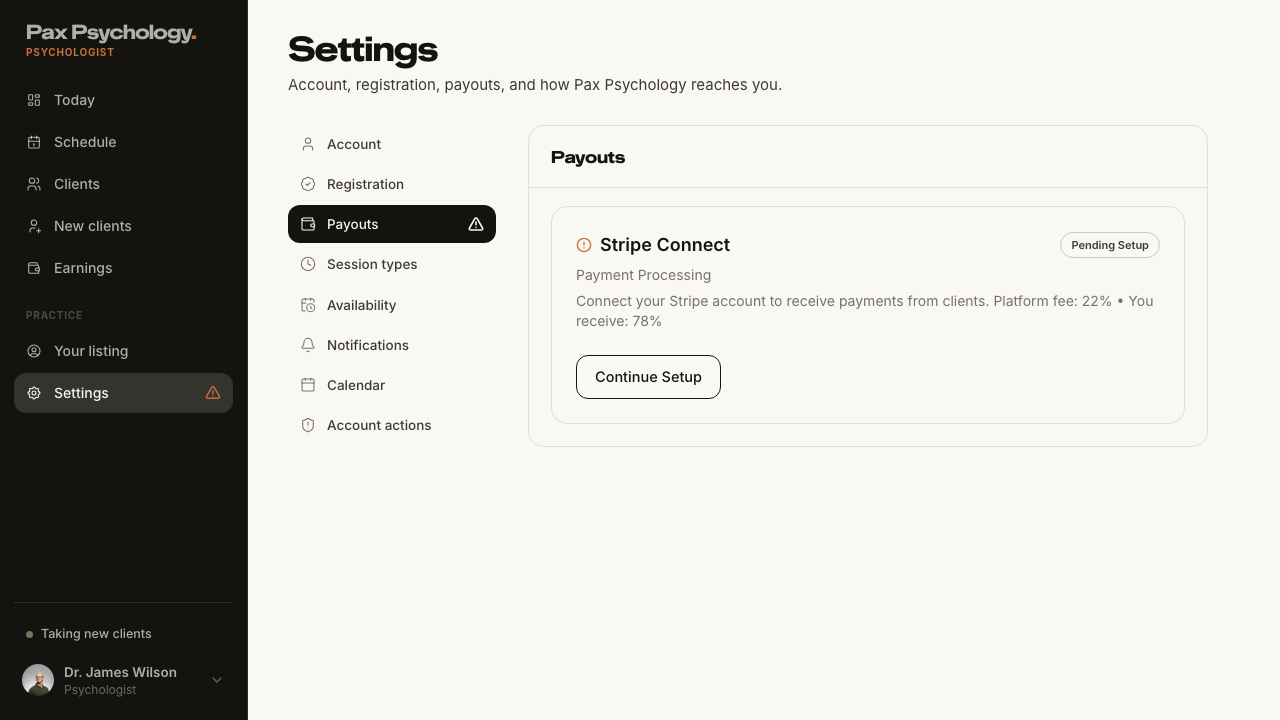
Steps 4–5 leave Pax: 'Connect with Stripe' hands off to Stripe's hosted Connect onboarding (a stripe.com form with identity and bank details) and returns via an OAuth-style callback. Nothing on that hop can be automated, and completing it would burn the shared `test2@` fixture's 'payouts not set up' state that other cases rely on. Everything Pax itself renders — the banner, the sidebar alert, the Stripe Connect card and its CTA — is checked below; a reviewer only needs to eyeball the hosted form and the post-connect 'Connected' badge (see TC-P-20).
- 1. Navigate to https://paxpsychology.dev/dashboard
- 2. Note the payout banner and click its CTA
- 3. On /dashboard/settings?section=payouts, read the Stripe Connect card
- 4. Click "Connect with Stripe" and complete the Stripe-hosted onboarding — MANUAL
- 5. Return to Pax — MANUAL
FailedTC-P-02Complete profile / account details1.8s
- 1. Navigate to https://paxpsychology.dev/dashboard/settings?section=account — failed
Error: expect(locator).toBeVisible() failed

Locator: getByText('Account, registration, payouts, and how Pax Psychology reaches you.')
Expected: visible
Error: strict mode violation: getByText('Account, registration, payouts, and how Pax Psychology reaches you.') resolved to 2 elements:
    1) <div class="text-ink-2 mb-7 text-[15px]">Account, registration, payouts, and how Pax Psych…</div> aka getByRole('main').getByText('Account, registration,')
    2) <div class="text-ink-2 mb-7 text-[15px]">Account, registration, payouts, and how Pax Psych…</div> aka getByText('Account, registration,').nth(1)

Call log:
  - Expect "toBeVisible" with timeout 5000ms
  - waiting for getByText('Account, registration, payouts, and how Pax Psychology reaches you.')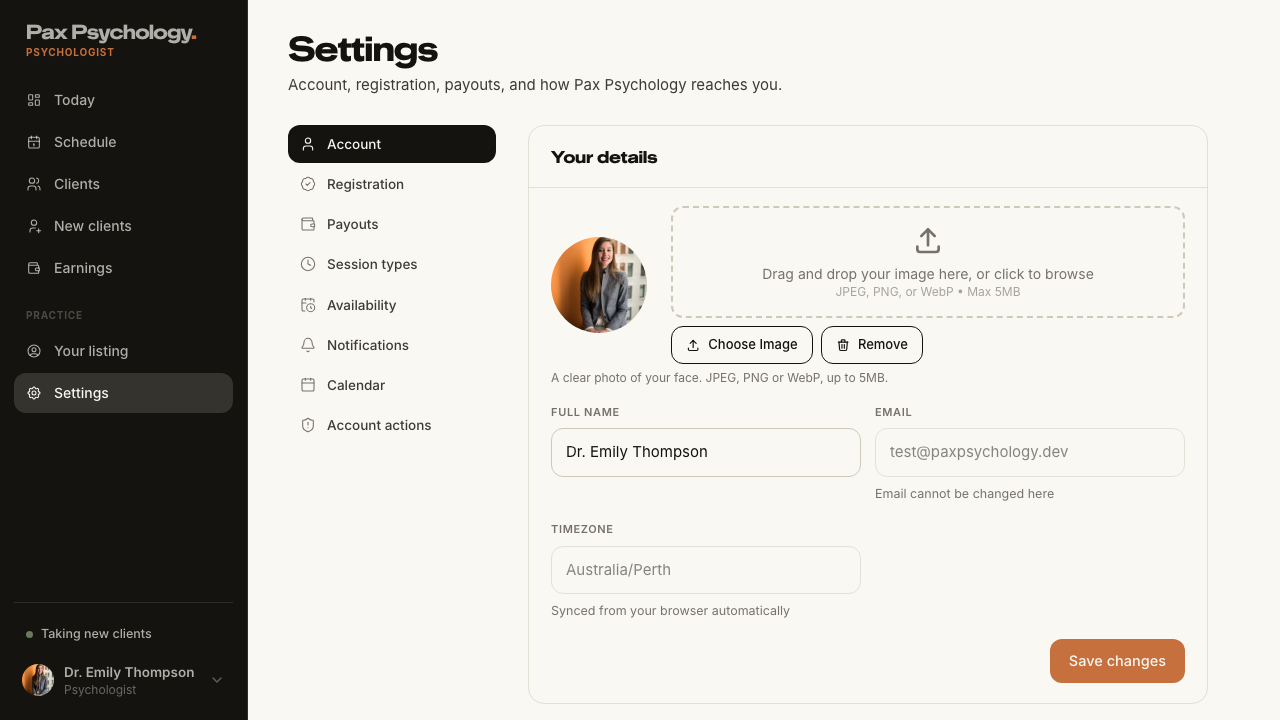
PassedTC-P-03Set weekly availability5.9s
- 1. Navigate to https://paxpsychology.dev/dashboard/appointments
- 2. Click the "Availability" button in the page header
- 3. In the modal, switch Monday on and set "From" 09:00 and "To" 17:00
- 4. Switch Saturday off
- 5. Click "Save availability"
- 6. Deliberately set an invalid combination (From later than To) and save again to see the error
- Restore the original weekly hours
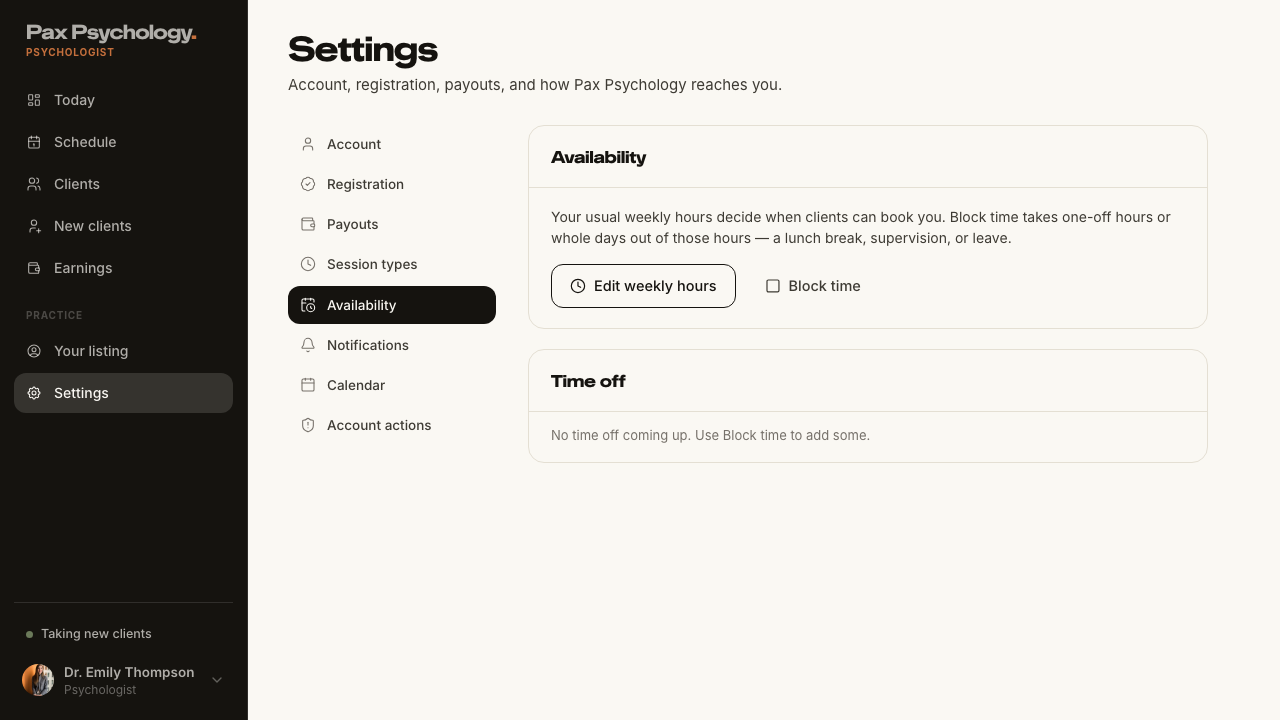
PassedTC-P-04Block out time (time off)18.0s
- 1. On /dashboard/appointments, click "Block time"
- 2. Pick a reason chip, page forward a week, pick a day, set "From" and "To", add a note
- 3. Click "Block time"
- 4. Repeat over a slot that already has a booking, and read the warning
- 5. Try the "Repeat weekly" switch
- 6. Delete the block from Settings › Availability › Time off
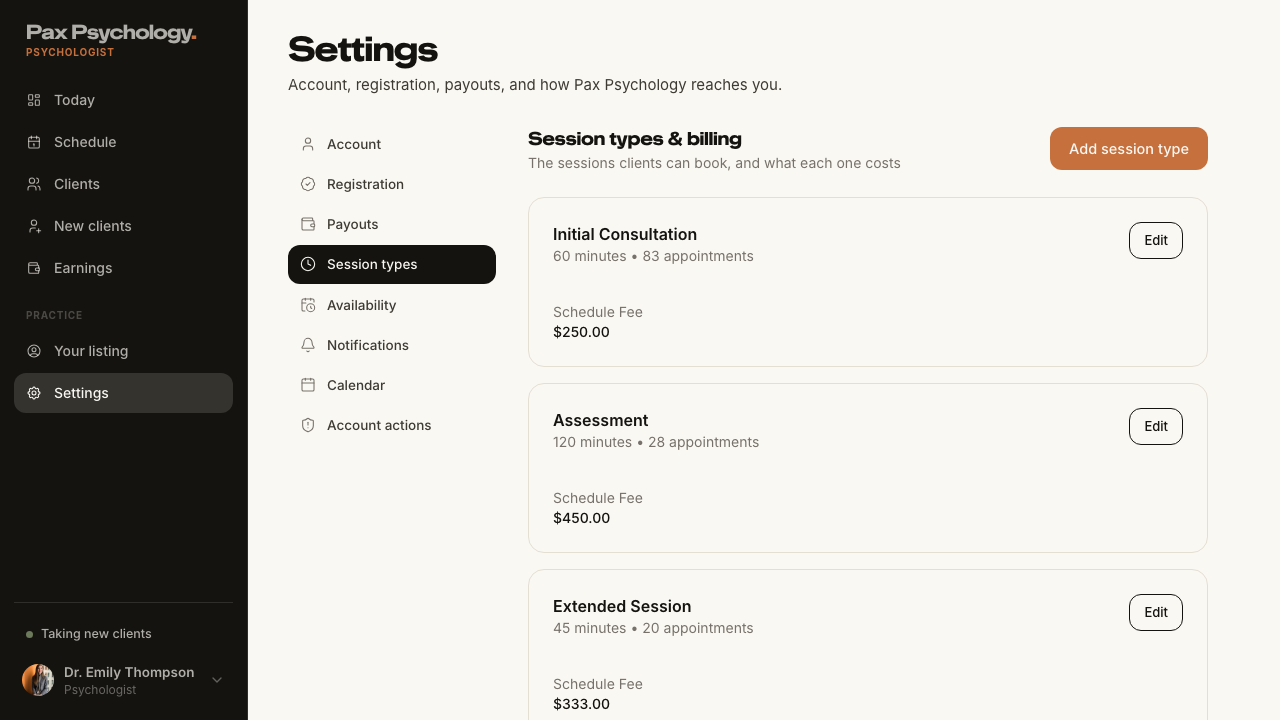
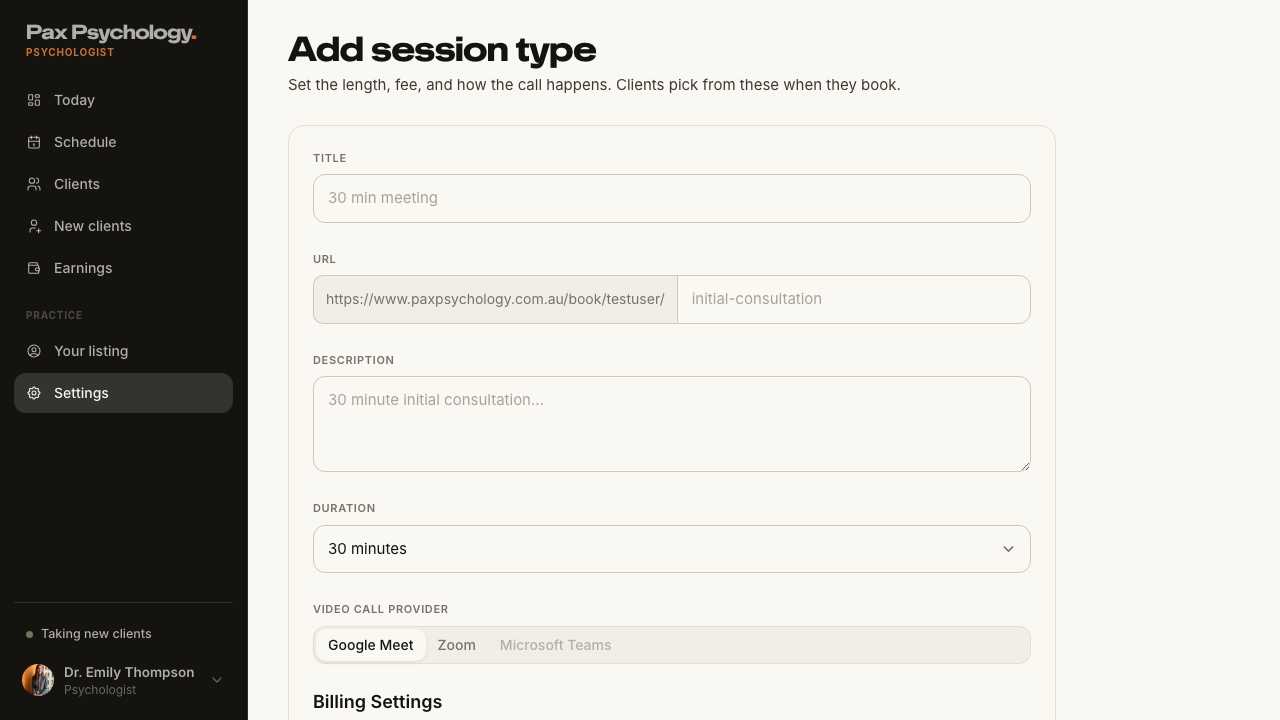
PassedTC-P-05Create a session type6.8s
- 1. Navigate to https://paxpsychology.dev/dashboard/settings?section=appointment-types
- 2. Click "Add session type"
- 3. Fill the form: Title, Url, Description, Duration, Video Call Provider, Schedule Fee
- 4. Click "Add appointment type"
- The new type is bookable at the generated URL
2B. Dashboard
2 passed
PassedTC-P-06Psychologist Today page3.0s
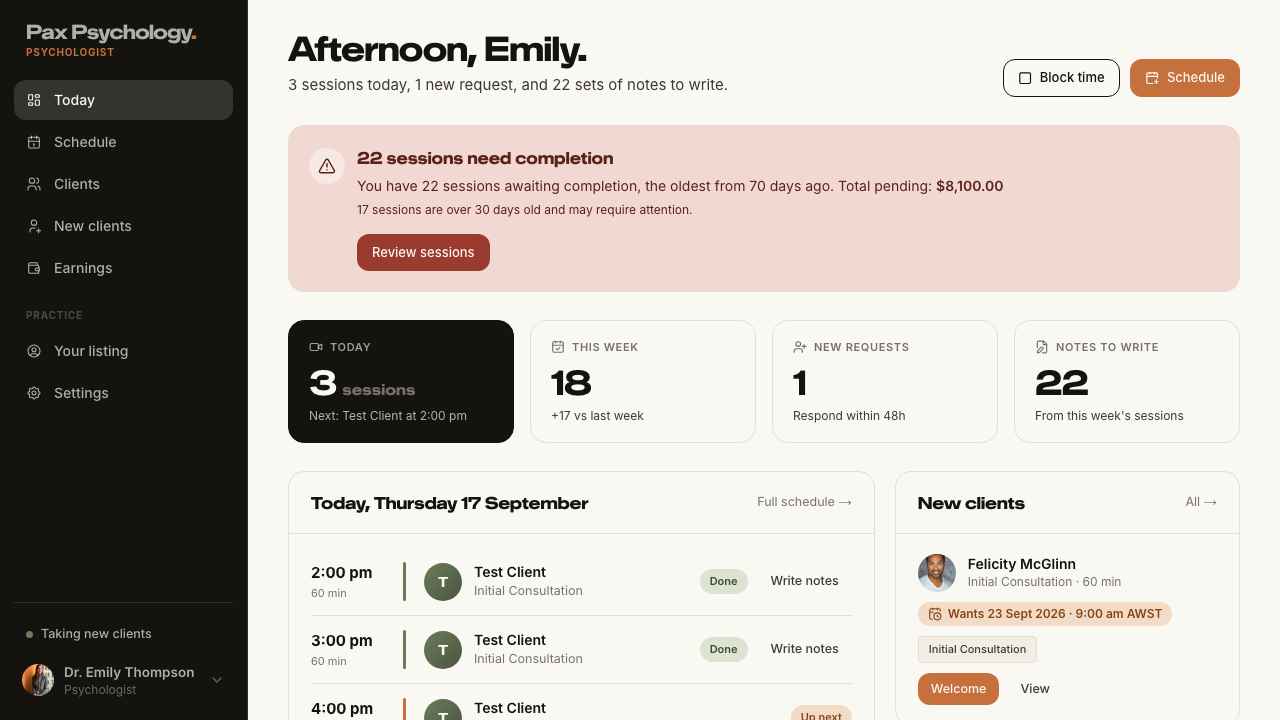
- 1. Navigate to https://paxpsychology.dev/dashboard
- Sidebar: Today, Schedule, Clients, New clients, Earnings, then Practice › Your listing, Settings
- H1 greeting with the sessions / requests / notes sub-line, and the Block time + Schedule buttons
- Four KPI cards: "Today", "This week", "New requests", "Notes to write"
- Two-column row: "Today, <Weekday D Month>" with "Full schedule →", and "New clients" with "All →"
- Full-width "Worth a look" panel with a "Clients →" link
- Notes: the old earnings cards, chart, weekly schedule block and Quick Actions are gone
PassedTC-P-07Pending completions alert3.1s
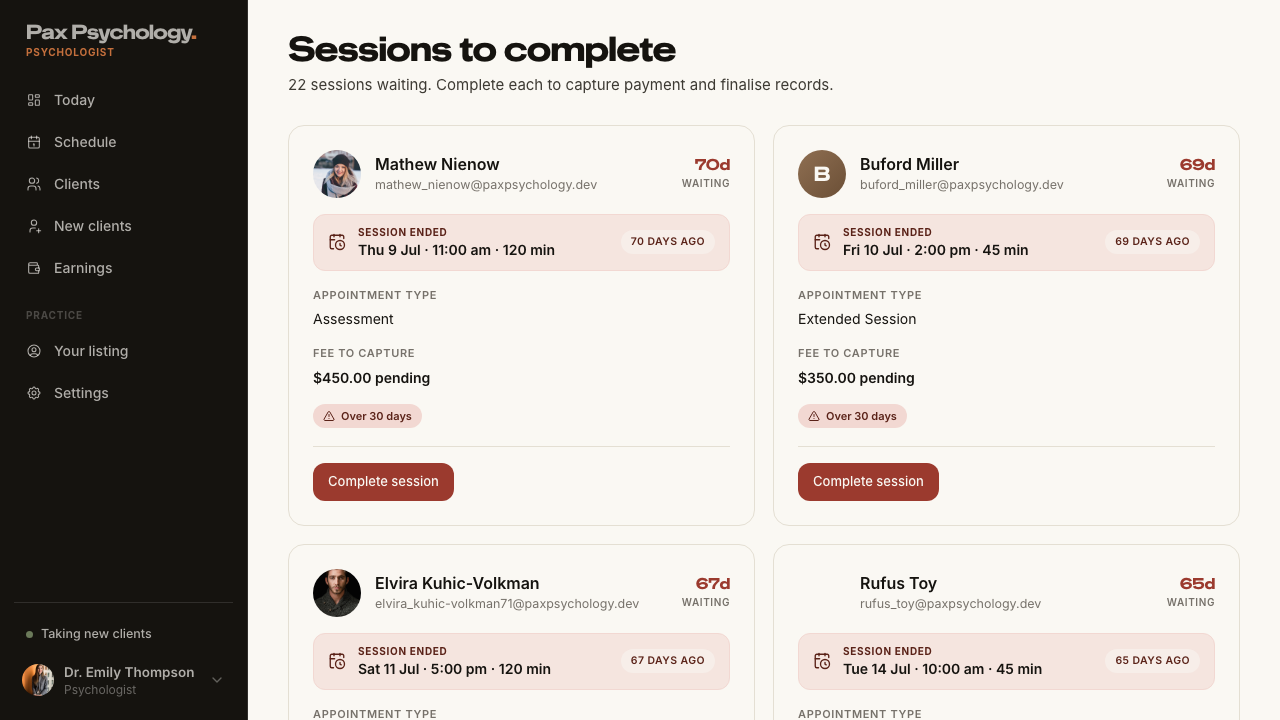
- 1. Navigate to https://paxpsychology.dev/dashboard
- The alert is headed "<n> sessions need completion" and names when the oldest was
- 2. Click "Review sessions"
2C. Schedule and Appointments
5 passed 2 failed
FailedTC-P-08Schedule views2.0s
- 1. Navigate to https://paxpsychology.dev/dashboard/appointments — failed
Error: expect(locator).toBeVisible() failed

Locator: getByText(/\d+ sessions? booked (this week|today|this day|in \w+)\./)
Expected: visible
Error: strict mode violation: getByText(/\d+ sessions? booked (this week|today|this day|in \w+)\./) resolved to 2 elements:
    1) <div class="text-ink-2 mt-2 text-[15px]">4 sessions booked this week.</div> aka getByRole('main').getByText('sessions booked this week.')
    2) <div class="text-ink-2 mt-2 text-[15px]">4 sessions booked this week.</div> aka getByText('sessions booked this week.').nth(1)

Call log:
  - Expect "toBeVisible" with timeout 5000ms
  - waiting for getByText(/\d+ sessions? booked (this week|today|this day|in \w+)\./)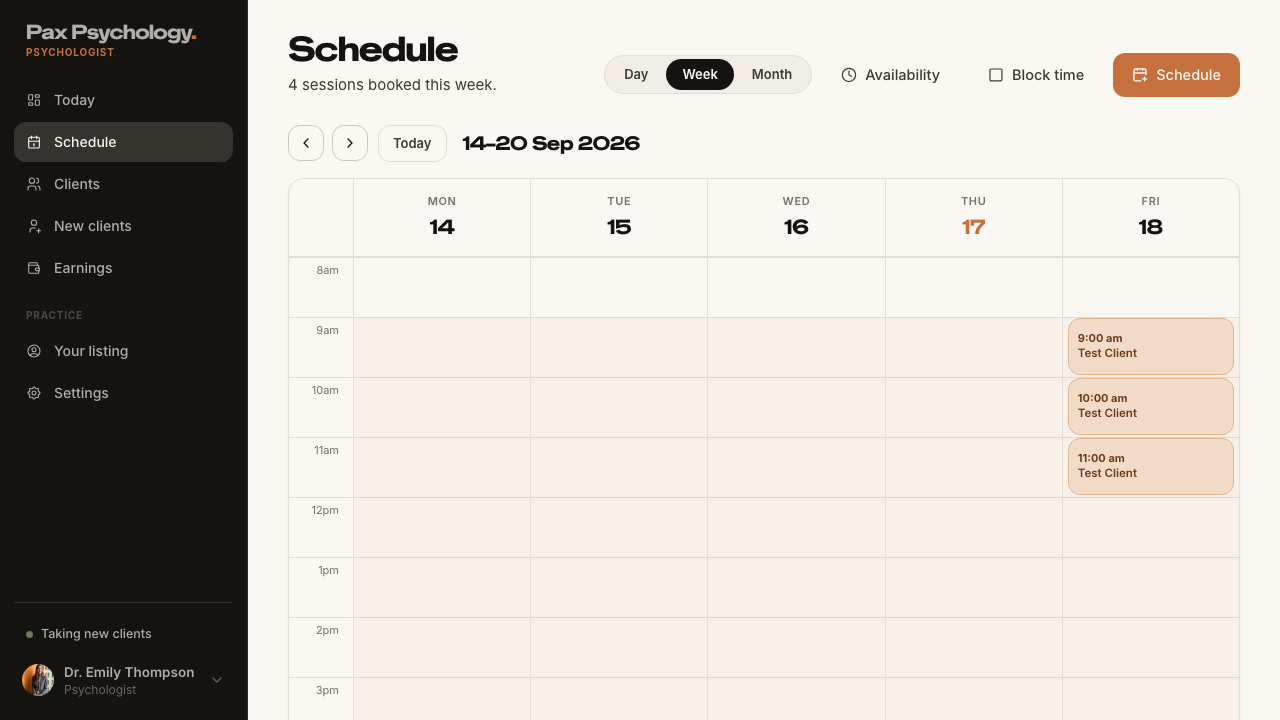
PassedTC-P-09Appointment detail (psychologist)12.8s
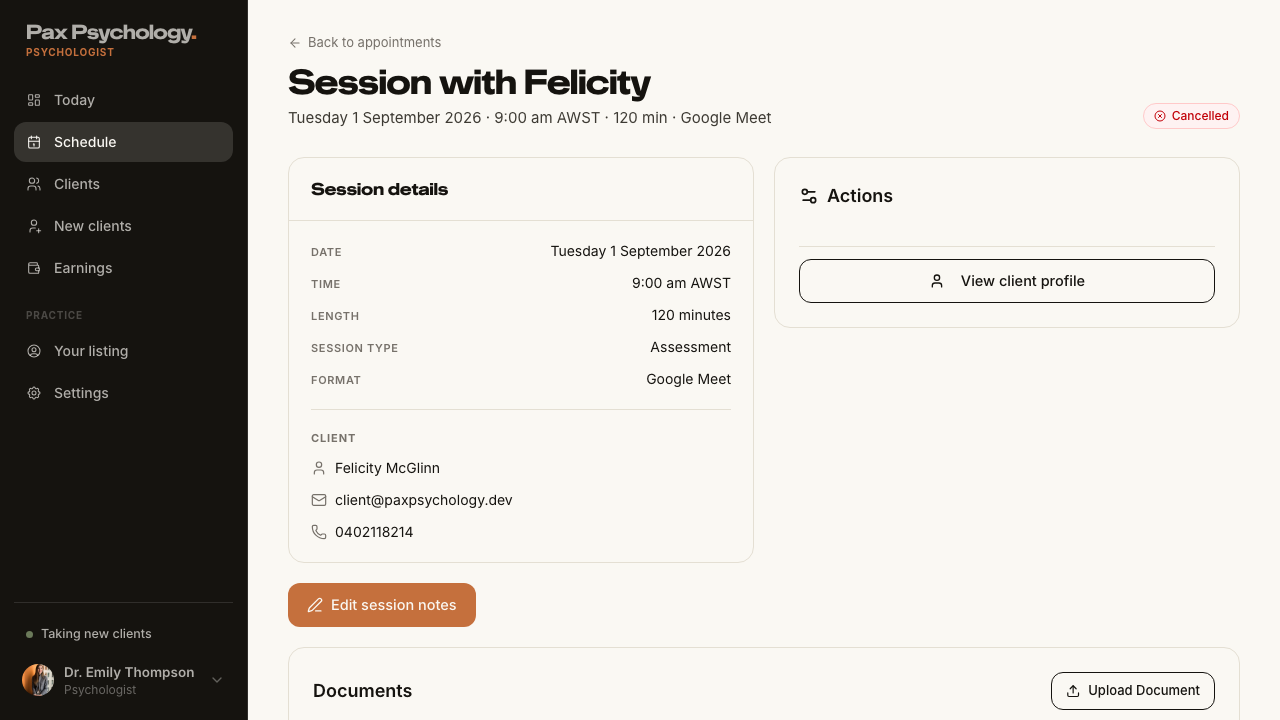
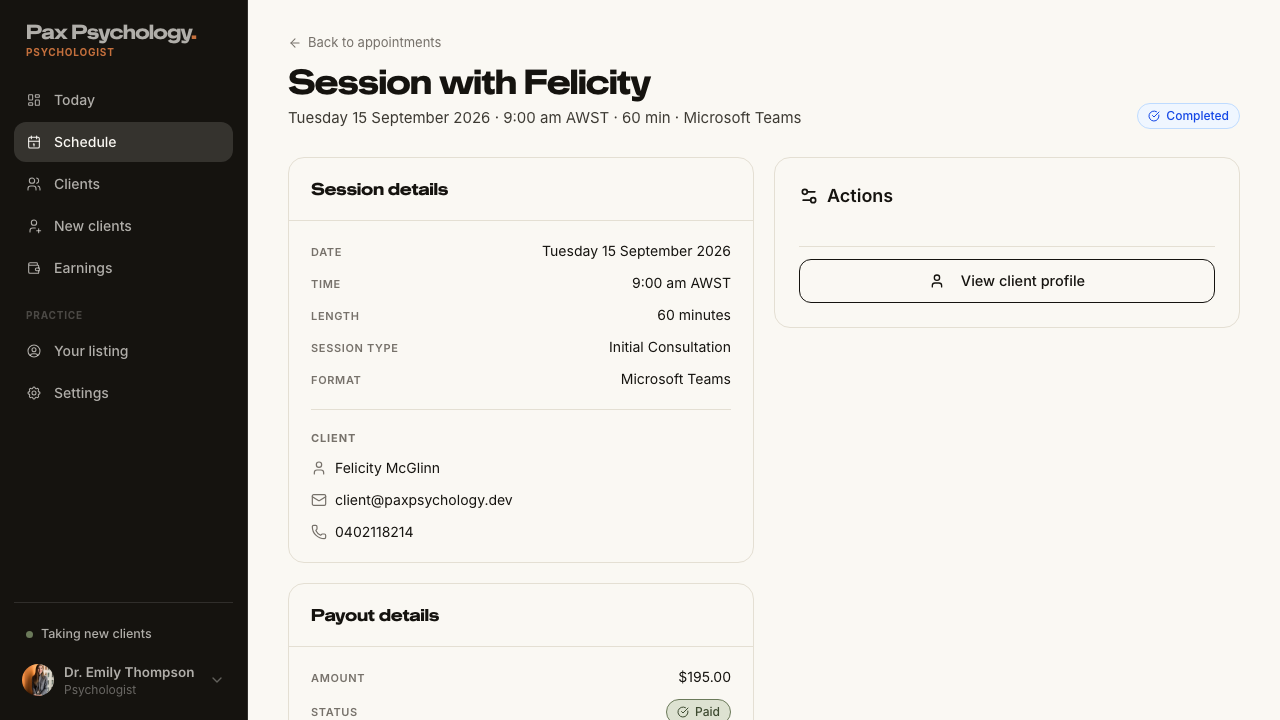
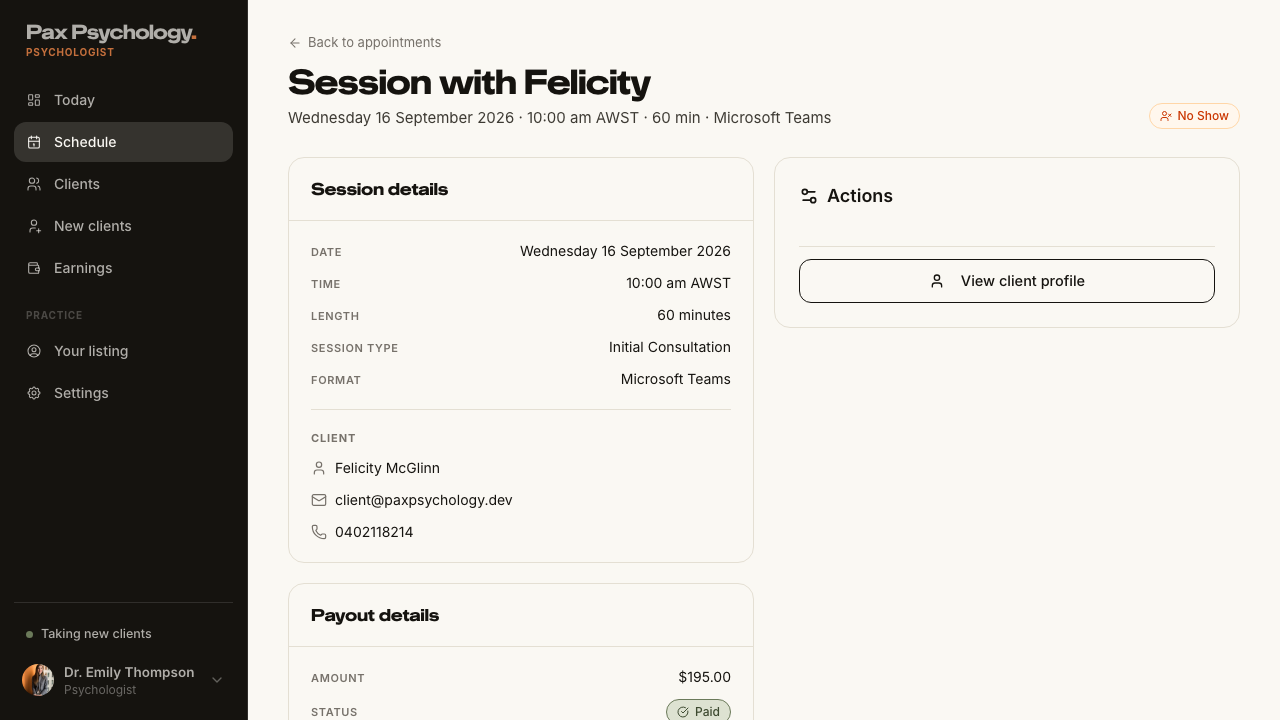
- 1. Open /dashboard/appointments/[appointmentId]
- Back link, H1 "Session with <ClientFirstName>", meta line and status pill
- Panel "Session details" with Date, Time, Length, Session type, Format and the Client block
- The referring GP is read from the client profile, with clinic and provider number
- An "Actions" card with the applicable buttons, plus "View client profile"
- "Payout details" panel, a session-notes button and a "Documents" card
PassedTC-P-10Complete an appointment (client attended)1m 13s
- Find a CONFIRMED session whose end time has passed and whose client has a saved card
- 1. Open the appointment detail page and click "Complete appointment"
- 2. Step 1 — Session Attendance. Choose "Client Attended", then "Continue"
- 3. Step 2 — Session Notes. Type notes in the textarea, then "Continue"
- 4. Step 3 — Documents. Optionally attach a file, then "Continue" (or "Skip")
- 5. Step 4 — Complete Session. Review the summary and click "Complete & Capture Payment"
- The status becomes Completed and an invoice is raised
PassedTC-P-11Mark an appointment as No-Show1m 34s
- Find another CONFIRMED session whose end time has passed, with a card on file
- 1. Click "Complete appointment"
- 2. Choose "No-Show" and read the warning, then click "Continue"
- 3. On the confirm step, click "Confirm No-Show"
- The client is charged and notified, and the session reads No Show
PassedTC-P-27Complete an appointment for a client with no saved card (new)1m 40s
- Find a past CONFIRMED session whose client has no payment method on file
- 1. Click "Complete appointment" and step through to the confirm step
- The fee row reads "Session fee (not charged)" and the callout explains nothing is charged
- The primary button reads "Complete session" and no invoice is created
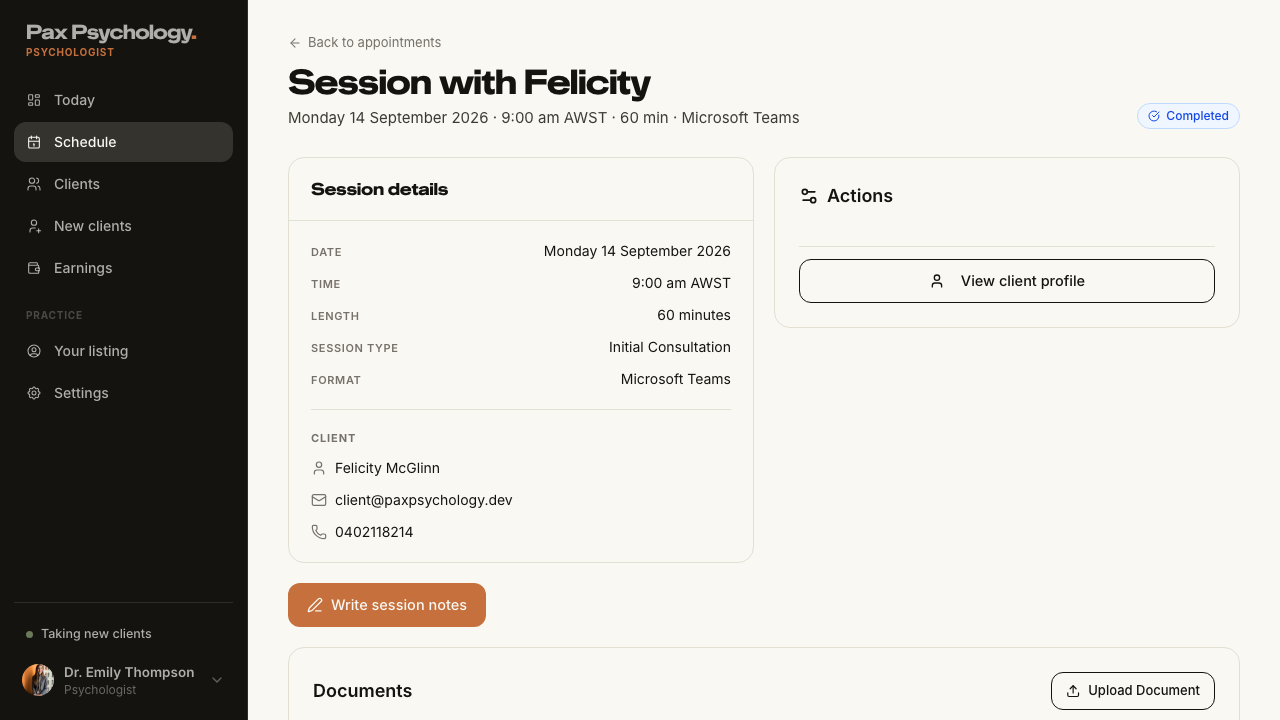
FailedTC-P-12Reschedule an appointment38.1s
- Find an upcoming CONFIRMED appointment to reschedule
- 1. On the appointment detail page, click "Reschedule"
- 2. Pick a new date under "Select New Date", wait for slots, and pick one under "Select New Time"
- 3. Click "Confirm Reschedule" — failed
Error: expect(locator).toBeVisible() failed

Locator: getByText('Appointment rescheduled successfully')
Expected: visible
Timeout: 30000ms
Error: element(s) not found

Call log:
  - Expect "toBeVisible" with timeout 30000ms
  - waiting for getByText('Appointment rescheduled successfully')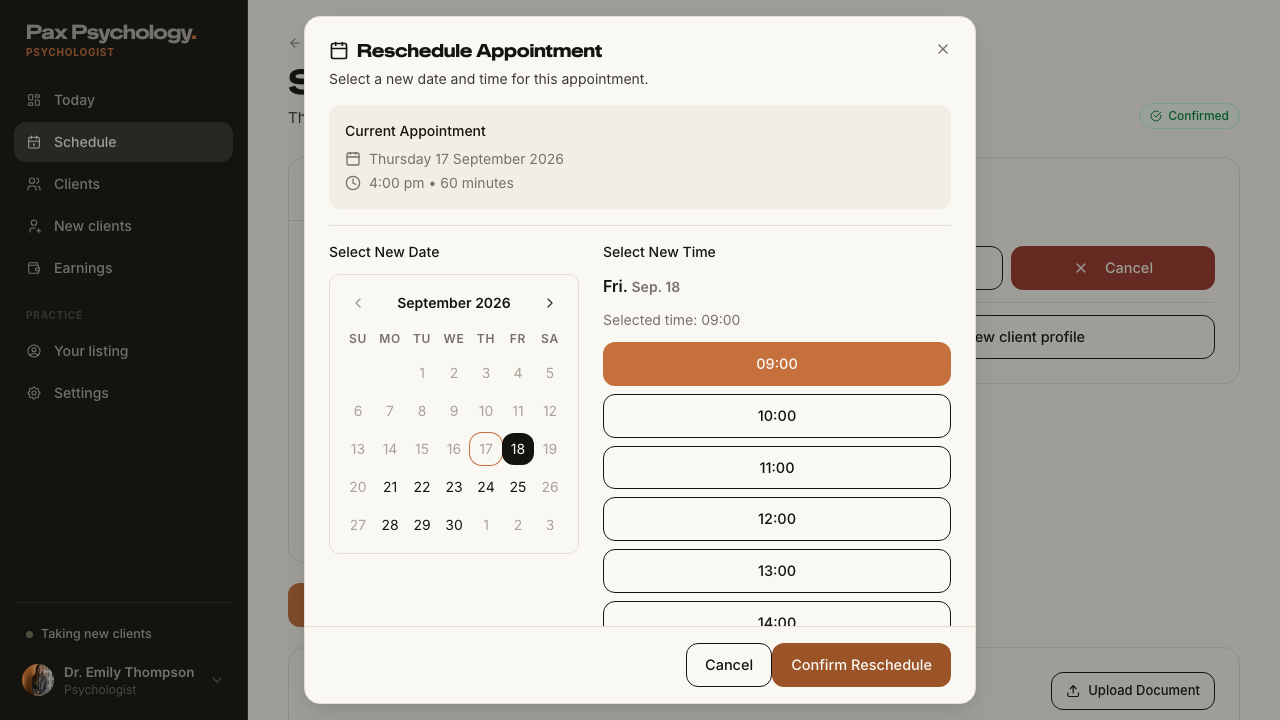
PassedTC-P-13Session Notes workspace6.8s
- Open a completed appointment
- 1. Click "Write session notes" (or "Edit session notes" if notes already exist)
- 2. Choose a template, type notes, add a note to the client and assign a reading
- 3. Click "Save notes" / "Save & send"
- Notes: the "Share notes with client" switch is retired
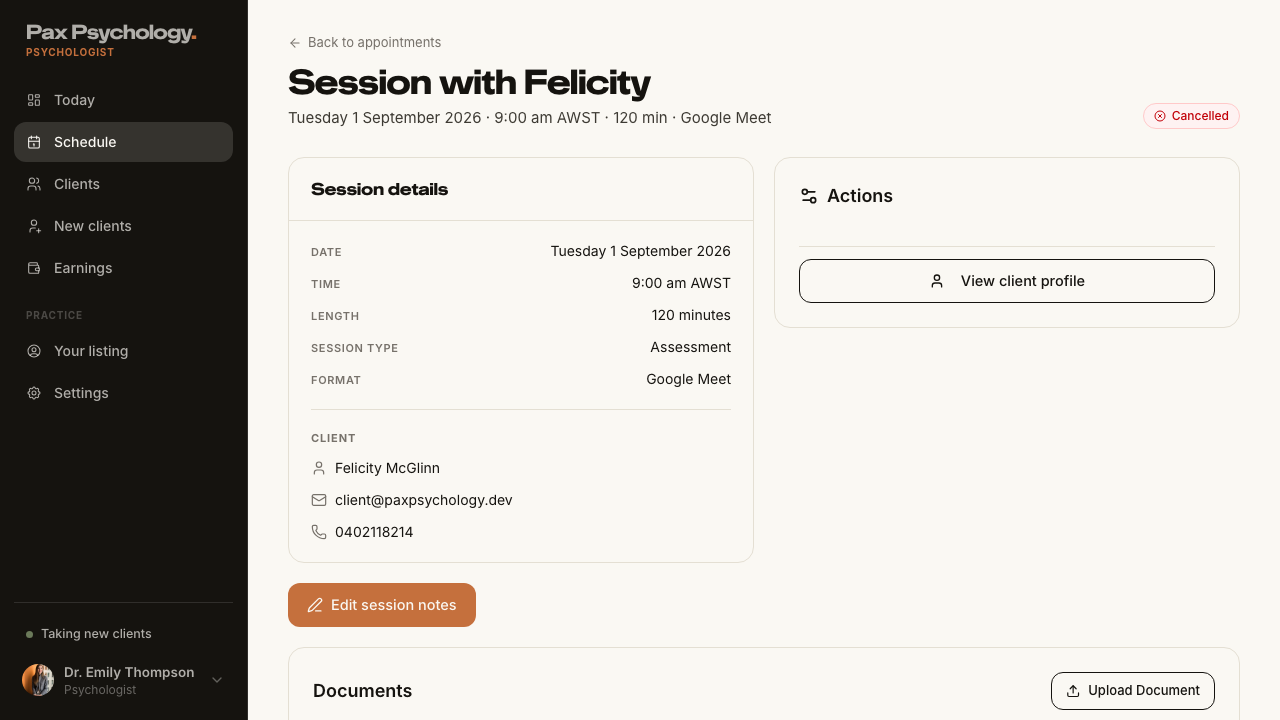
2D. Client Management
2 passed
PassedTC-P-14View the clients list9.2s
- 1. Navigate to https://paxpsychology.dev/dashboard/clients
- 2. Search for a client, then try each status tab
- 3. Click a row
- Notes: the old Name / Email / Mobile / Referring Doctor columns are gone
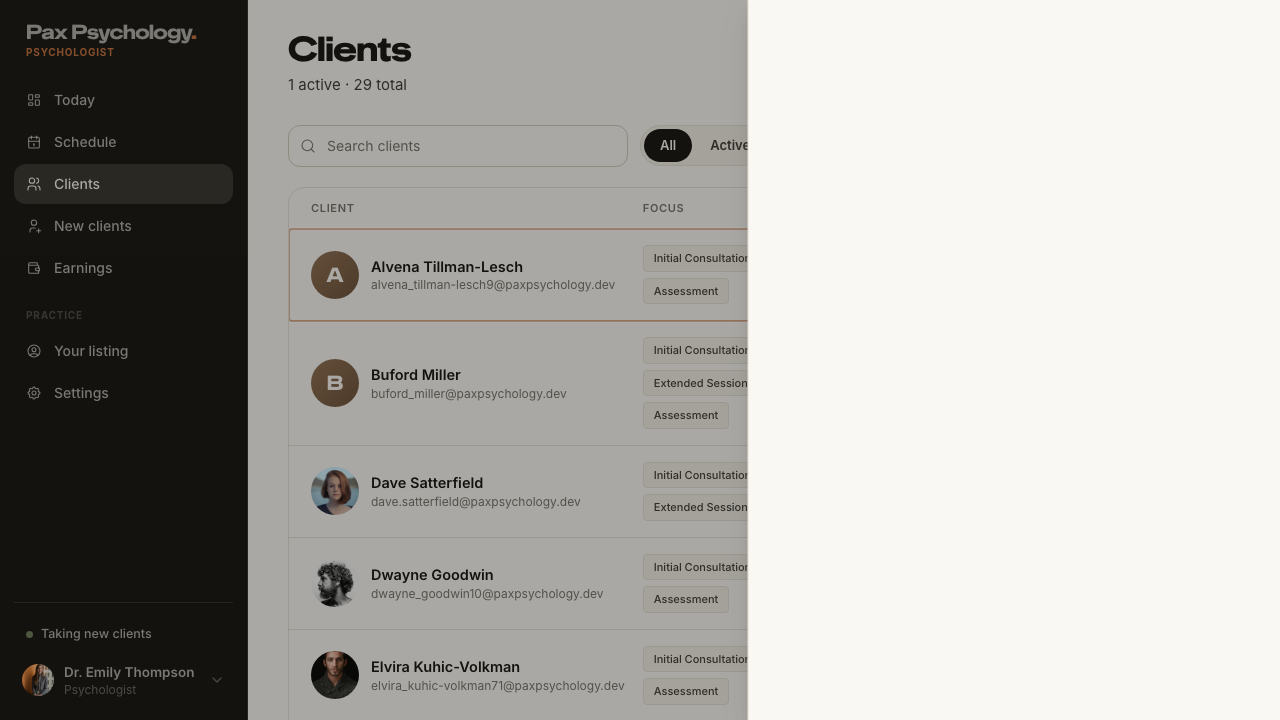
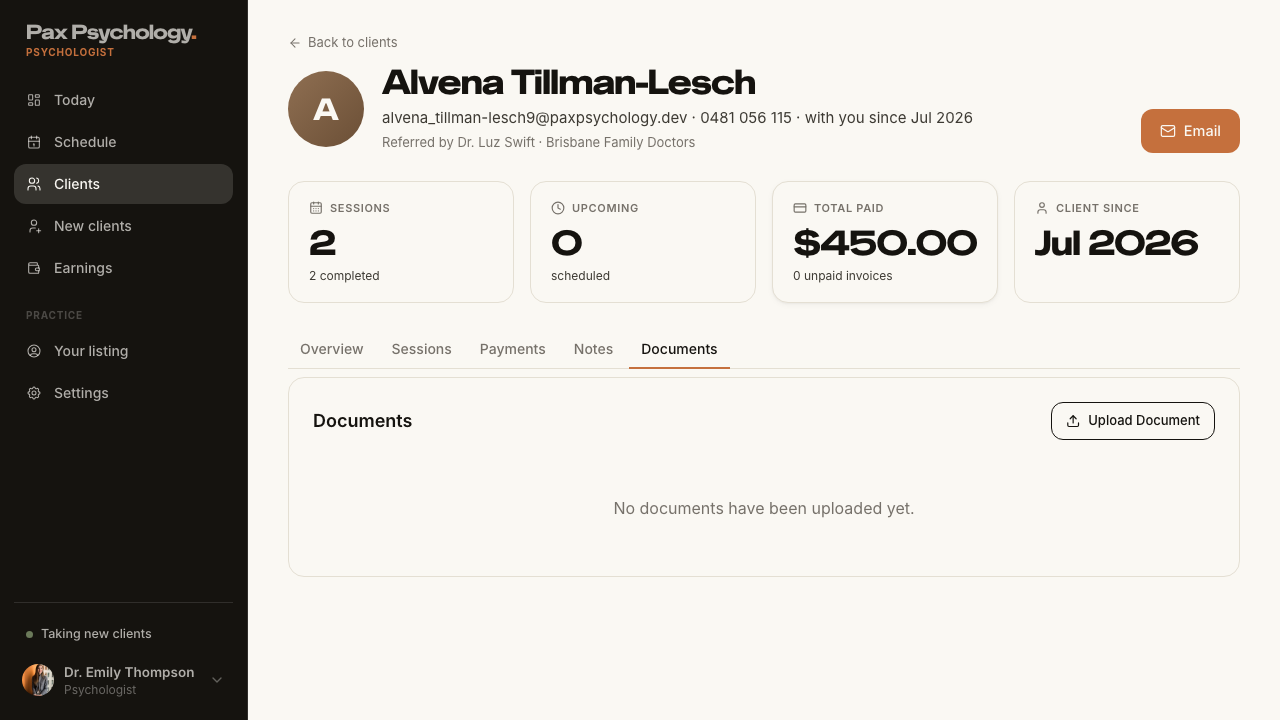
PassedTC-P-15View the client detail page6.7s
- 1. From the drawer click "View full profile"
- H1 is the client's name, with the email · mobile · with-you-since meta line
- KPI cards "Sessions", "Upcoming", "Total paid", "Client since"
- 2. Work through each tab
2E. Invoices
2 passed
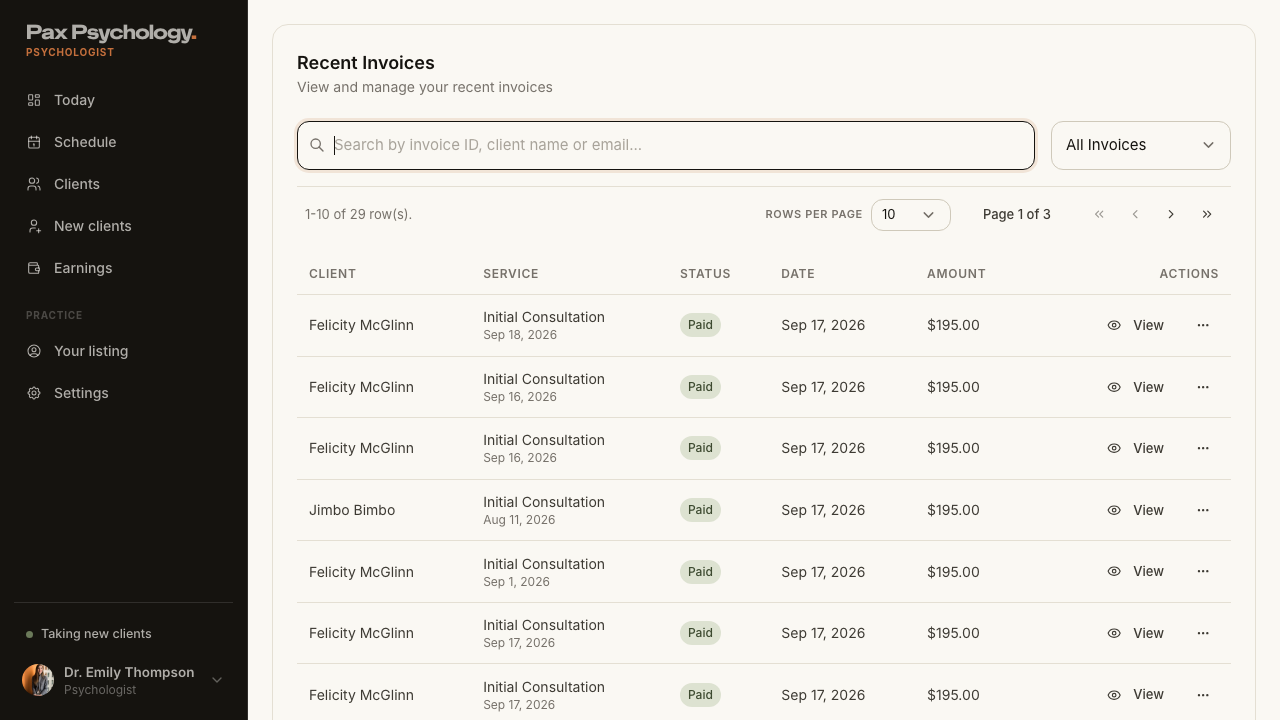
PassedTC-P-16View the psychologist invoices list10.3s
- 1. Navigate to https://paxpsychology.dev/dashboard/invoices
- 2. Search, then use the status filter
- Rows carry "View" and a "⋯" menu, and pagination appears at 10+ items
PassedTC-P-17Invoice detail and resend1m 10s
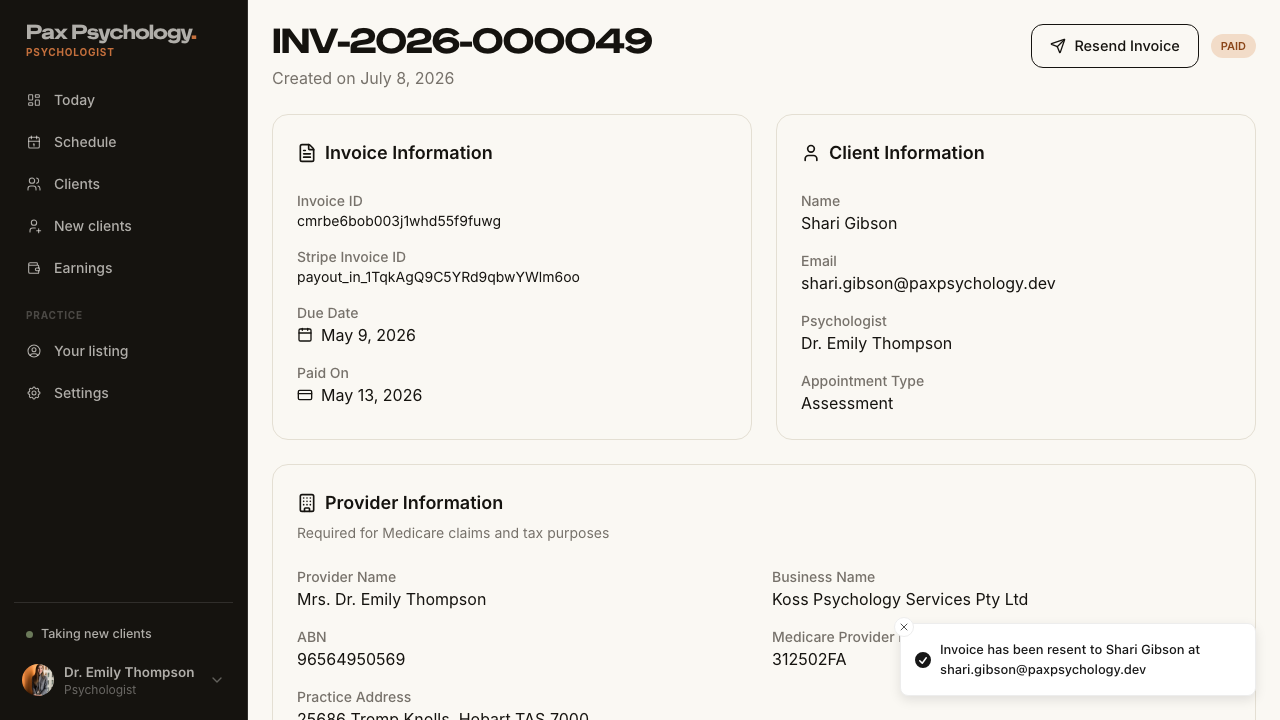
- 1. From /dashboard/invoices, click "View" on an invoice
- The detail page shows the invoice number, created-on line, status pill and its cards
- 2. Click "Resend Invoice" and confirm
2F. Settings
3 passed 1 failed 2 manual
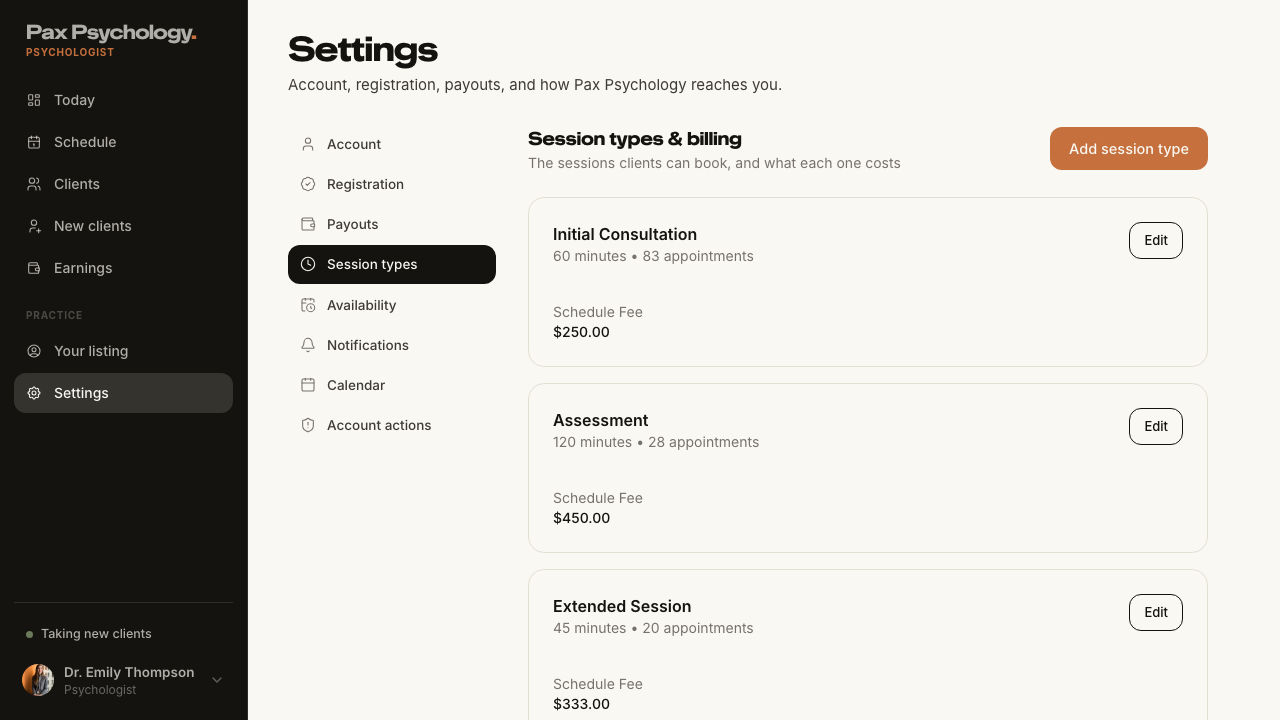
PassedTC-P-18Edit a session type8.2s
- 1. Navigate to /dashboard/settings?section=appointment-types
- 2. Click "Edit" on a session type
- 3. Change the Schedule Fee to 250.00, the Duration to 1 hour, and the Description
- 4. Click "Update appointment type"
- "Cancel" returns to /dashboard/settings?section=appointment-types
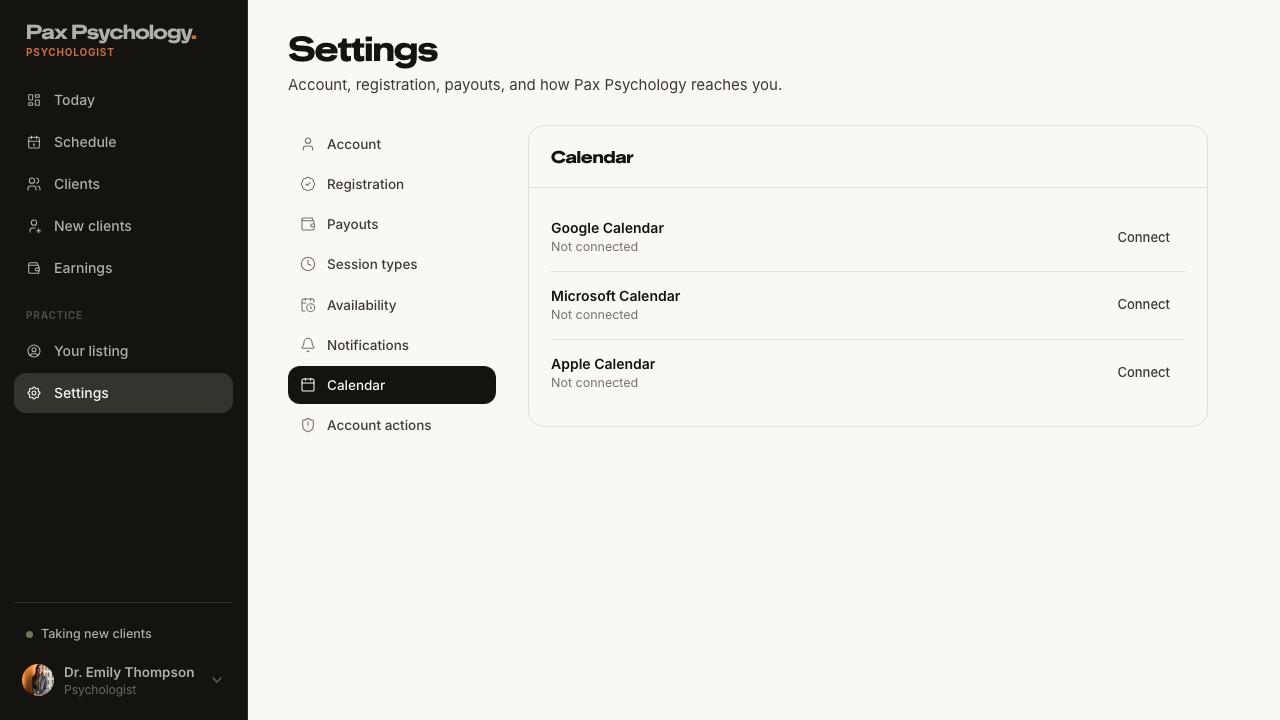
ManualTC-P-19Connect a calendar3.0s
Steps 2–3 leave Pax: 'Connect' redirects to Google's (or Microsoft's) hosted OAuth consent screen, which needs real credentials and a second factor and cannot be driven from a test browser. The Pax side — the provider rows, their state copy and the Connect/Disconnect buttons — is checked below; a reviewer grants consent by hand and then confirms the toast 'Google Calendar connected successfully!' and the row flipping to 'Connected · two-way sync of sessions and blocks'.
- 1. Navigate to https://paxpsychology.dev/dashboard/settings?section=calendar
- The panel lists Google Calendar, Microsoft Calendar and Apple Calendar with their state and action
- 2.–3. Click "Connect" next to Google Calendar, complete OAuth, return to Pax — MANUAL
- 4. Click "Disconnect" — MANUAL (only meaningful once a provider is connected)
- Notes: /dashboard/settings/calendars redirects here
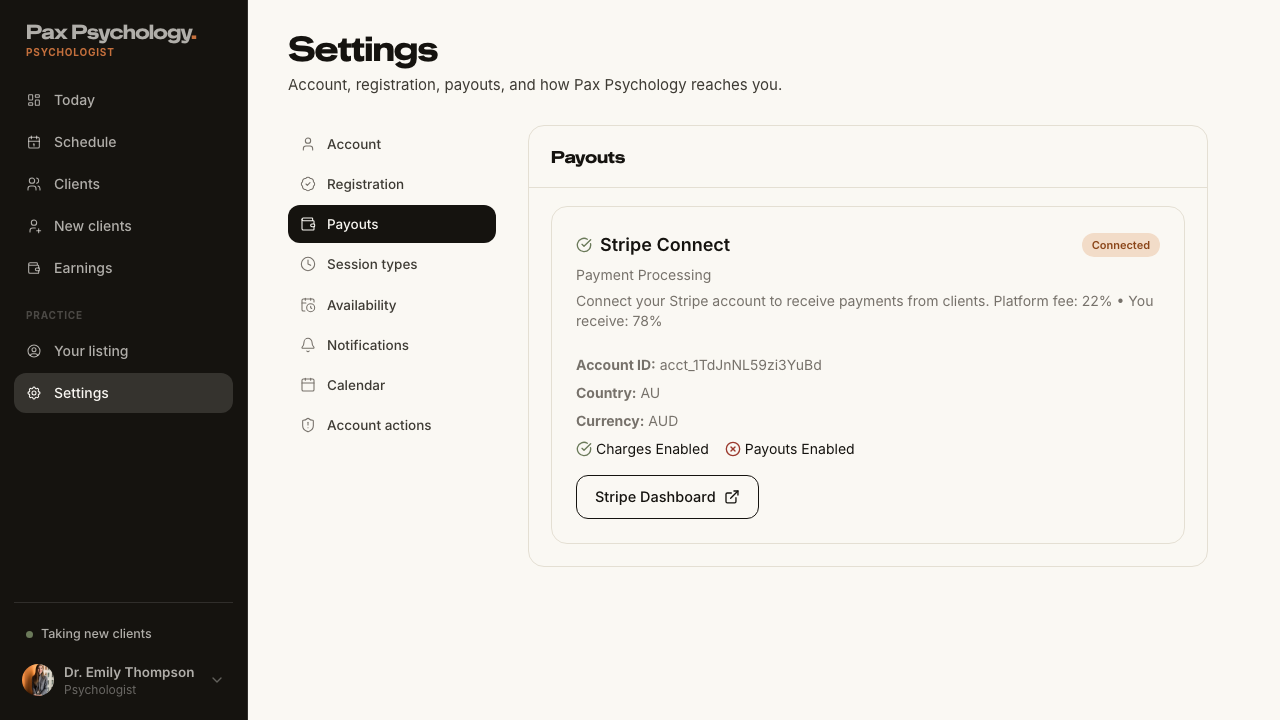
ManualTC-P-20Open the Stripe Express dashboard4.2s
The last hop of step 2 leaves Pax: 'Stripe Dashboard' mints a one-time Express login link and opens connect.stripe.com, which is Stripe's own product and cannot be asserted from here. Everything Pax renders — the 'Connected' badge, the Account ID / Country / Currency rows, the Charges Enabled / Payouts Enabled flags and the button itself — is checked below.
- 1. Navigate to /dashboard/settings?section=payouts
- The card shows the "Connected" badge, the account rows and both enabled flags
- 2. Click "Stripe Dashboard" — the button opens the Stripe Express dashboard (hosted hop is MANUAL)
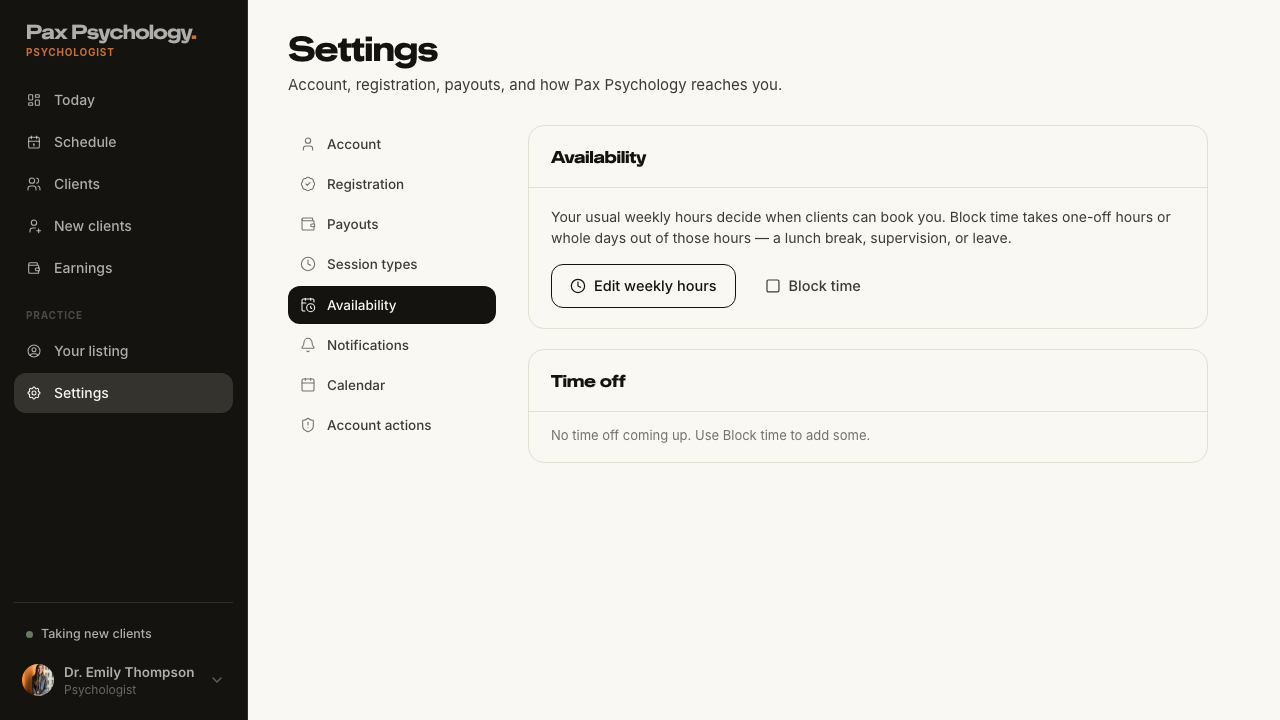
FailedTC-P-21Settings › Availability (new)1.8s
- 1. Navigate to https://paxpsychology.dev/dashboard/settings?section=availability — failed
Error: expect(locator).toBeVisible() failed

Locator: getByText('Your usual weekly hours decide when clients can book you. Block time takes one-off hours or whole days out of those hours — a lunch break, supervision, or leave.')
Expected: visible
Error: strict mode violation: getByText('Your usual weekly hours decide when clients can book you. Block time takes one-off hours or whole days out of those hours — a lunch break, supervision, or leave.') resolved to 2 elements:
    1) <p class="text-ink-2 mb-4 text-[14px]">Your usual weekly hours decide when clients can b…</p> aka getByRole('paragraph')
    2) <p class="text-ink-2 mb-4 text-[14px]">Your usual weekly hours decide when clients can b…</p> aka getByText('Your usual weekly hours').nth(1)

Call log:
  - Expect "toBeVisible" with timeout 5000ms
  - waiting for getByText('Your usual weekly hours decide when clients can book you. Block time takes one-off hours or whole days out of those hours — a lunch break, supervision, or leave.')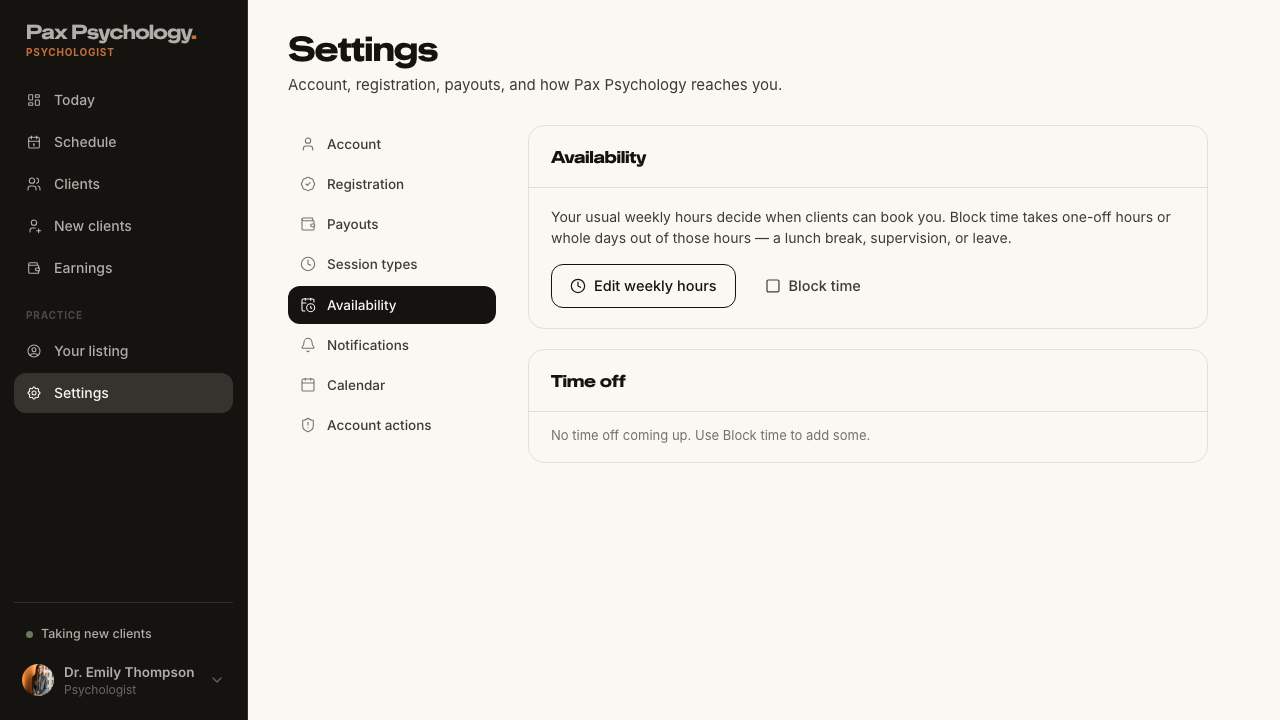
PassedTC-P-22Legacy settings URLs redirect (new)9.0s
- Visit /dashboard/settings/availability and note where you land
- Visit /dashboard/settings/profile and note where you land
- Visit /dashboard/settings/billing and note where you land
- Visit /dashboard/settings/payments and note where you land
- Visit /dashboard/settings/payment-methods and note where you land
- Visit /dashboard/settings/calendars and note where you land
- Visit /dashboard/settings/notifications and note where you land
- Visit /dashboard/settings/appointment-types and note where you land
- Notes: appointment-types/add and appointment-types/[id] are real pages and must NOT redirect
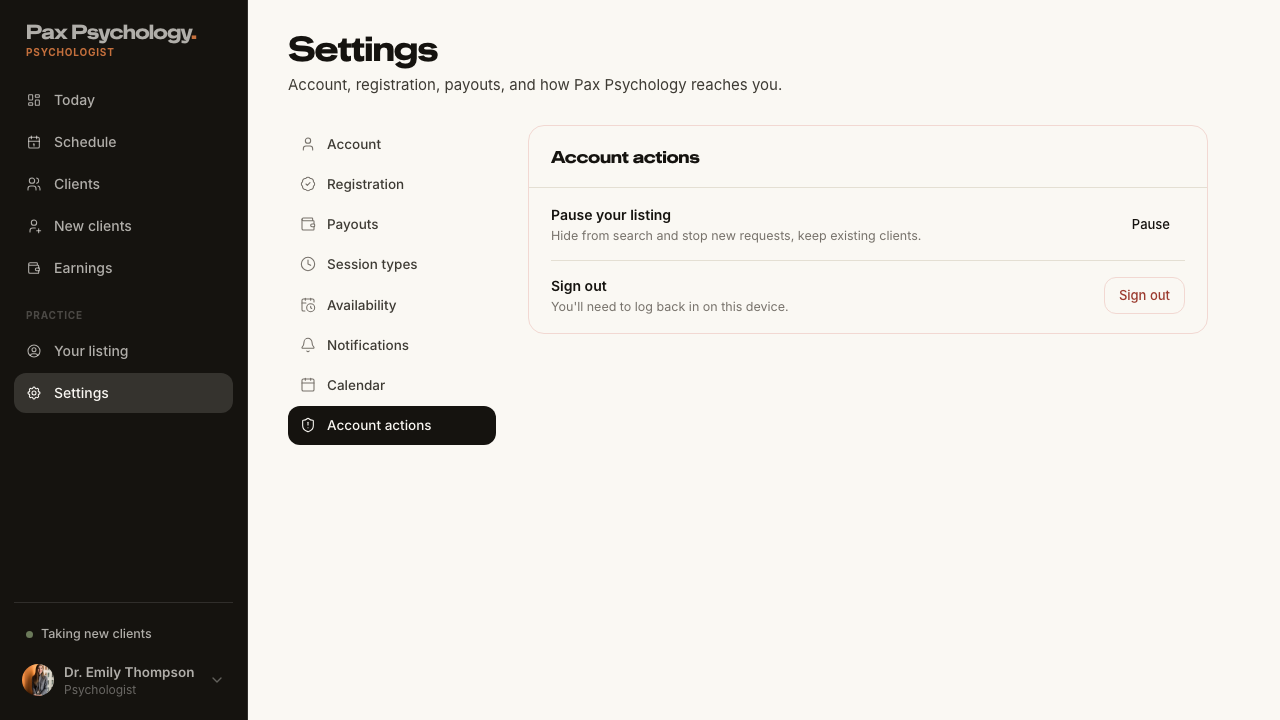
PassedTC-P-23Account actions — pause and resume the listing (new)9.9s
- 1. Navigate to /dashboard/settings?section=actions
- 2. Click "Pause"
- 3. Check /psychologists in a signed-out window
- 4. Return and click "Resume"
2G. New surfaces
1 passed 1 failed 1 manual
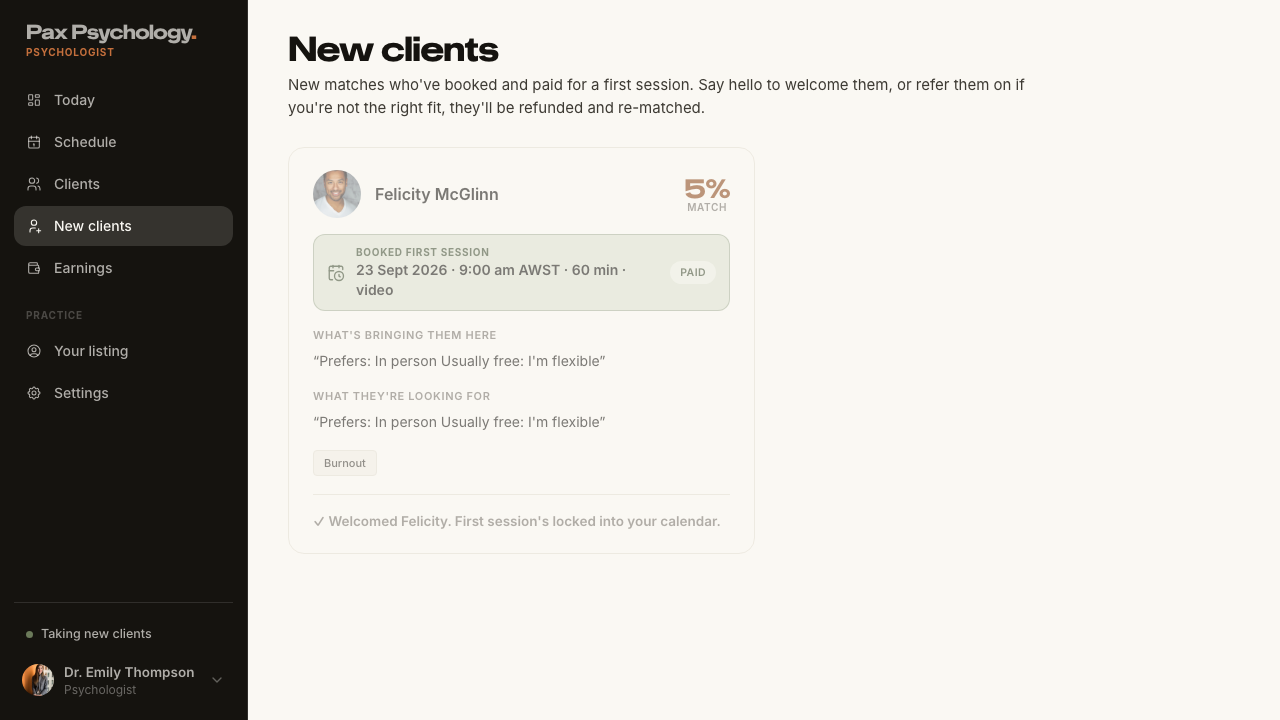
ManualTC-P-24New clients queue (new)8.2s
'Suggest another time' emails the client and 'Not a fit' refunds them and pushes them back into matching. Neither can be undone on the shared staging database, so this run asserts both buttons are present and enabled and leaves the two outcomes ('Reschedule options sent to <First>.' and 'Referred on, they've been refunded and re-matched.') to a manual pass.
- 1. Navigate to https://paxpsychology.dev/dashboard/new-clients
- The queue lists requests, or shows its empty state
- Cards carry the "Booked first session" band and the three actions
- 2. Click "Welcome <First>" on a request
- 3. On another request, try "Suggest another time" and "Not a fit"
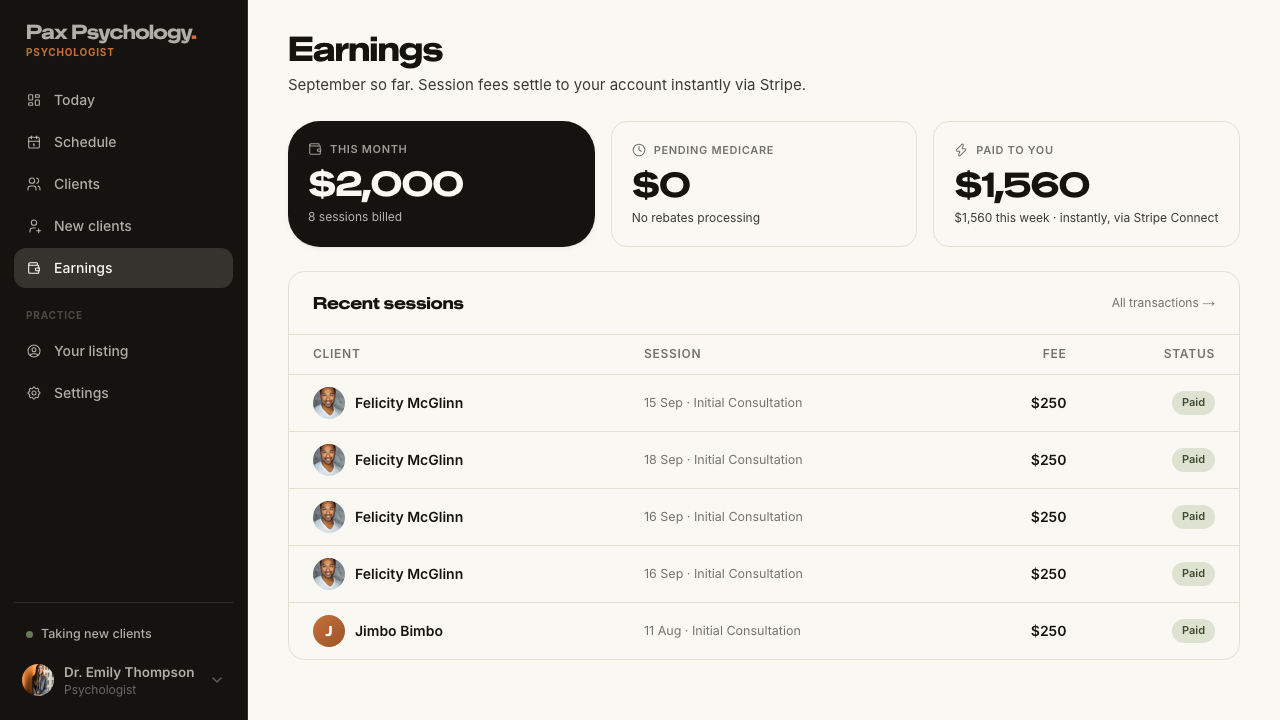
PassedTC-P-25Earnings (new)7.3s
- 1. Navigate to https://paxpsychology.dev/dashboard/earnings
- H1 Earnings with the month sub-line and the KPI tiles
FailedTC-P-26Your listing (new)1.9s
- 1. Navigate to https://paxpsychology.dev/dashboard/listing — failed
Error: expect(locator).toBeVisible() failed

Locator: getByText('Your public profile in the Pax Psychology marketplace. This is what clients see before they book.')
Expected: visible
Error: strict mode violation: getByText('Your public profile in the Pax Psychology marketplace. This is what clients see before they book.') resolved to 2 elements:
    1) <p class="text-ink-2 text-[15px]">Your public profile in the Pax Psychology marketp…</p> aka locator('[id="_r_2_"]').getByText('Your public profile in the')
    2) <p class="text-ink-2 text-[15px]">Your public profile in the Pax Psychology marketp…</p> aka getByText('Your public profile in the').nth(1)

Call log:
  - Expect "toBeVisible" with timeout 5000ms
  - waiting for getByText('Your public profile in the Pax Psychology marketplace. This is what clients see before they book.')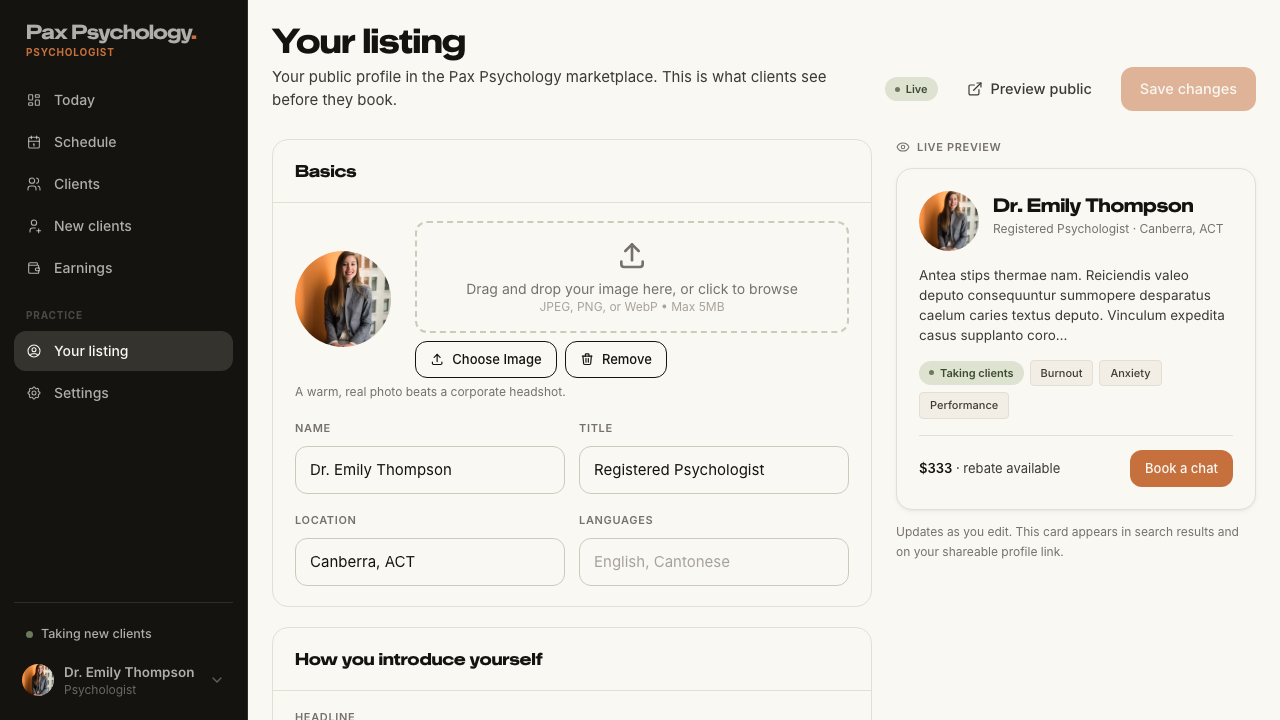
Admin
21 cases14 passed 5 failed 2 other
3A. Dashboard
1 passed
PassedTC-A-01Admin landing page5.5s
- 1. Navigate to https://paxpsychology.dev/dashboard
- Expected: the sidebar shows the admin nav and the 'Admin' role tag
- Expected: the old admin overview has been removed
3B. User Management
7 passed 1 failed
PassedTC-A-02View all users9.3s
- 1. Navigate to https://paxpsychology.dev/dashboard/users
- 2. Search by name, then by email
- 3. Try each role tab
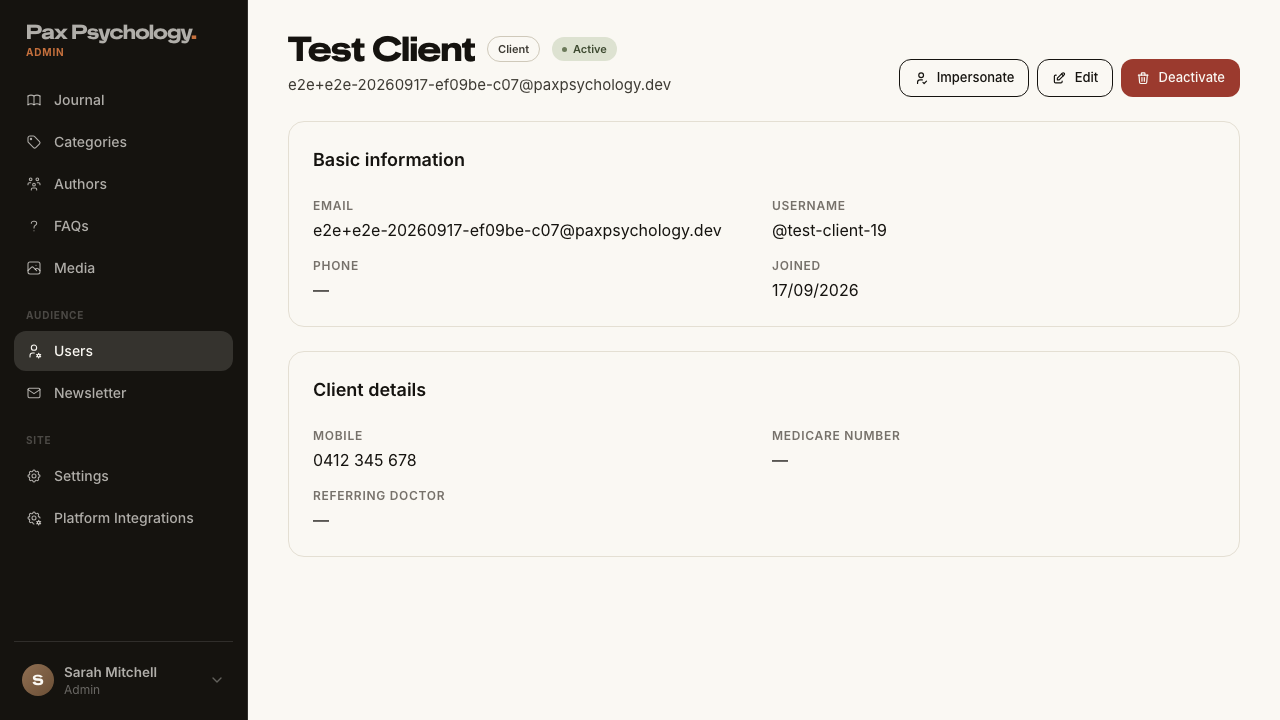
- 4. Click a row
FailedTC-A-03Create a new CLIENT user1.9s
- 1. Navigate to https://paxpsychology.dev/dashboard/users/add — failed
Error: expect(locator).toBeVisible() failed

Locator: getByText('Pick a role to get started.')
Expected: visible
Error: strict mode violation: getByText('Pick a role to get started.') resolved to 2 elements:
    1) <div class="text-ink-2 text-[15px]">Pick a role to get started.</div> aka getByRole('main').getByText('Pick a role to get started.')
    2) <div class="text-ink-2 text-[15px]">Pick a role to get started.</div> aka getByText('Pick a role to get started.').nth(1)

Call log:
  - Expect "toBeVisible" with timeout 5000ms
  - waiting for getByText('Pick a role to get started.')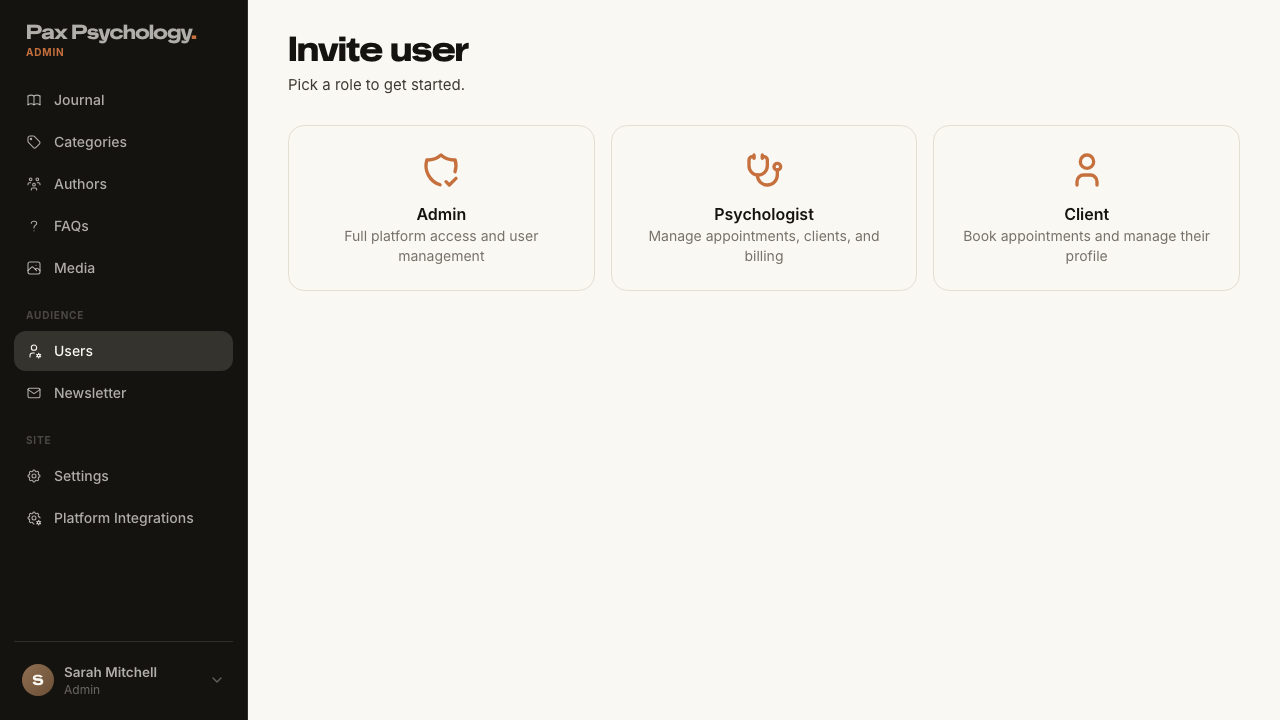
PassedTC-A-04Create a new PSYCHOLOGIST user (and the welcome email)8.4s
- 1. Navigate to /dashboard/users/add and choose "Psychologist"
- 2. Fill the form (name, email, username, professional details) and submit, leaving the password blank
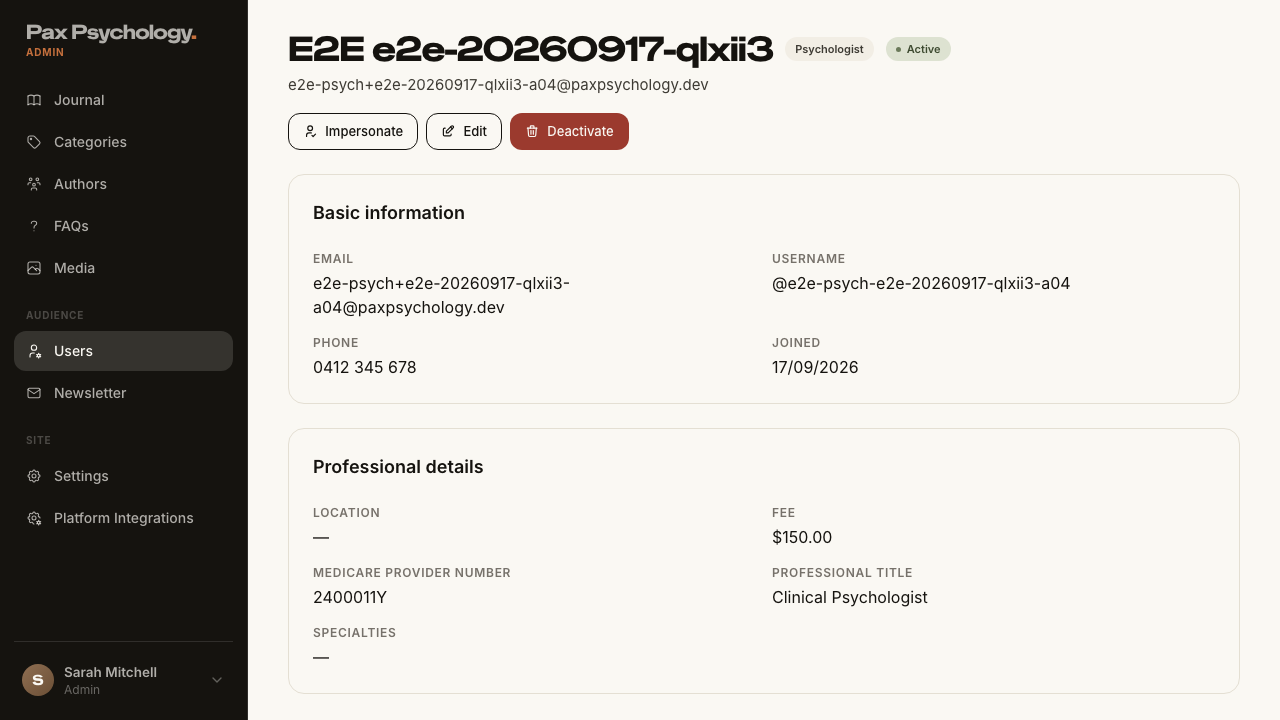
- Expected: the psychologist appears in the list with the "Psychologist" role tag and a lower-cased email
- Manual: open the welcome email and follow 'Set your password & get started'
PassedTC-A-05Edit an existing user8.1s
- Setup: create a throwaway client to edit
- 1. Open a user's detail page and click "Edit"
- 2. Update the name and save
- Expected: the change appears in the users list
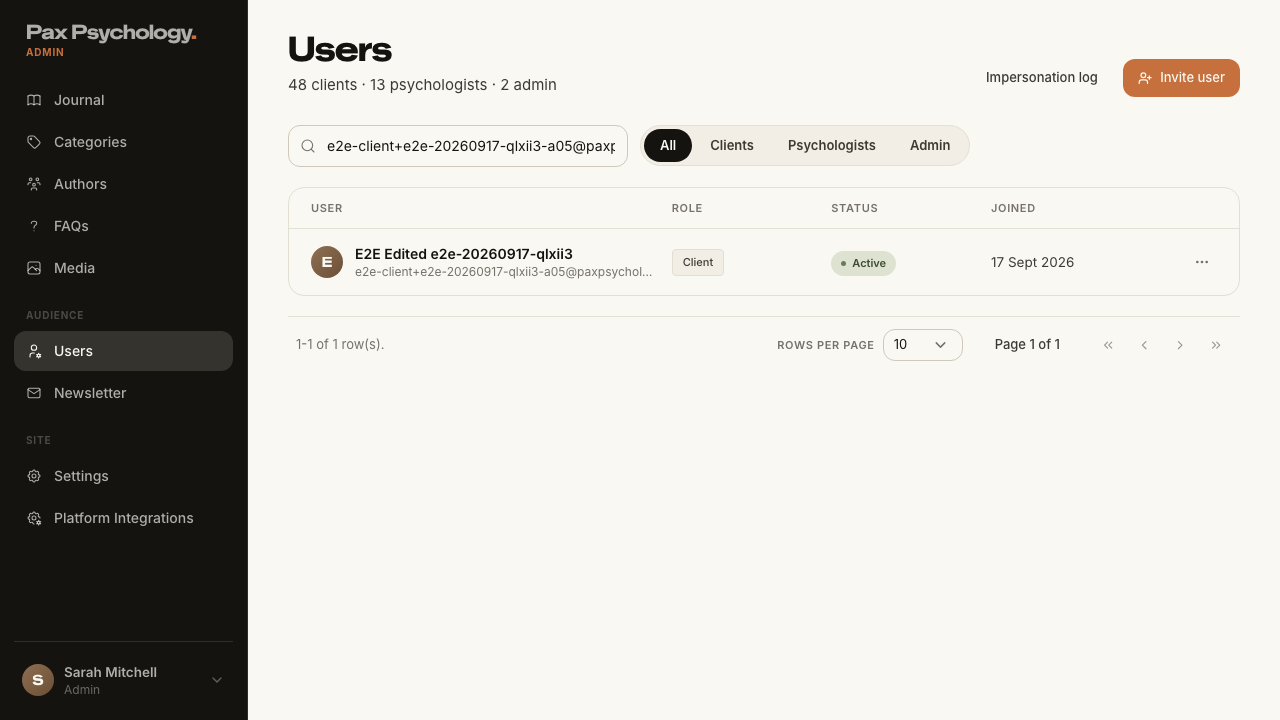
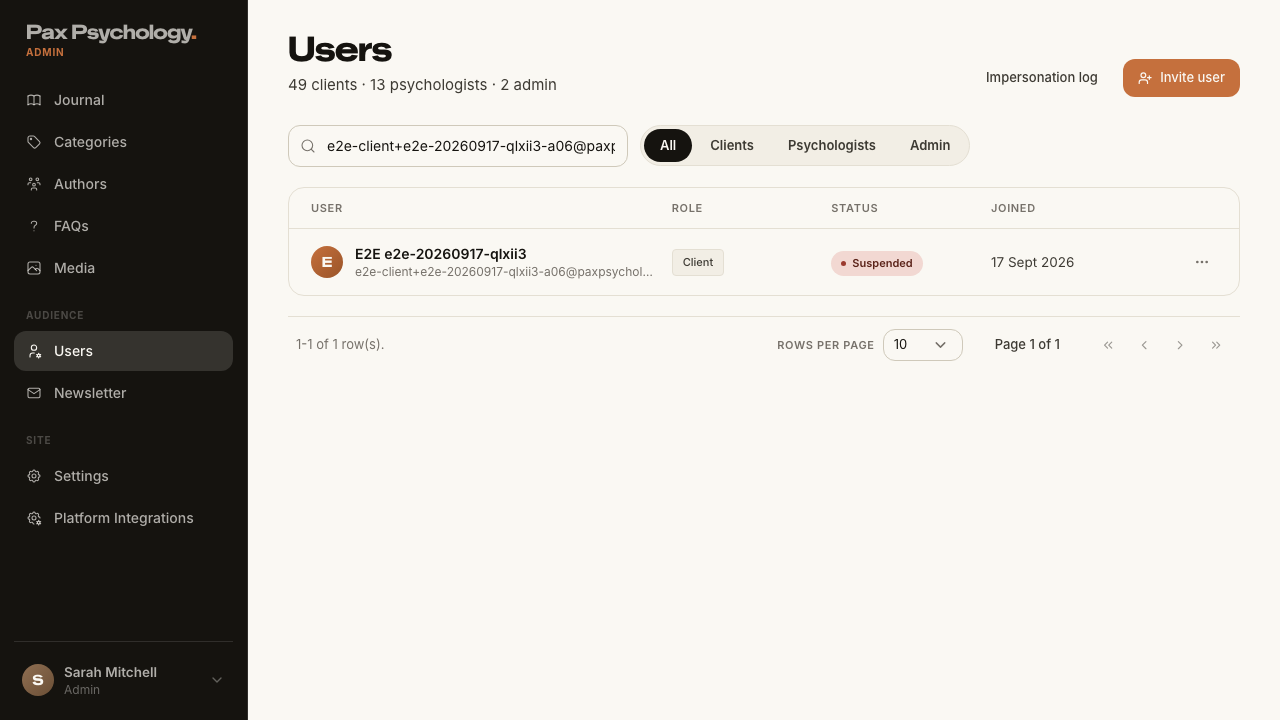
PassedTC-A-06Deactivate a user8.9s
- Setup: create a throwaway client (with a password) to deactivate
- 1. Open the user's detail page and click "Deactivate"
- 2. Read the confirmation page and click "Deactivate user"
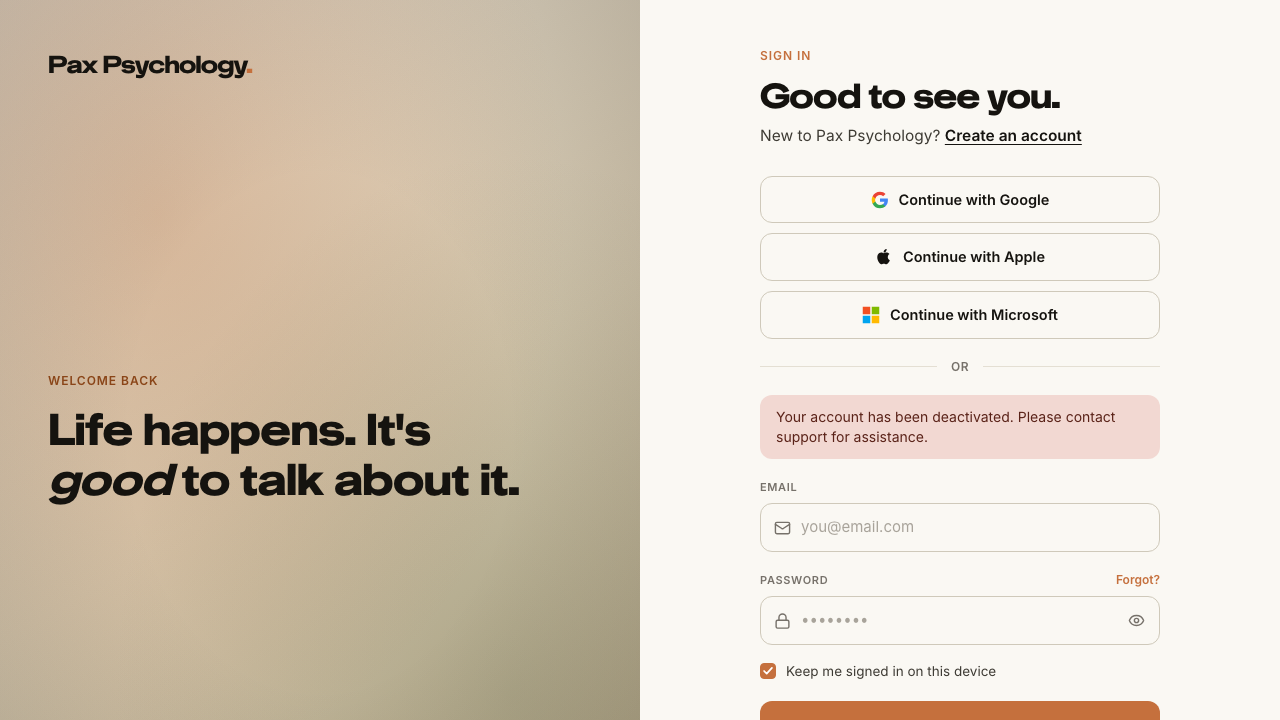
- 3. Try to sign in as that user
PassedTC-A-07Impersonate a client7.1s
- 1. From /dashboard/users, open a CLIENT user and click "Impersonate"
- 2. Move around the dashboard
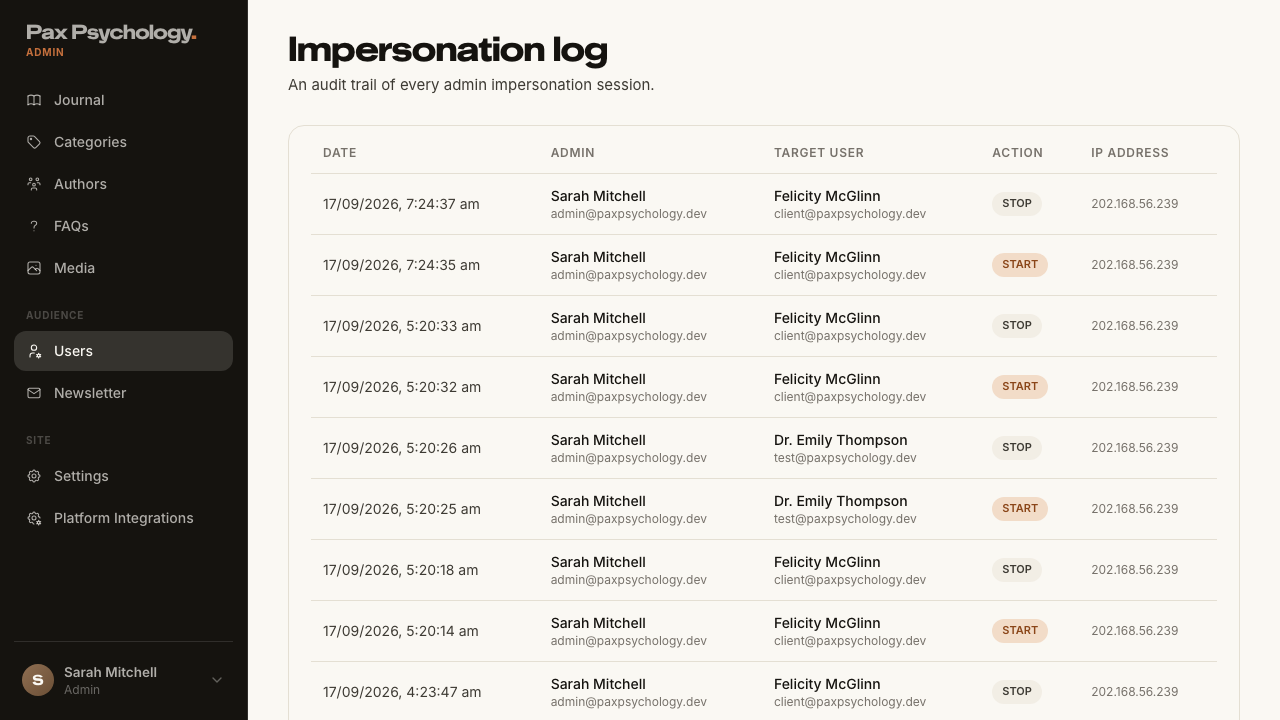
- Expected: the event is written to the impersonation log
PassedTC-A-08Impersonate a psychologist6.6s
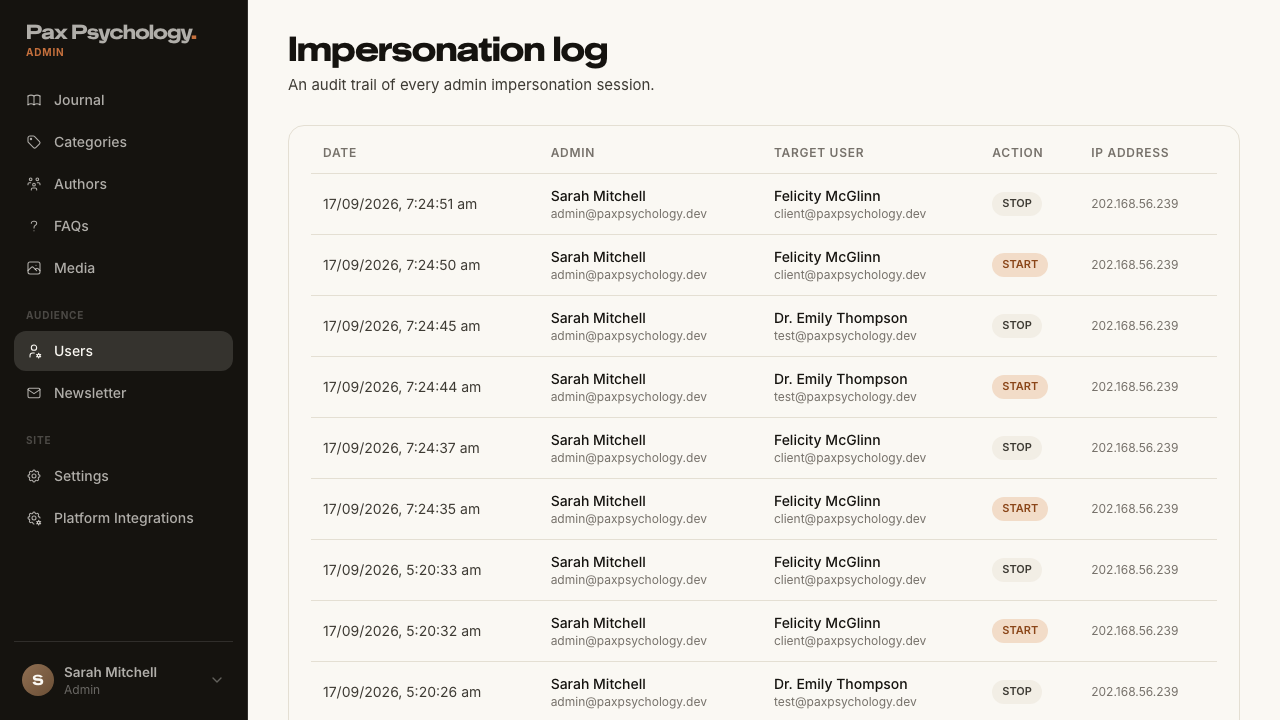
PassedTC-A-09Stop impersonation and check the audit log8.3s
- Setup: impersonate the seeded client so there is a session to stop
- 1. Click "Stop Impersonating" in the amber banner
- 2. Go to /dashboard/users and click "Impersonation log"
3C. Content Management
1 passed 2 other
RetiredTC-A-10Create, edit, and publish a blog post—
The blog has been folded into the Journal. There is no /dashboard/blog any more; /dashboard/blog, /dashboard/blog/add and /dashboard/blog/:id 307-redirect to the equivalent Journal routes. The Journal editor is tested as TC-A-16.
RetiredTC-A-11Create, edit, and publish a story/testimonial—
The Story model was rebranded to Journal. There is no /dashboard/stories; /dashboard/stories and /dashboard/stories/* 307-redirect to /dashboard/journal. The "It's normal" stories carousel on the directory page has been replaced by the journal carousel. The Journal editor is tested as TC-A-16.
PassedTC-A-12Create, edit, and publish an FAQ21.3s
- 1. Navigate to https://paxpsychology.dev/dashboard/faqs
- 2. Click "New FAQ"
- 3. Enter a Question and Answer, pick an Audience, turn "Published" on, and click "Create FAQ"
- 4. Edit the FAQ and save
- 5. Check the FAQ accordion on the homepage
- 6. Delete the FAQ
3D. Newsletter
2 passed 1 failed
FailedTC-A-13View newsletter subscribers1.9s
- 1. Navigate to https://paxpsychology.dev/dashboard/newsletter — failed
Error: expect(locator).toBeVisible() failed

Locator: getByText('Manage subscriptions and export subscriber data.')
Expected: visible
Error: strict mode violation: getByText('Manage subscriptions and export subscriber data.') resolved to 2 elements:
    1) <div class="text-ink-2 text-[15px]">Manage subscriptions and export subscriber data.</div> aka getByRole('main').getByText('Manage subscriptions and')
    2) <div class="text-ink-2 text-[15px]">Manage subscriptions and export subscriber data.</div> aka getByText('Manage subscriptions and').nth(1)

Call log:
  - Expect "toBeVisible" with timeout 5000ms
  - waiting for getByText('Manage subscriptions and export subscriber data.')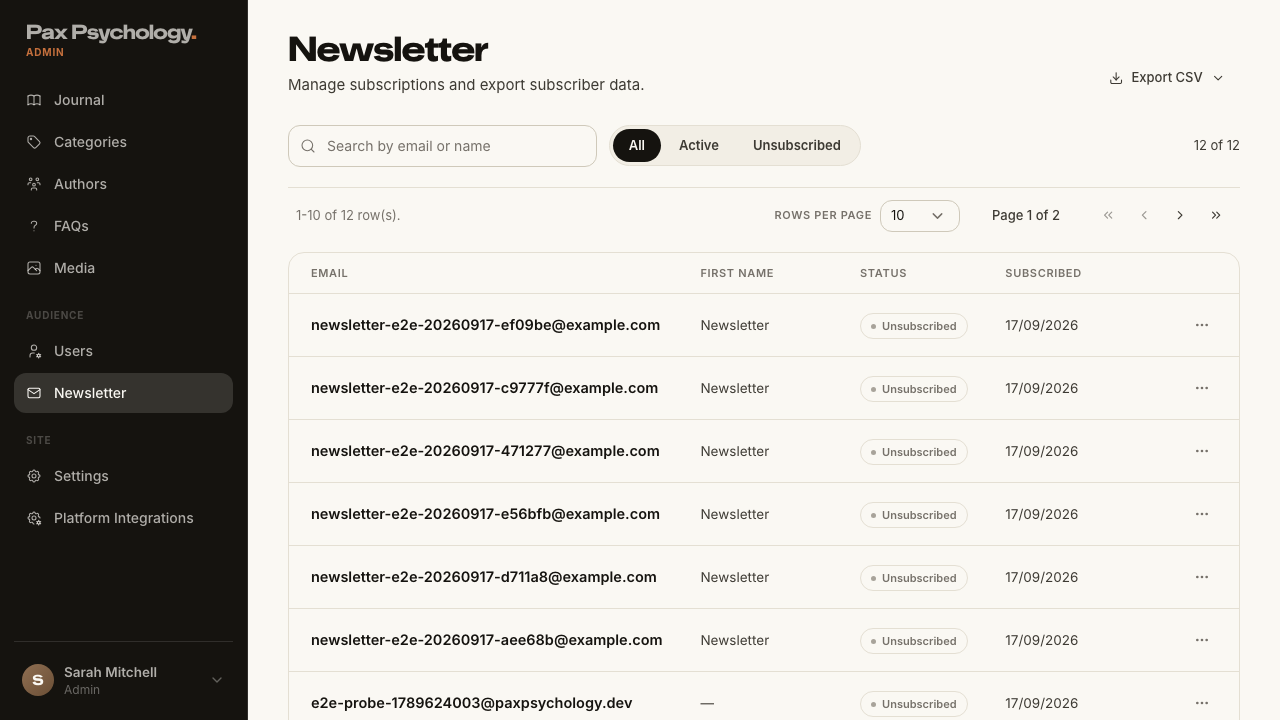
PassedTC-A-14Export subscribers as CSV7.1s
- 1. Switch to the "Active" tab
- 2. Click "Export CSV" and choose "Export Current View (Active)"
- 3. Open the file
- 4. Repeat with "Export All Subscribers", "Export Active Only" and "Export Unsubscribed Only"
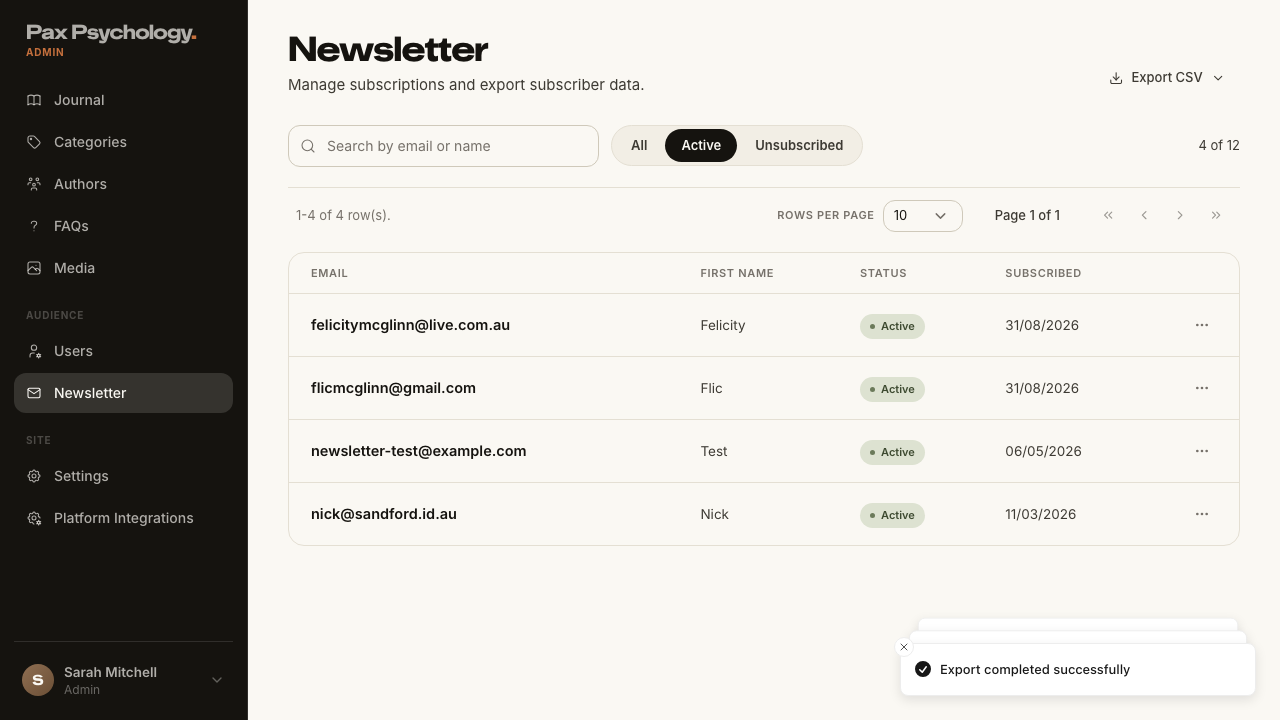
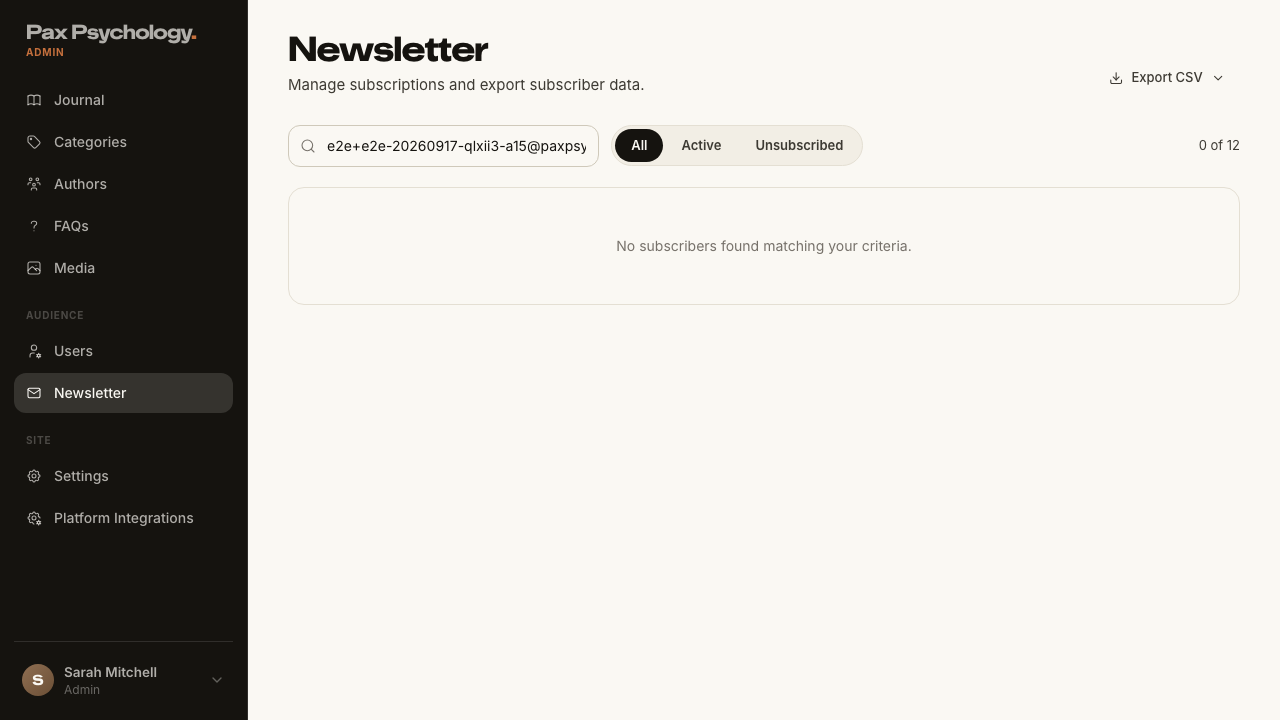
PassedTC-A-15Toggle a subscriber's status and delete a subscriber13.0s
- Setup: subscribe from the public /journal newsletter strip
- 1. Open the "⋯" menu on an active subscriber's row
- 2. Click "Mark Unsubscribed"
- 3. Reopen the menu on the same row and click "Reactivate"
- 4. Open the menu again and click "Delete", then confirm
3E. Journal CMS (new)
3 passed 3 failed
FailedTC-A-16Create, edit and publish a journal article3.4s
- 1. Navigate to https://paxpsychology.dev/dashboard/journal — failed
Error: expect(locator).toBeVisible() failed

Locator: getByText(/\d+ articles? · \d+ published · \d+ drafts?/)
Expected: visible
Error: strict mode violation: getByText(/\d+ articles? · \d+ published · \d+ drafts?/) resolved to 2 elements:
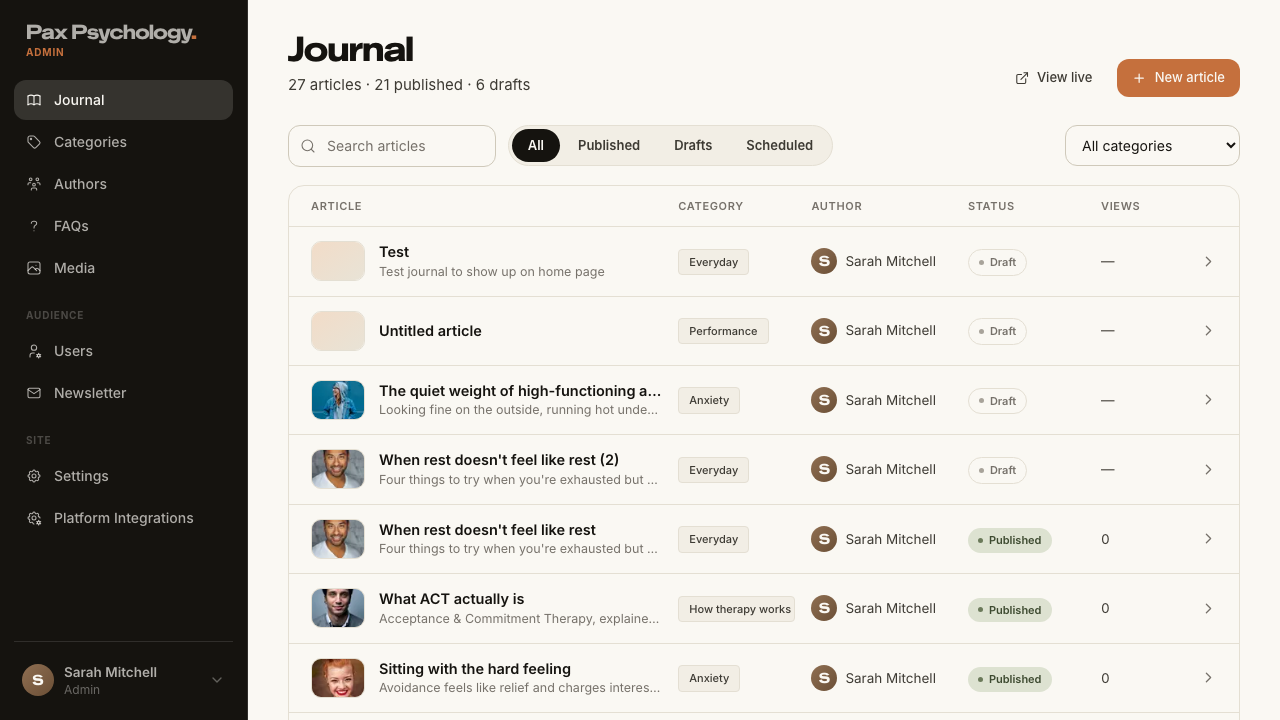
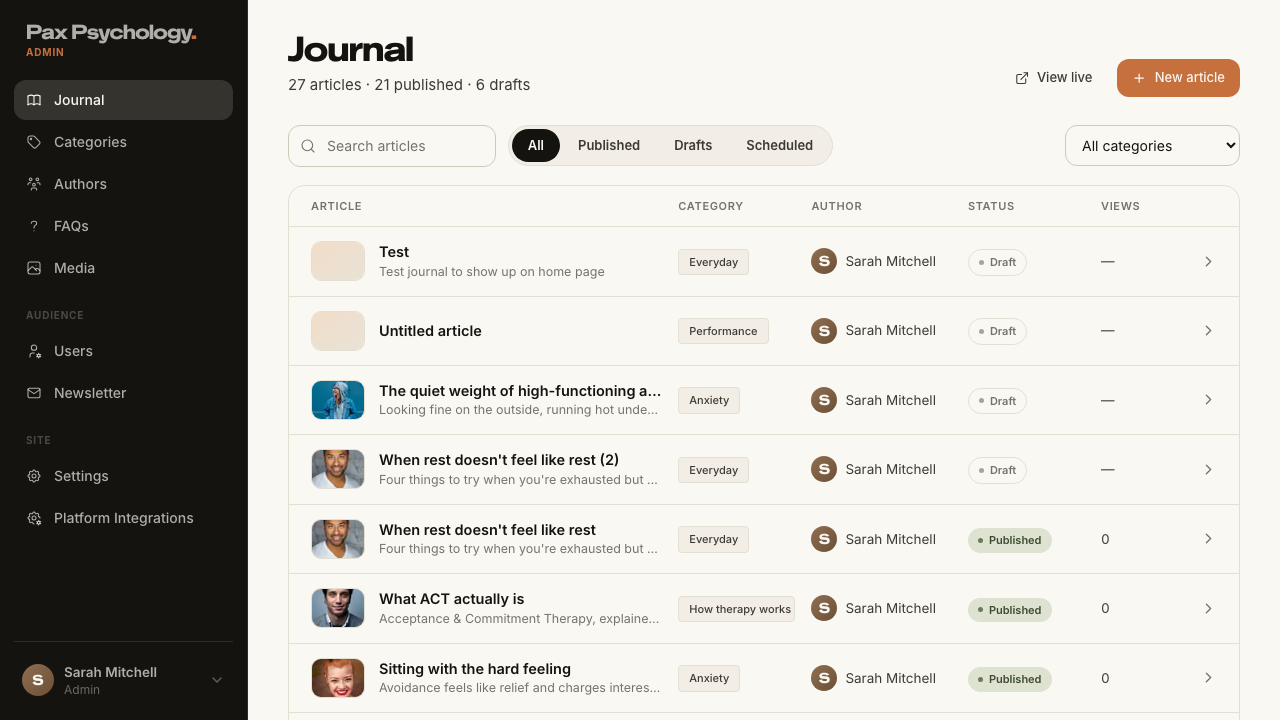
    1) <div class="text-ink-2 text-[15px]">…</div> aka getByRole('main').getByText('articles · 21 published · 6 drafts')
    2) <div class="text-ink-2 text-[15px]">…</div> aka getByText('articles · 21 published · 6 drafts').nth(1)

Call log:
  - Expect "toBeVisible" with timeout 5000ms
  - waiting for getByText(/\d+ articles? · \d+ published · \d+ drafts?/)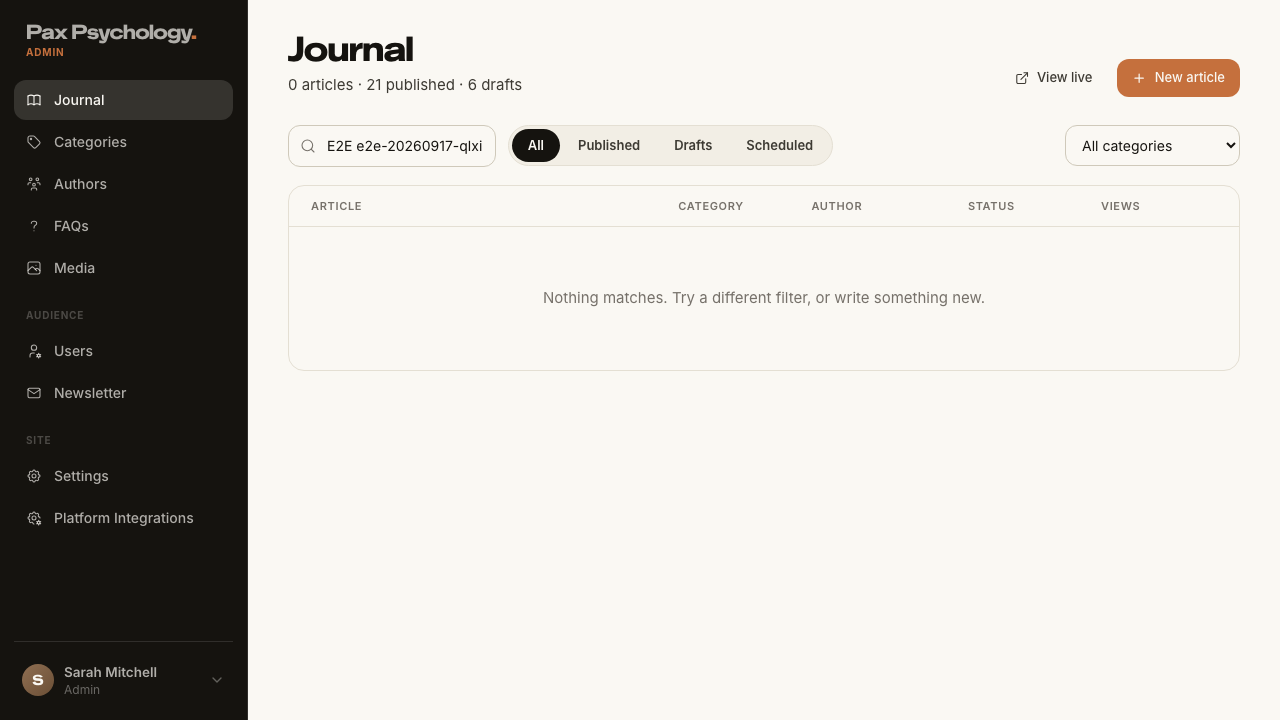
PassedTC-A-17Journal status radio and scheduled articles12.8s
- Setup: write a draft article to schedule
- 1. Open the article and look at the "Publish" card in the right-hand sidebar
- 2. Select "Scheduled", set a "Goes live" date/time in the near past, and save
- 3. Wait past that time and reload /journal
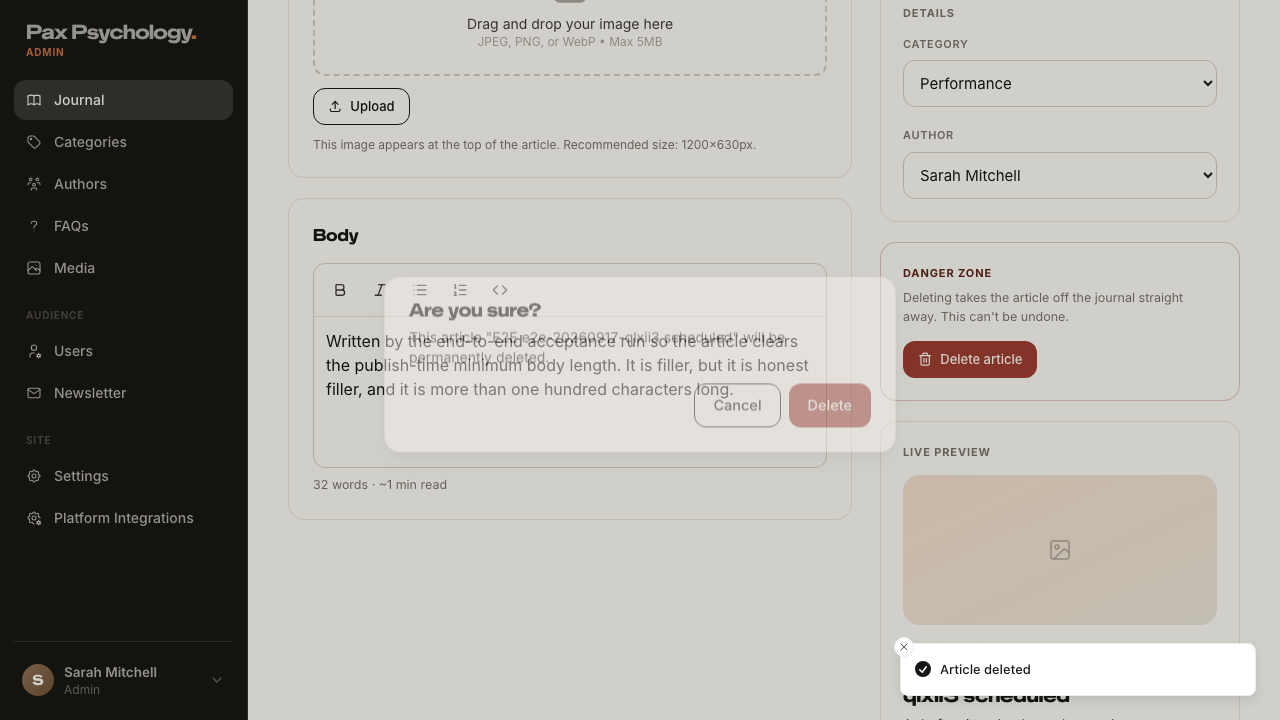
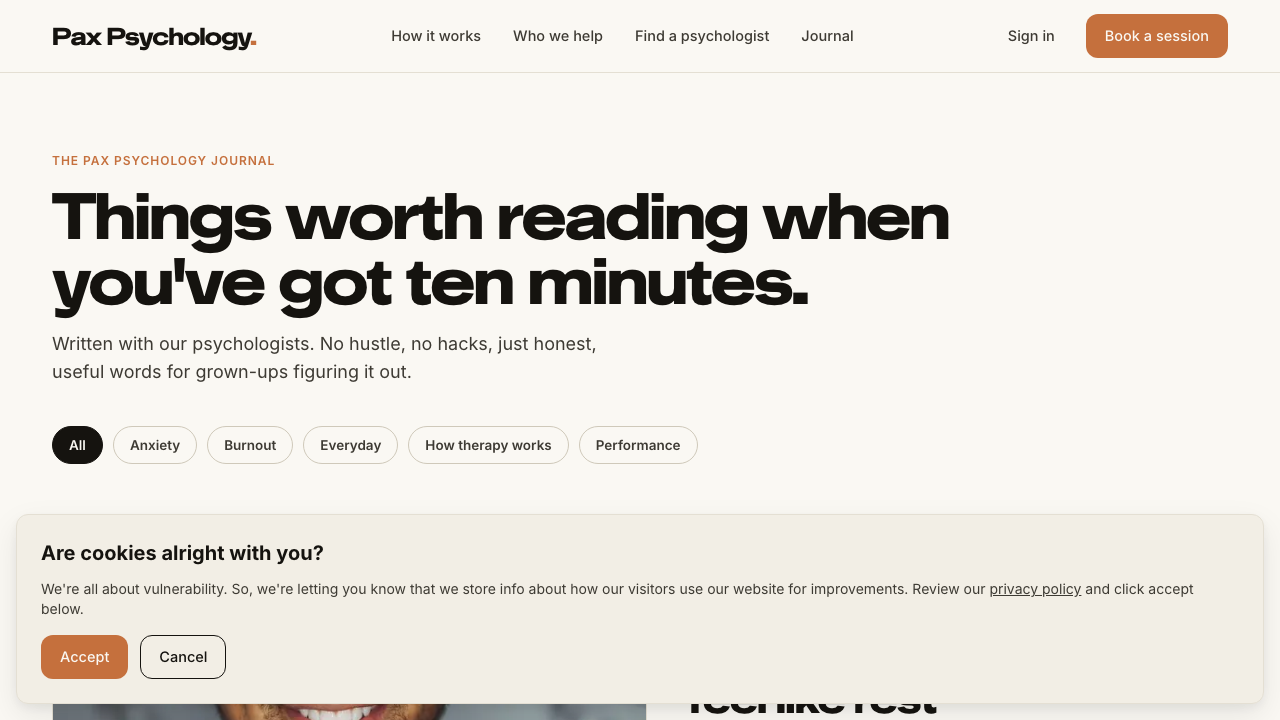
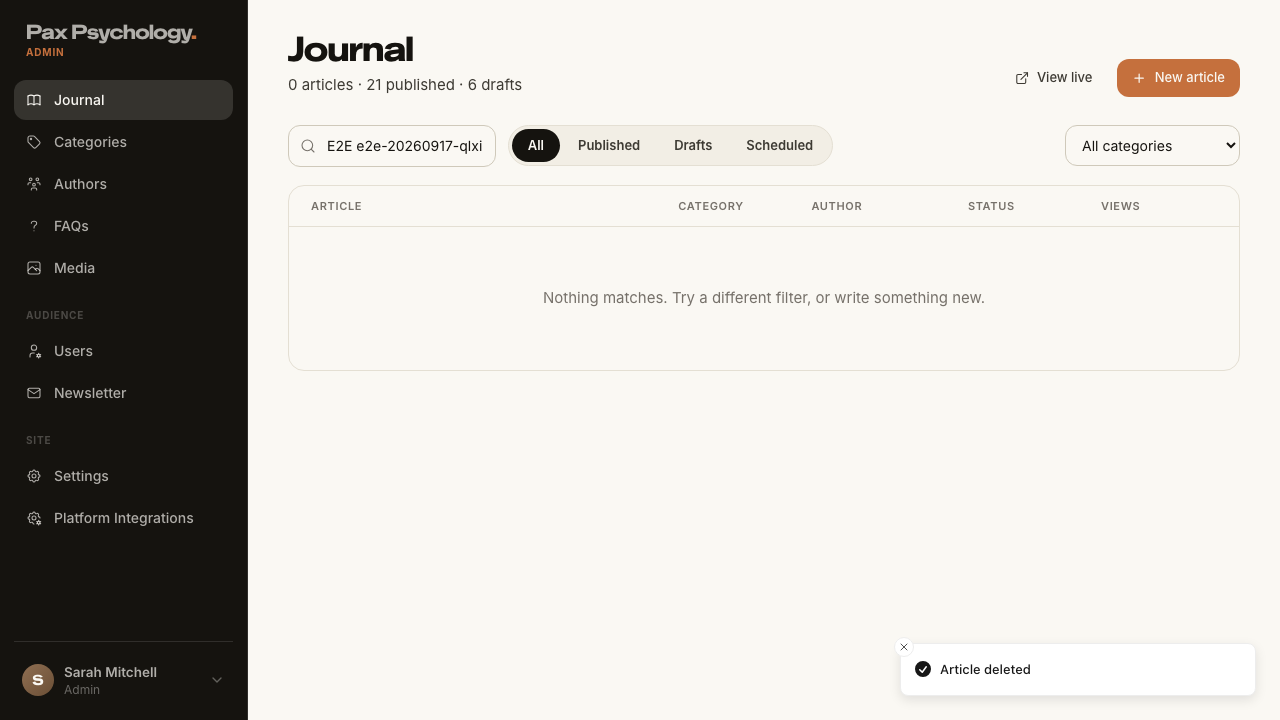
PassedTC-A-18Delete a journal article9.4s
- Setup: publish an article that can be discarded
- 1. Open the article and scroll to the "Danger zone" card
- 2. Click "Delete article" and confirm
- Expected: the article disappears from /journal immediately
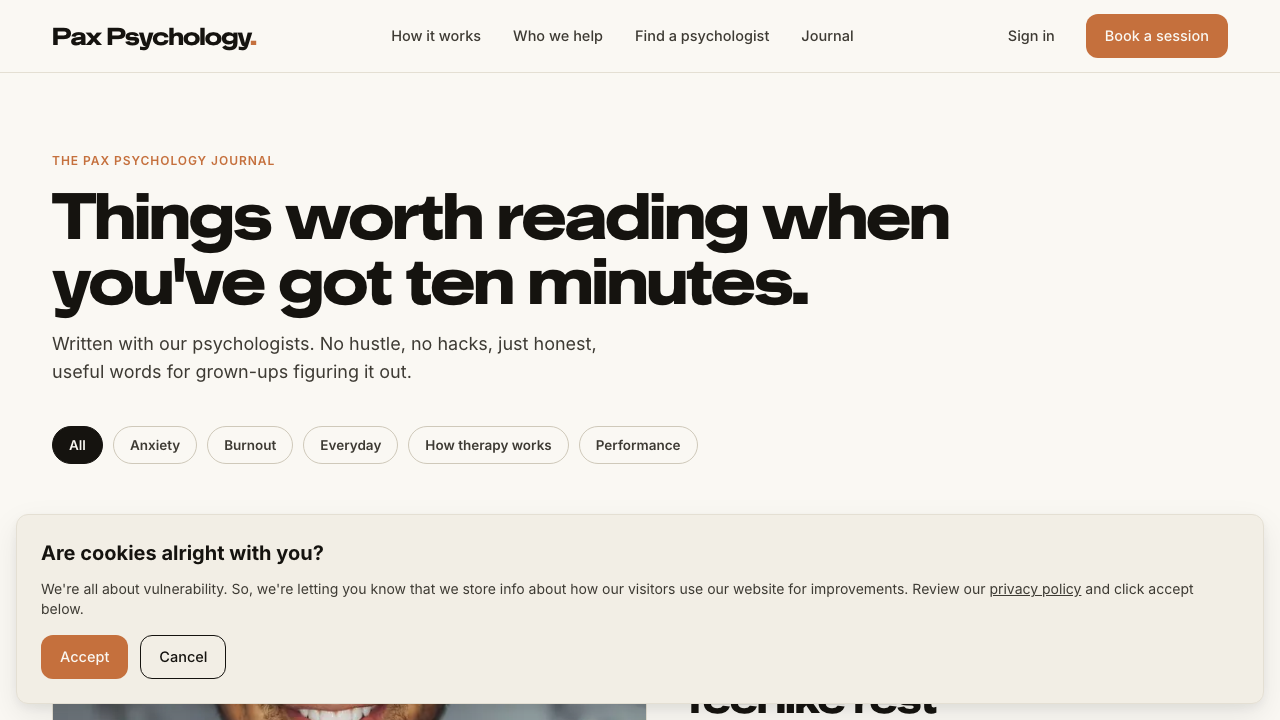
FailedTC-A-19Categories, Authors and Media (new)2.4s
- 1. Navigate to /dashboard/categories, add a category, edit it, then delete it — failed
Error: expect(locator).toBeVisible() failed

Locator: getByText(/\d+ categor(y|ies) across the journal/)
Expected: visible
Error: strict mode violation: getByText(/\d+ categor(y|ies) across the journal/) resolved to 2 elements:
    1) <div class="text-ink-2 text-[15px]">5 categories across the journal</div> aka getByRole('main').getByText('categories across the journal')
    2) <div class="text-ink-2 text-[15px]">…</div> aka getByText('categories across the journal').nth(1)

Call log:
  - Expect "toBeVisible" with timeout 30000ms
  - waiting for getByText(/\d+ categor(y|ies) across the journal/)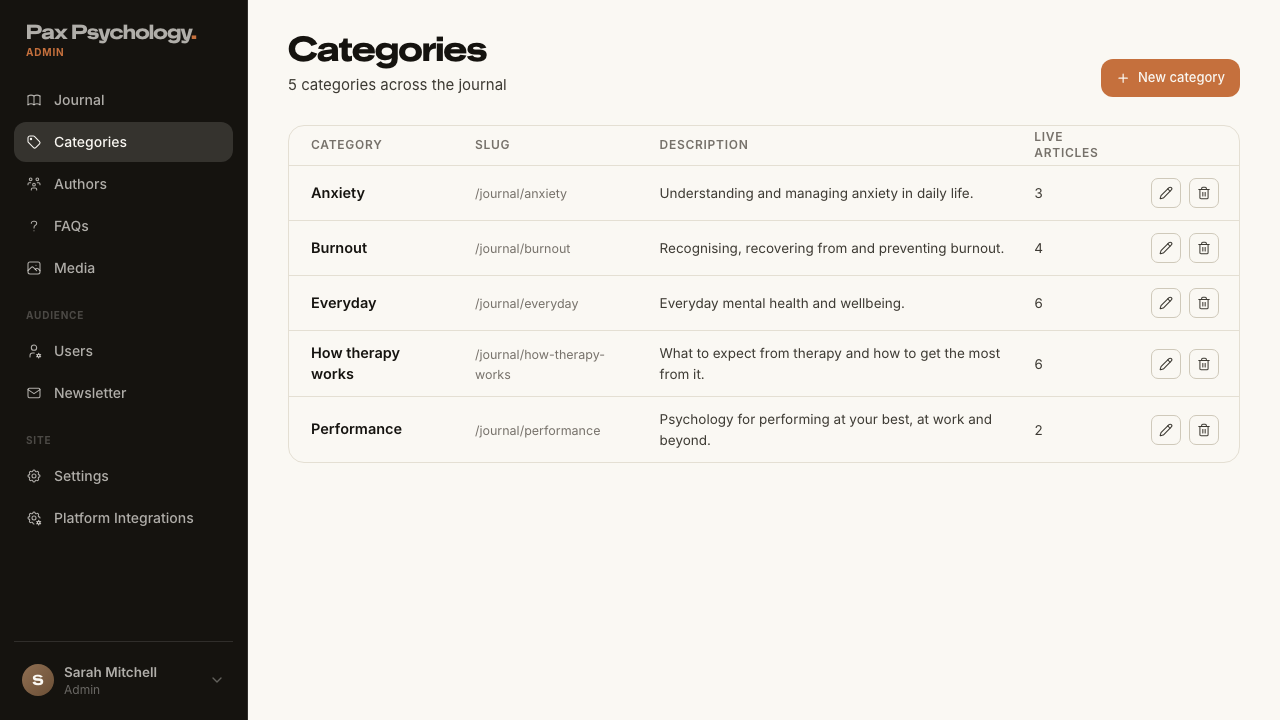
FailedTC-A-20Admin settings and platform integrations (new)8.1s
- 1. Navigate to https://paxpsychology.dev/dashboard/settings
- 2. Step through each section in the left nav
- 3. Open /dashboard/settings/integrations — failed
Error: expect(locator).toBeVisible() failed

Locator: getByText('Manage all platform-wide integrations and configurations')
Expected: visible
Error: strict mode violation: getByText('Manage all platform-wide integrations and configurations') resolved to 2 elements:
    1) <p class="text-ink-3">Manage all platform-wide integrations and configu…</p> aka getByRole('main').getByText('Manage all platform-wide')
    2) <p class="text-ink-3">Manage all platform-wide integrations and configu…</p> aka getByText('Manage all platform-wide').nth(1)

Call log:
  - Expect "toBeVisible" with timeout 5000ms
  - waiting for getByText('Manage all platform-wide integrations and configurations')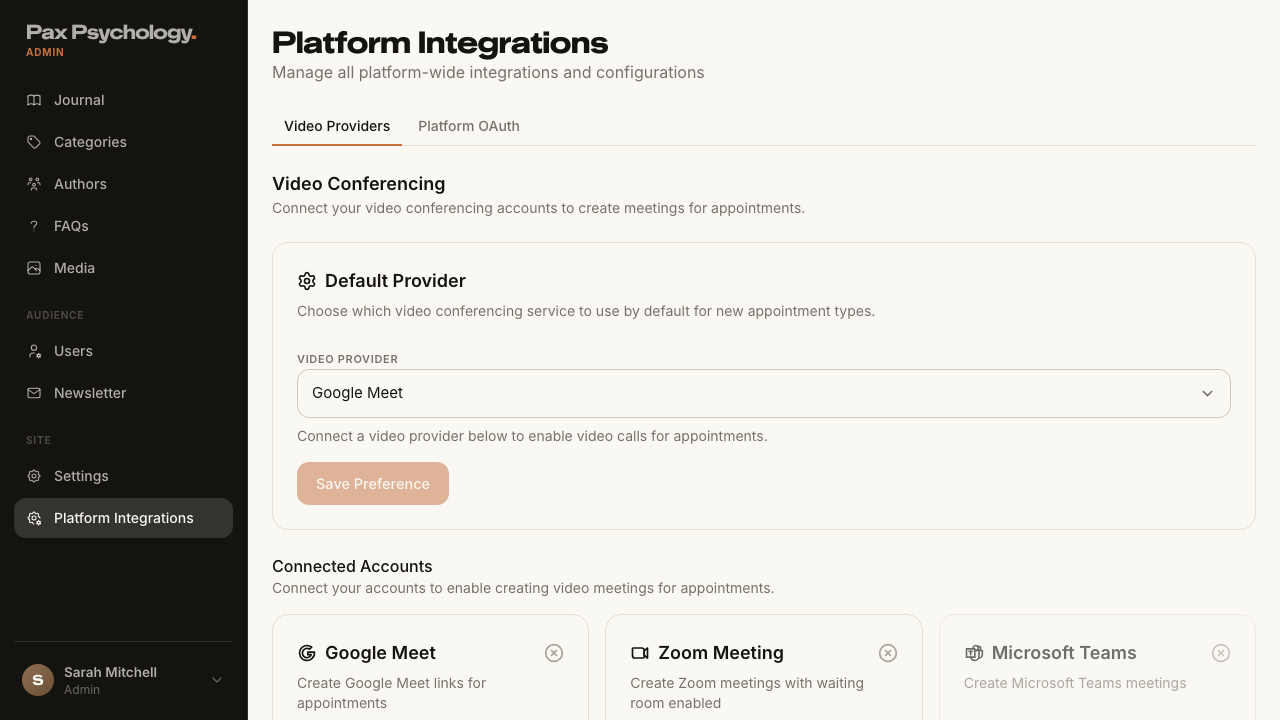
PassedTC-A-21Retired dashboard URLs redirect (new)7.2s
- Setup: pick a real article id for the /dashboard/blog/<id> row
- Visit each retired URL and note where you land